With Goals in TORSH Talent, Admins and Coaches have access to the Delivering Coaching experience on their Goals Hub page!
As a Coach, this will be your primary view for displaying goals you author for other users. Through this view, you can author new goals for mentees and access a variety of tools to better track goal progress for your assigned mentees.

NOTE: With Delivering coaching, you also have access to the Receiving Coaching tab view, as well.
Contents:
Goals Hub
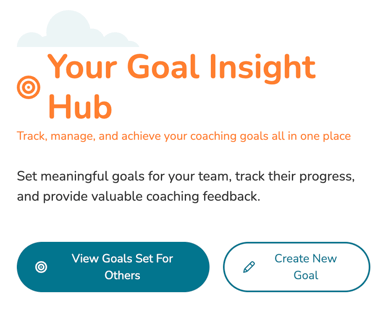
From the Delivering Coaching view, your Hub page will display a 'Your Goal Insight' view, wherein you can quickly route yourself to:
- View Goals Set For Others - routes you to the 'Goals Set For Others' tab.
- Create New Goal - routes you to author a new goal.
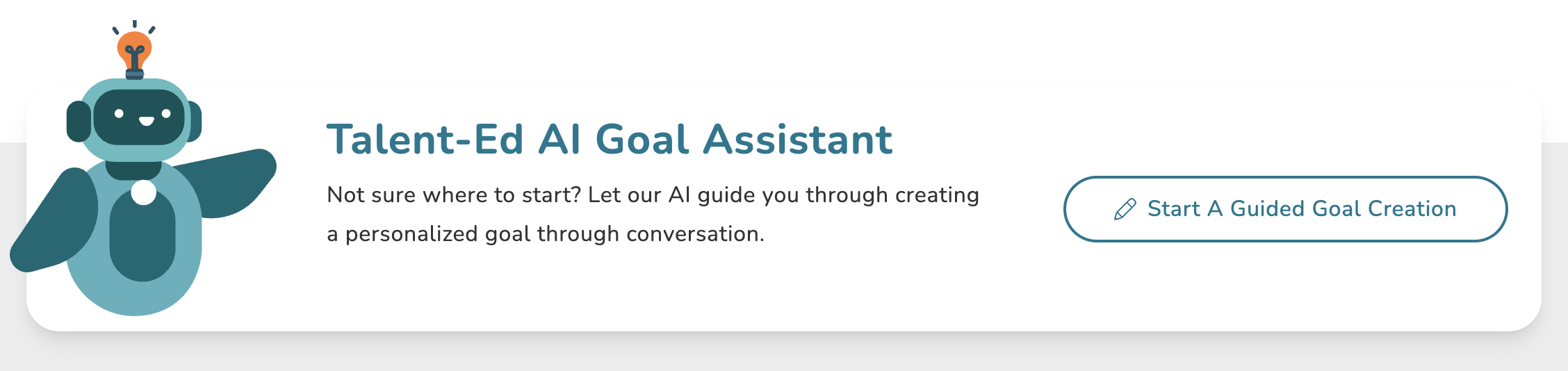
If you have access to our Goals AI Assistant add-on, you will also have an AI assistant from this view wherein you can walkthrough authoring a new goal via the AI assistant.
Further down this page, you can quickly view your:
- Goals Set For Others
- Recent Goals Shared By Me
- Recent Goals Shared With Me
My Goals
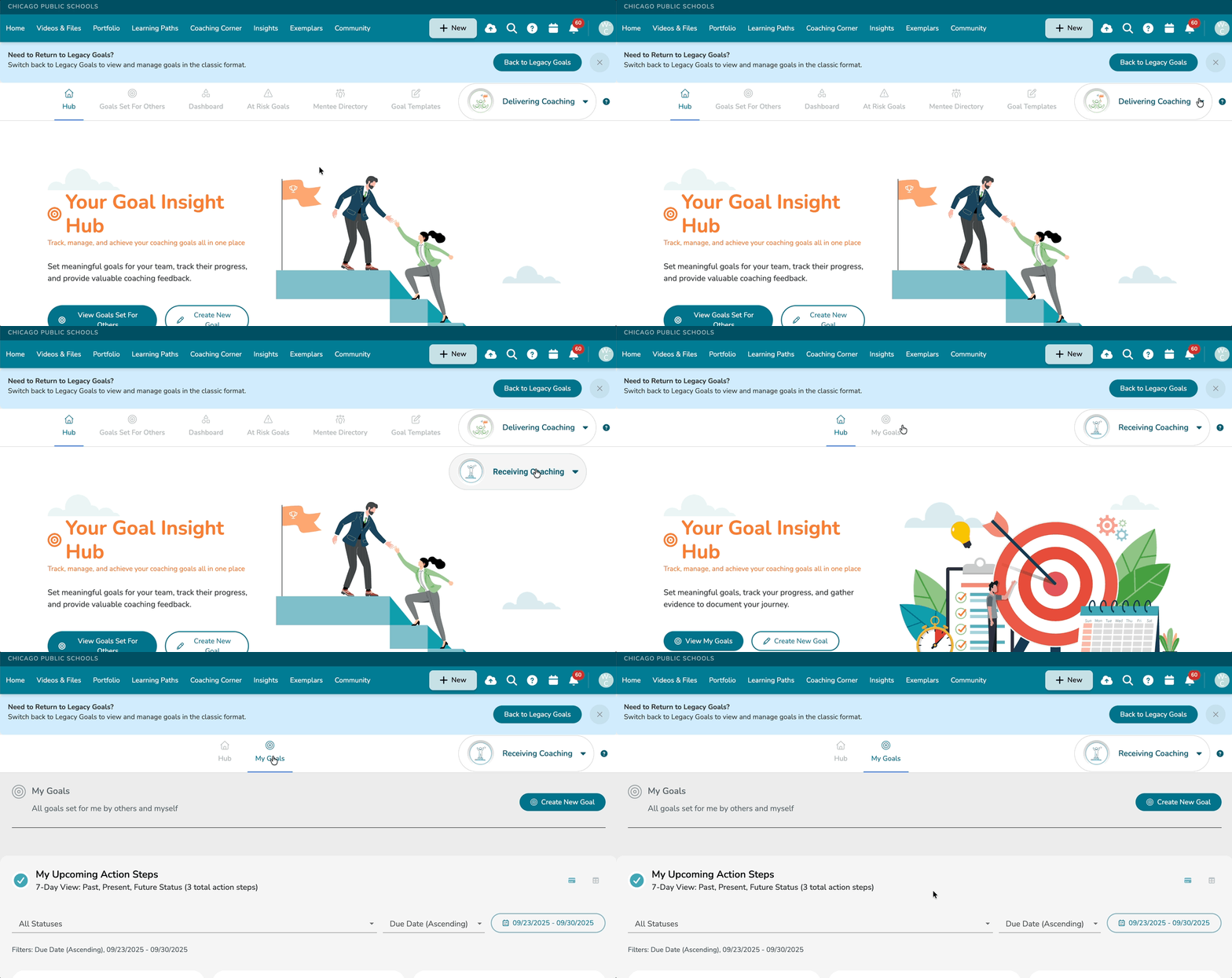
If you have access to Delivering Coaching and wish to view goals assigned for you, simply click on the 'Delivering Coaching' button. This will display the option to switch to your other Coaching Mode experiences. Click 'Receiving Coaching.'
From here, click on the 'My Goals' tab, and you will be brought to a page displaying all of your assigned goals.
Goals Set For Others
Your Goals Set For Others tab from a Delivering Coaching view will display all goals created by you for other users in your group(s) and/or assignment(s). At the top of this page, you can click the 'Create New Goal' button to create a goal.

Learn more about creating a goal here .
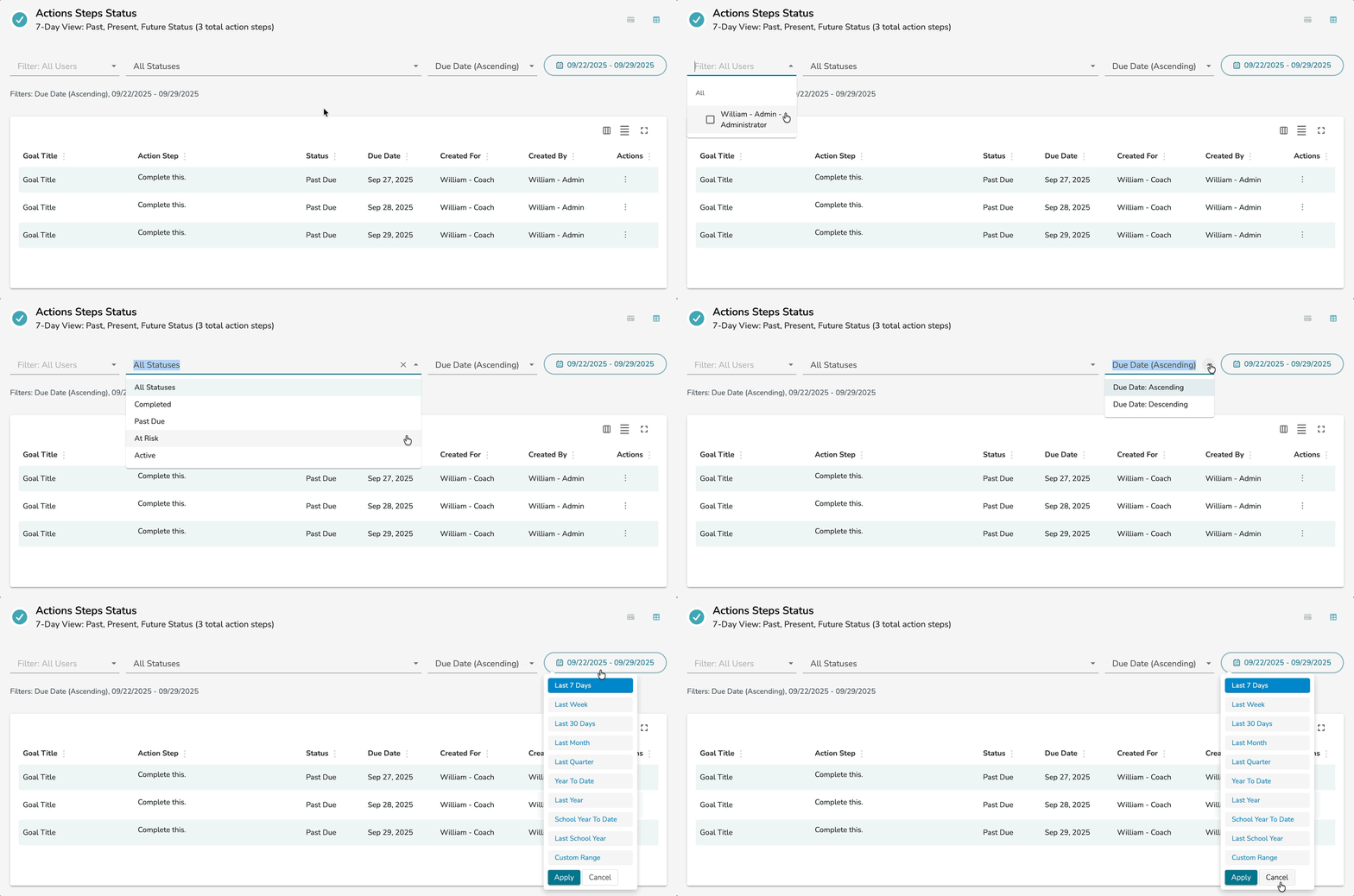
Near the top of this page, you will find a table for all Actions Steps Status. This table displays a 7-day view of all upcoming Action Steps in your created goals. Here you can filter the displayed action steps by Assigned User, Action Step Status, and Start/End Date Range.
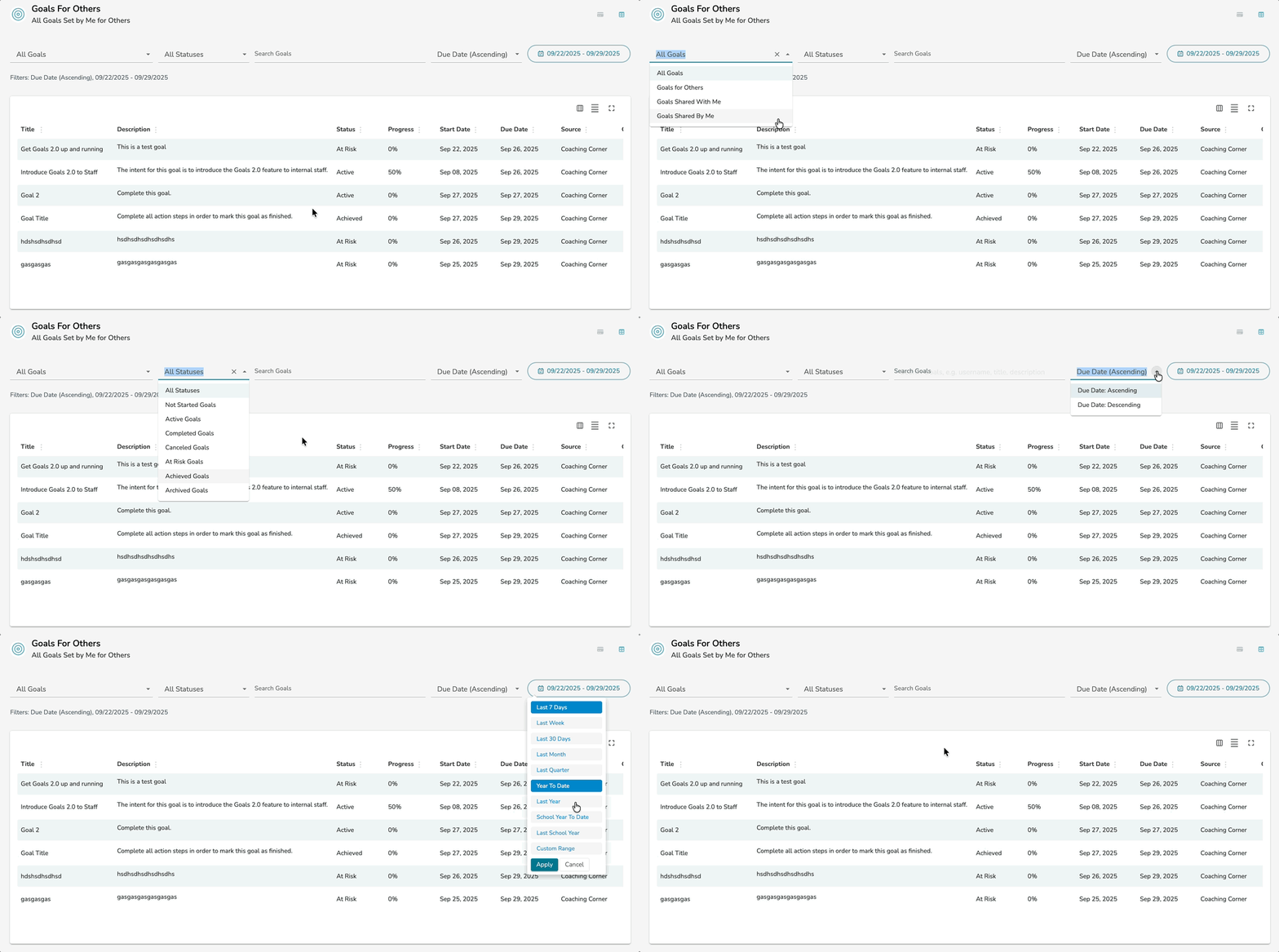
Further down the page you can view the Goals For Others table, which displays all goals you have authored for others, and filter and sort based on Goal Assignment, Goal Status, Keywords, and Start/End Date Range.
Dashboard
Your Dashboard from a Delivering Coaching view will display a variety of analytical charts and graphs via dashboard widgets. These dashboard widgets are intrinsically linked to the mentees assigned to you via the Coaching Assignments feature in your system.
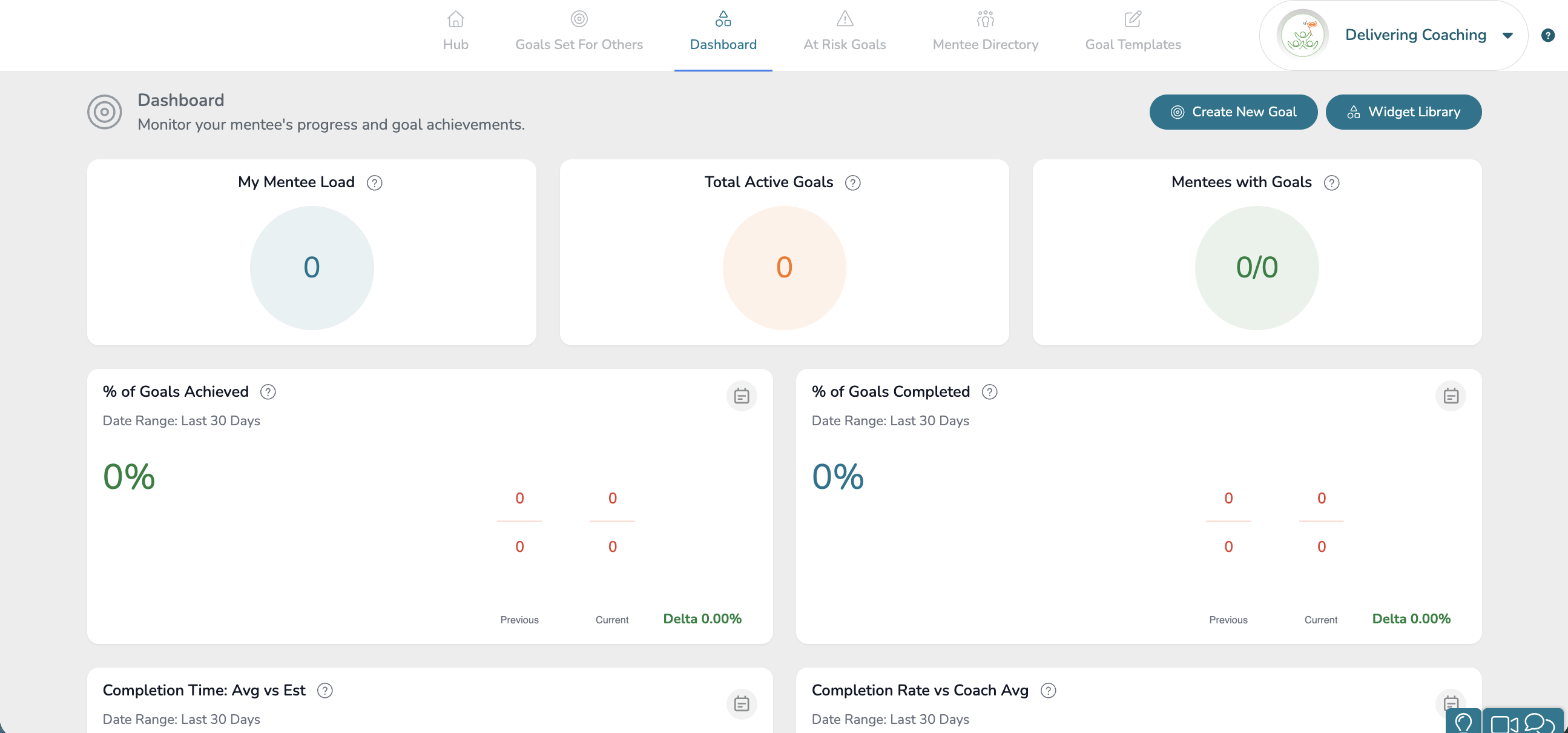
NOTE: If you do not have any Coaching Assignments in place, then this tab will not display any data. Coaching Assignments are necessary to have in place in order for this data to display.
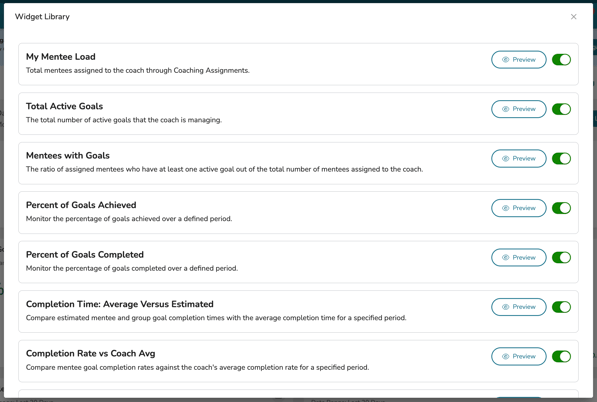
You can quickly modify what dashboard widgets appear via the 'Widget Library' button in the top, right-hand corner of this page.

Clicking this button will display a list of all dashboard widgets on this page. Simply click on the associated toggles to choose what displays on this Dashboard page.
Dashboard Widgets:
- My Mentee Load - Total mentees assigned to the coach through Coaching Assignments.
- Total Active Goals - The total number of active goals that the coach is managing.
- Mentees with Goals - The ratio of assigned mentees who have at least one active goal out of the total number of mentees assigned to the coach.
- Percent of Goals Achieved - Monitor the percentage of goals achieved over a defined period.
- Percent of Goals Completed - Monitor the percentage of goals completed over a defined period.
- Completion Time: Average Versus Estimated - Compare estimated mentee and group goal completion times with the average completion time for a specified period.
- Completion Rate vs Coach Average - Compare mentee goal completion rates against the coach's average complete rate for a specified period.
- At Risk Goals - The number of at-risk goals per mentee or group within a specified timeframe.
- Mentee Goal Progress - Monitor mentee goal progress by tracking the number of goals completed, achieved, and in-progress, and by monitoring the overall percentage of goal completion.
- Top Focus Tags - Track the usage of top focus tags across goals you manage for a specified period.
At Risk Goals
From a Delivering Coaching view, you can view all At Risk Goals for goals you have authored and assigned to mentees in your group(s) and assignment(s). The goals that display on this page have an 'At Risk' status, meaning they are approaching their due date without being fully completed.
You can quickly display whether or not these goals display as a list or as thumbnails via the view options in the top, right-hand corner of this list.
You can even filter these displayed goals by the user(s) associated via the Search Filter dropdown on the left side of the table.
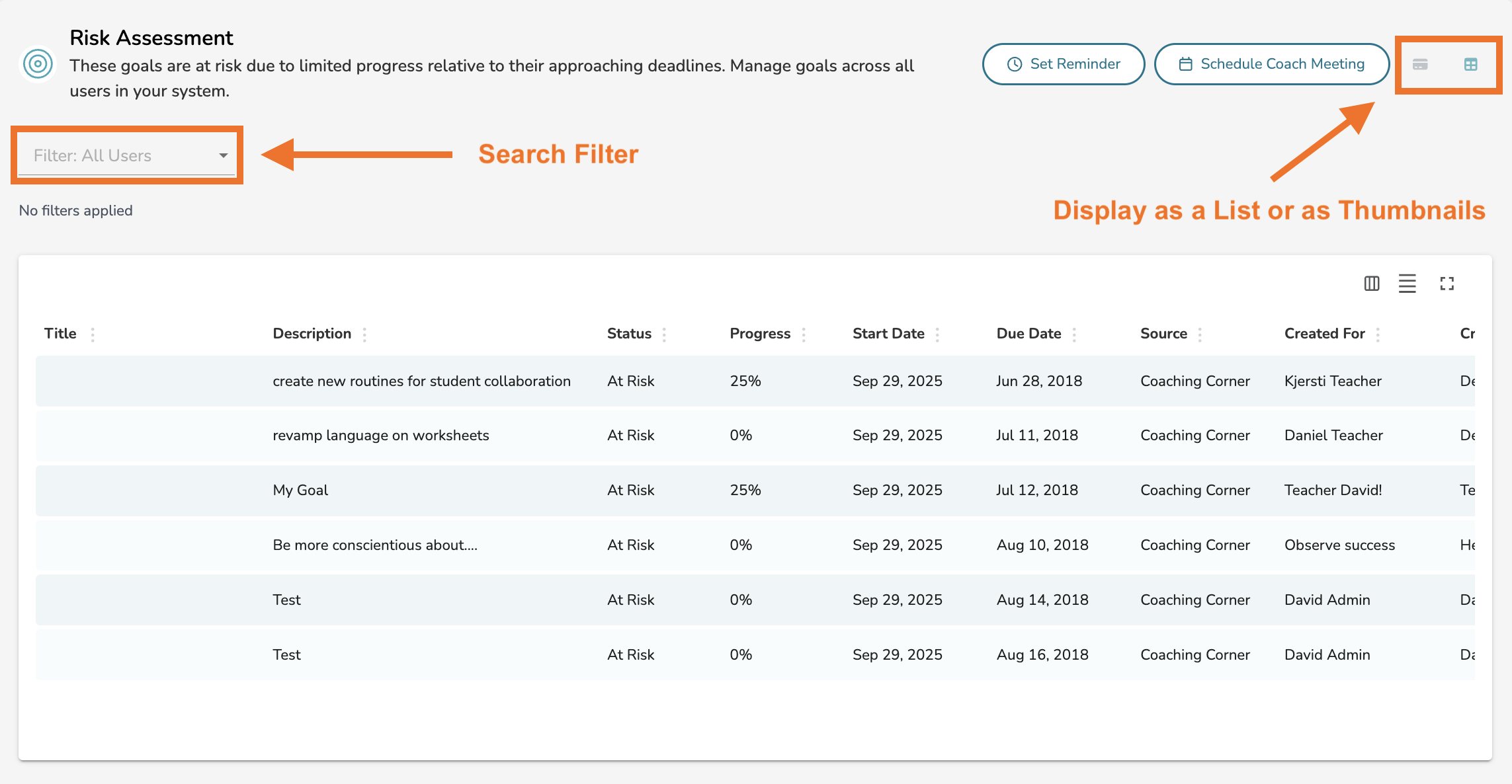
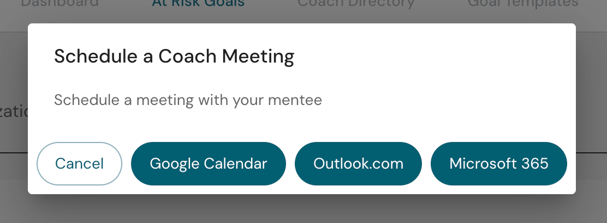
Lastly, you can even schedule reminders or schedule meetings via your external calendar tools (ie Google Calendar, Outlook Calendar) via the 'Set Reminder' button or the 'Schedule Coach Meeting' button. Doing so will load the external calendar of your choice, wherein you can create an event and either set a reminder or schedule a virtual meeting with a mentee in your organization.

-
For scheduling with Google Calendar, choose the 'Google Calendar' option.
-
For scheduling with your personal Outlook account, choose the 'Outlook.com' option.
-
For scheduling with your work/school Outlook account, choose the 'Microsoft 365' option.
Mentee Directory
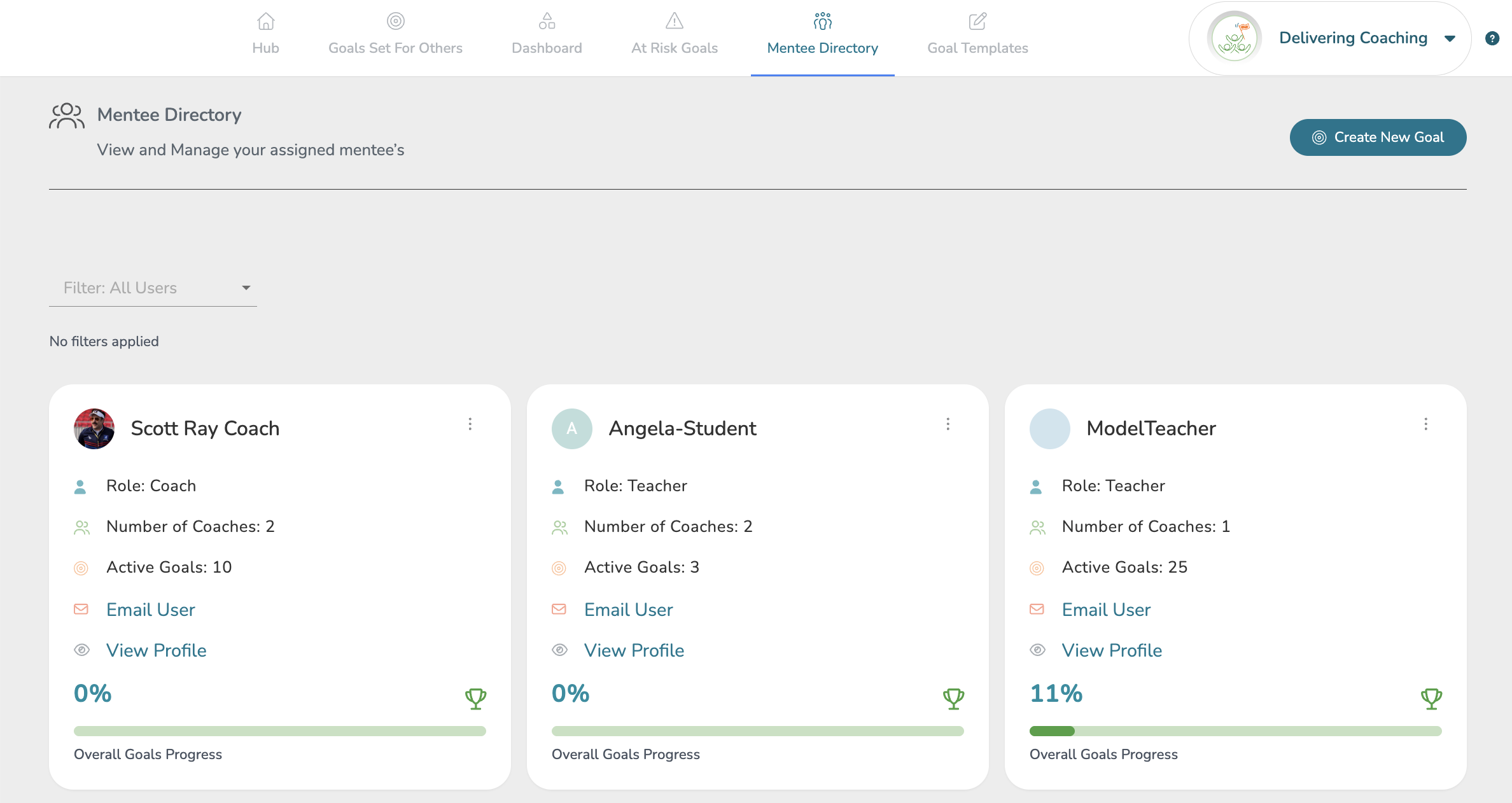
From a Delivering Coaching view, you can also access your Mentee Directory. This page displays all users assigned to you via your active Coaching Assignment(s).
- Number of Coaches
- Active Goals
- Options to email the user and view their profile in Talent
Goal Templates
Lastly, you can also view all active Goal Templates within your system from the Delivering Coaching view. These templates offer ready-made goal structures to help coaches and mentees build their goals from. To create a new goal template from this page, click the 'Create New Template' button in the top, right-hand corner.
To learn more about authoring Goal Templates, read this Help Center article here .
Each goal template displayed here will appear on this page as a card with its:
- Time Estimate for goal completion
- Action Steps count
- Usage Count for the usage of the template
- Resources count for the template
You can click the 'Preview' button to gain a quick preview of how the goal template appears as a regular goal when a user opens it.

You can click the 'Use Template' button to create a goal based directly on the specific goal template you chose. To learn more about authoring Goal Templates, read this Help Center article here.

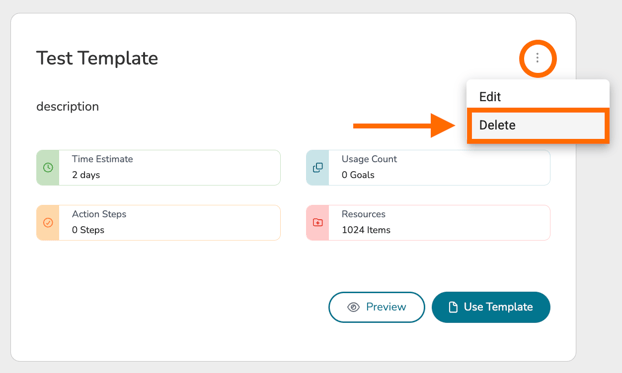
To modify a goal template, click on its '...' icon and select 'Edit.' From there, you will be able to modify the goal template like a regular goal.
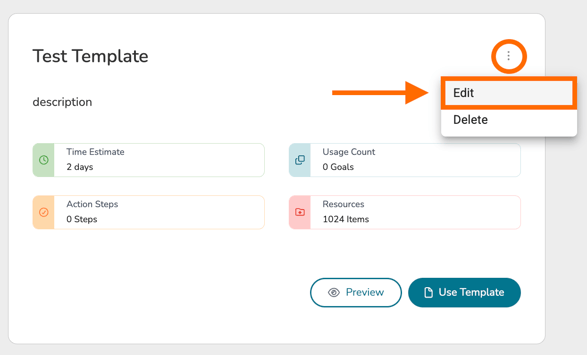
To delete a goal template, click on its '...' icon and select 'Delete.' Doing so will delete the template from being used in your system.