
We are excited to have you join our community of educators and we look forward to supporting your journey of professional learning!
Here are the steps you needed to start using TORSH Talent:
Before you can access TORSH Talent, you must first receive an email invitation from your organization’s TORSH Talent administrator (this is the person at your organization who is responsible for managing your organization’s version of TORSH Talent). The email will contain a link that will take you to the page where you can sign up for TORSH Talent. If you don’t have this email, please contact your administrator and request an invitation.
The link in the invitation email will take you to a signup page where you will be prompted to enter your full name and create a password to log in to TORSH Talent. After completing your sign up, you will automatically be redirected to your TORSH Talent account.
When you first log in to TORSH Talent, you’ll be taken on a guided tour of the Talent platform. This tour will provide an overview of the major features of Talent. If you’d like to take the tour again later, you can always access it by clicking on your name in the upper right-hand corner, then go to Account Settings, and click ‘Take the Tour’.
When you log into your TORSH Talent account for the first time, you’ll receive a welcome email from TORSH Talent that contains a host of helpful information including how to download the TORSH Talent mobile app. We’ll also explain how to download the app here.
Uploading Video with a Mobile Device
If you are using another recording device to capture video, you can skip to the next section.
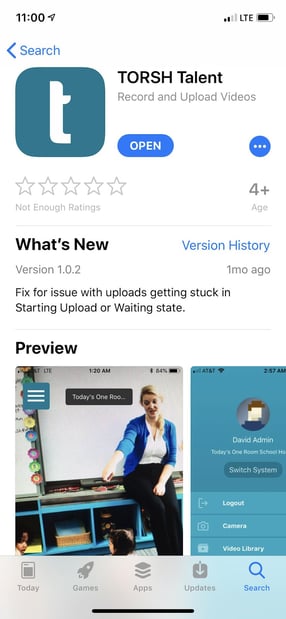
STEP 1: Download the TORSH Talent Mobile App:
Go to the Apple App Store or the Google Play Store
on your smart device and search for TORSH Talent, then download the app to your device.
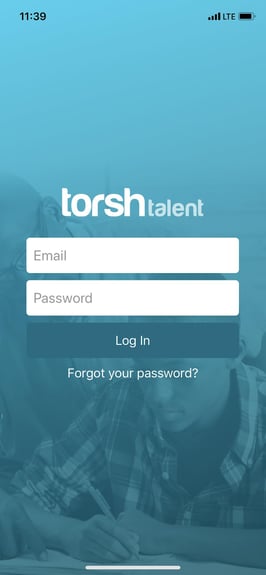
STEP 2: Logging In
The first time you access the TORSH Talent Mobile Application, you will be prompted to log in. Your login information will be the same one you use for the TORSH Talent web application.
Unless you log out of the application, you will not be prompted to log in again. For users who are using shared devices, we suggest intentionally logging out after each use, so you are only accessing the video and files associated with your account. If you forget to log out, the next user may unintentionally upload videos to your account.
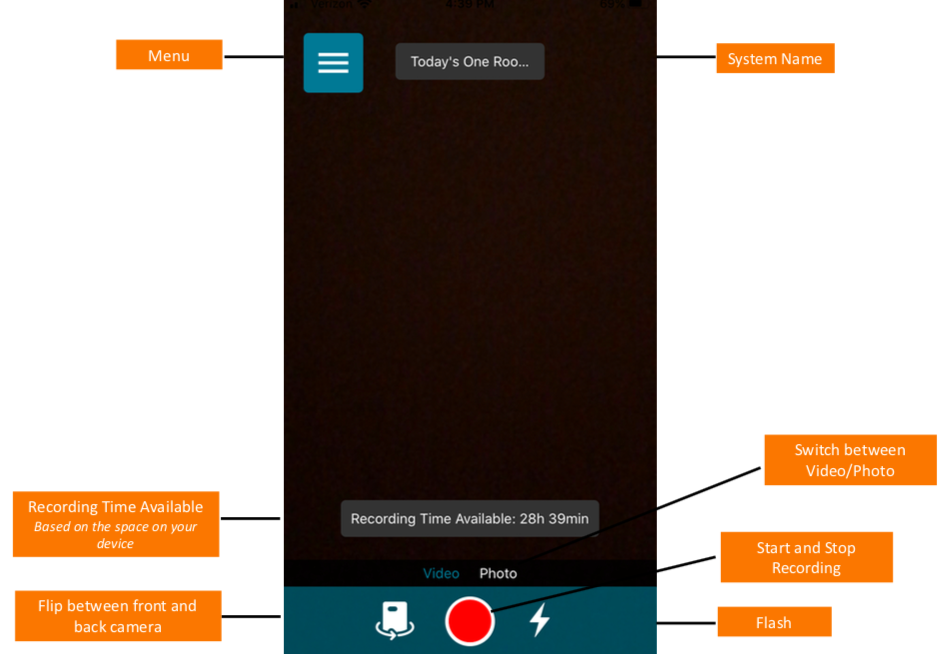
STEP 3: Using the TORSH Talent Mobile App
To access the camera view, tap ‘Camera’ from the menu. If you want to capture a wide-screen view, make sure you rotate your device before recording. To start and stop your recording, press the red record button.
NOTE: The first time you log in to the mobile application, you will need to give the app permission to access your camera and microphone. If your videos are not capturing audio or video, check your phone’s permission settings.
If you are logged in, connected to WiFi, and have Automatic Uploads turned on, the video or photo captured will start uploading automatically. You will notice the ‘Recording Time Available’ above the red record button. This is based on the amount of space available on your device. If you need more recording time, delete old photos, videos and apps to make more space. You can record new videos or take more photos while existing videos/photos are being uploaded in the background. After your video/file is uploaded, you can view your uploaded video/file from the ‘Videos & Files’ page on both the mobile and web applications.
Uploading Videos & Files Via the Website
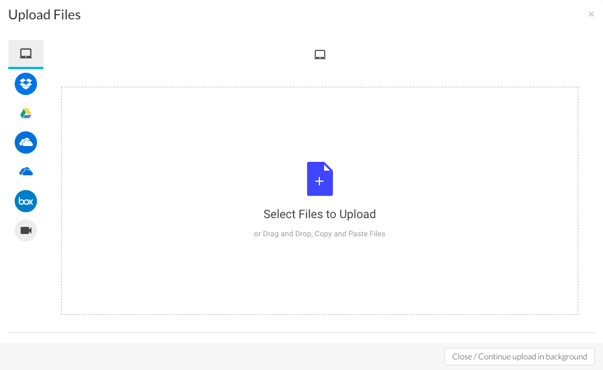
Just because you don’t have an iOS or Android device doesn’t mean you can’t upload video to Talent and use all of the useful features of the platform.
It just means that you will have to manually upload any video that you want to store on the platform. To manually upload videos directly to Talent, login and click on the large blue button on the top right of the page that says ‘Upload’. Click on this button and it will present you with a number of upload options, such as upload from your computer, Dropbox, Google Drive, etc. You can upload one video or multiple videos. After the upload starts, you can close the upload window and continue to work on other things in TORSH Talent while your upload(s) completes in the background.
You can also record videos on your desktop or laptop as long as you have a webcam or built-in camera. Select the ‘Record Video’ option at the bottom of the upload window. Your webcam will turn on and you will see yourself on your screen. Click the blue record button beneath the recording screen to start recording and then click the stop button when you are finished. Don’t forget to click ‘Upload’ to ensure your video is uploaded to TORSH Talent.
NOTE: We only recommend using this tool if you have a strong internet connection! The video is not saved until the recording is finished, so if the internet drops, the video will be lost.
After you have uploaded your videos, you can view them on the ‘Videos & Files’ page in both the mobile (if online) and web applications. On the Videos & Files page, you will be able to see all videos you have uploaded and any videos other users have shared with you.
Now that your TORSH Talent account is fully set up, you’re ready to start capturing video and tapping into the power of Talent.
But remember, videos are always private to you until they are shared!
Help Center and Support
Having trouble with uploading videos? Check out our Help Center for solutions.
Our Help Center contains all of our help articles and troubleshooting materials, separated by role and feature type, as well as video tutorials that show you how to use the different features of TORSH Talent.
You can also search the top of our help page to find exactly what you are looking for. We hope that you’ll take a few minutes to watch some of these videos and review our Help Center as our resources will help you to unlock and effectively use all of the great features that TORSH Talent has to offer.
We’re glad you’ve decided to use TORSH Talent to capture, store and manage videos of your practice. We look forward to helping you improve, and should you have any questions, just reach out to us by clicking the '?' icon found in the top, right-hand corner of your TORSH Talent webpage and selecting ‘Contact Support.' Or feel free to email us at support@torsh.co