
When a student account in Canvas submits a video/file to a TORSH Talent integrated assignment, the instructor of the assignment can view the submission via SpeedGrader. Submitting an artifact through the Talent integration does not share the item. Instead, it allows the instructor's account to have view access.
Sharing an Artifact Manually
The instructor can observe a video submission either through Talent or Canvas and grade the submission, but they do not have Share privileges. To allow an instructor to have share privileges to a specific artifact, the student can choose to manually 'Share' the artifact with their instructor in Talent.
To share a video/file on TORSH Talent, the student must navigate to their Videos & Files page by clicking 'Videos & Files' in their top navigation bar within Talent.
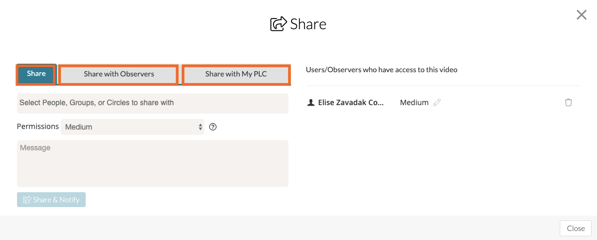
Next, they must find the specific video/file they would like to share and hover over its 'gear icon.' A dropdown list will appear. In the dropdown list, the can click 'Share.' This will generate a Share pop-up window.
Sharing via Assignment Submission
When an artifact is submitted to a Talent-integrated assignment in Canvas, the instructor of the course then has 'View' access to the file, even though the file is not technically shared.
If an instructor has view access to an artifact within Talent via SpeedGrader, they can perform an observation by clicking 'Start Observation.' Once the instructor clicks 'Publish' the artifact will automatically be shared with the instructor. Because observations can only be completed on shared items within Talent, Talent immediately makes the link and shares the artifact with the instructor, granting them view and share access to the artifact.