
Along with leaving a Time-Synced Comment on videos, you can also leave time-synced Rubric Tags. Rubric tags utilize the Domains and Dimensions of your rubric templates, and they can be a great way to check off the progress others are making to meet their goals.
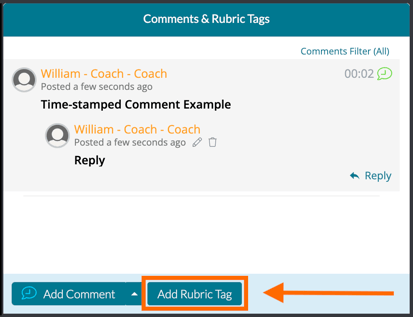
To add a rubric tag to a video, navigate to the comment box beside the video and then click 'Add Rubric Tag.'
Next, select a rubric from the dropdown menu.
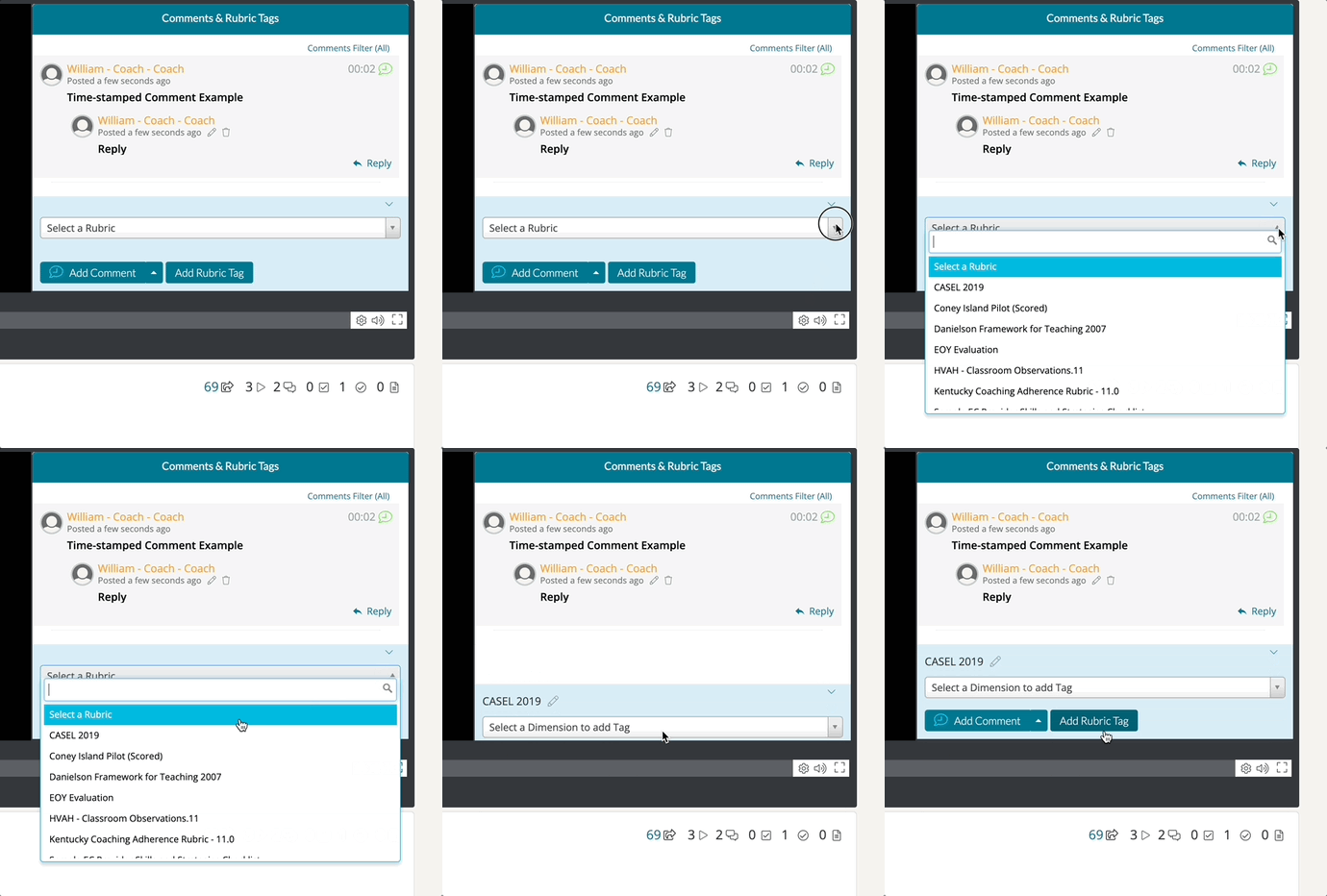
Once you have selected the rubric you would like to tag from, click 'Select a Dimension to Add a Tag.' This will generate a dropdown list of all of the associated text columns (or dimensions) found on the rubric. Click on the dimension best suited for your tag.
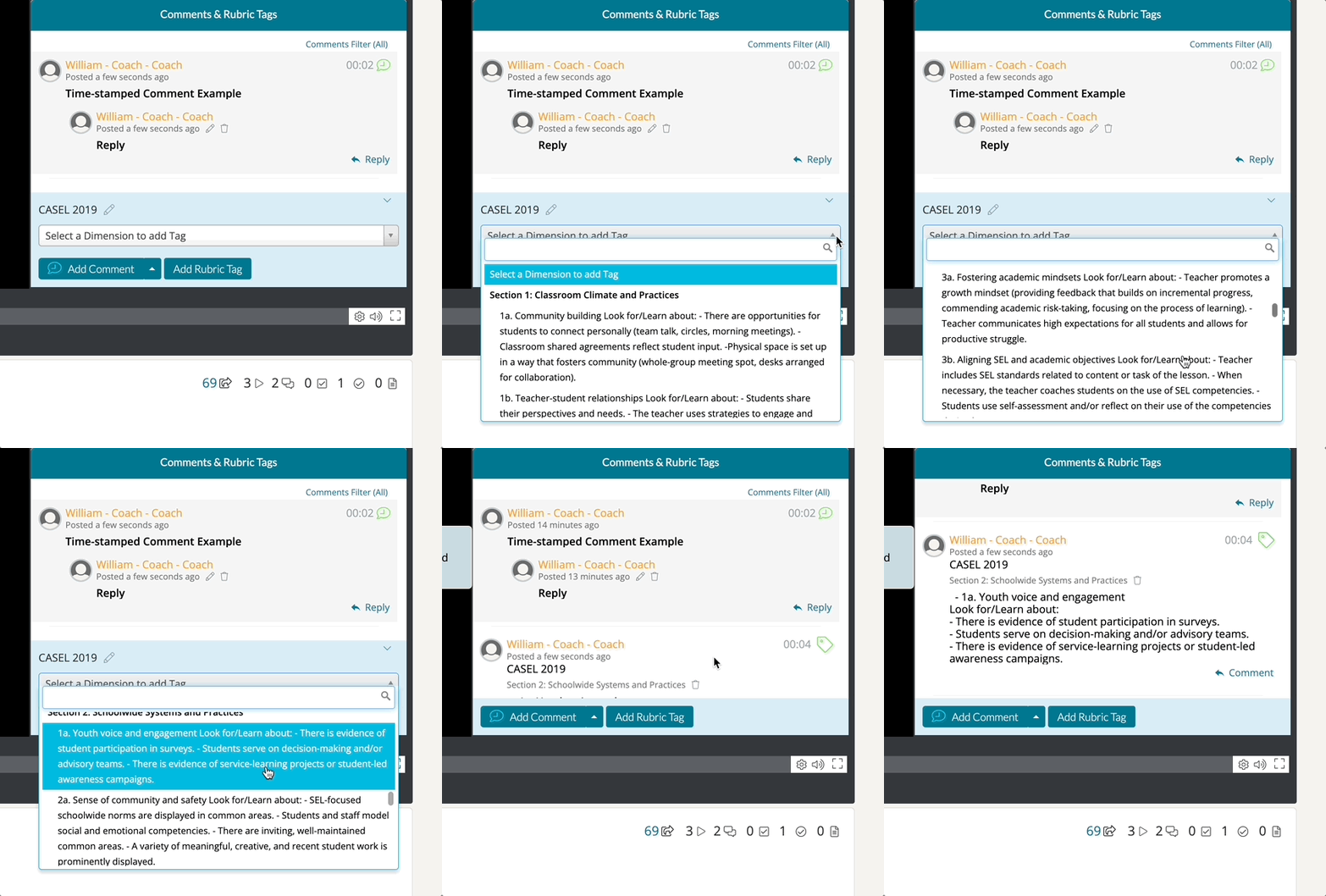
When you have chosen the dimension, the tag will post to the video. Please keep in the mind that the rubric tag is time-stamped relative to where the video player is currently on the timeline.
If you would like to comment on the rubric tag further, please click on the 'Reply' button found underneath your posted rubric tag. This will function as a response thread to the posted rubric, much like replying to a regular time-stamped comment.