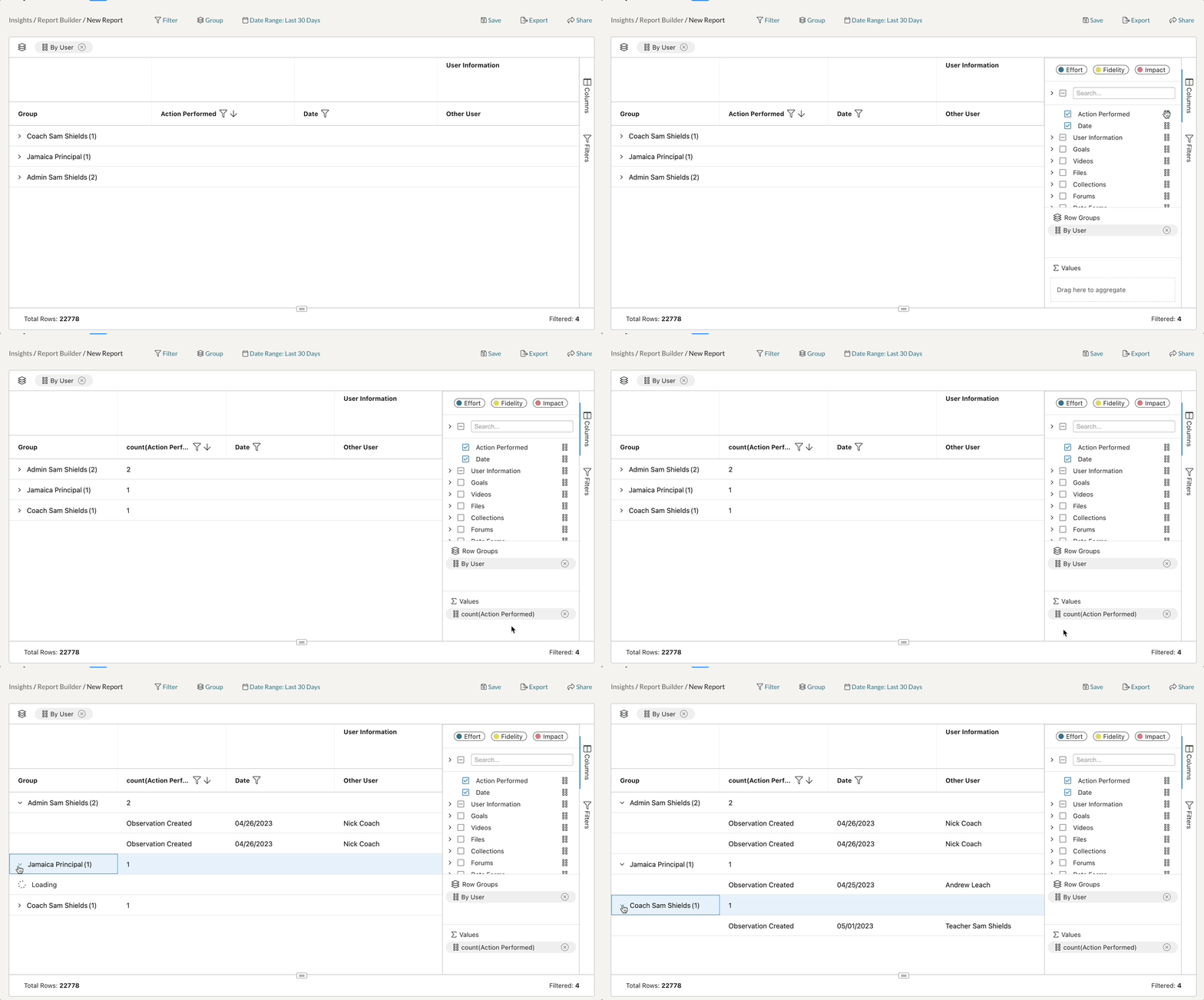
There are (2) methods by which you can aggregate your data and/or perform further calculation on specific columns. This can be useful if, for instance, you’d like to find the Average or the Sum of a specific set of data.
NOTE: Aggregating data can only be accomplished once you have grouped a set of columns together into row groups.
Aggregating by a Column's Menu Icon
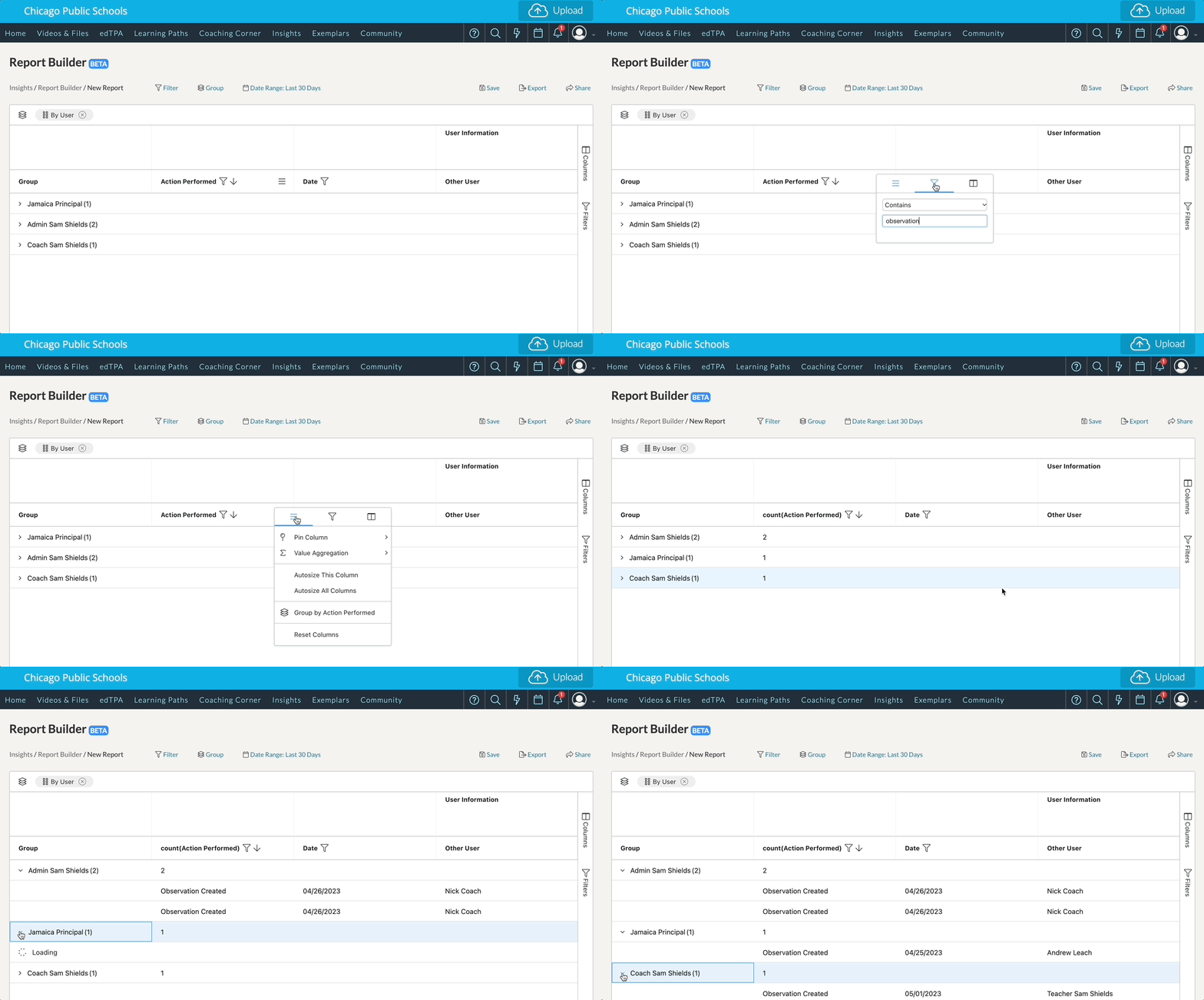
Once you have grouped your data, you can aggregate by simply clicking the ‘menu icon’ of the column header you would like to apply the calculation to. In the new dropdown window you should now see an option for ‘Value Aggregation.’
Click it, and a dropdown list of various calculation types will appear. Select the calculation you would like to produce. Now you will see that calculation applied to the first row of each grouped entry.
Aggregating with the Columns Menu on the Right
You can also assign value aggregation by clicking the ‘Columns’ menu on the far, right-hand side of your report. Make sure that your data is already grouped.
After clicking on the ‘Columns’ menu, a new window will appear. In the new window, under ‘Values,’ you can click and drag column data from the Columns list into the section labeled ‘Drag here to aggregate.’
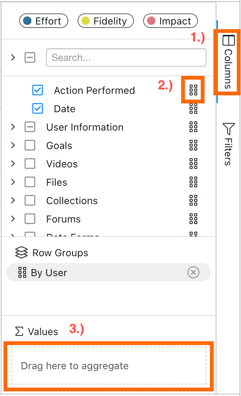
The different columns you drag will apply a default aggregation to each column you choose. You can edit the calculation of each aggregation by clicking on the aggregation you chose. This will produce a dropdown menu with each calculation type listed.
Choose which value calculation you would like to apply, and it will apply automatically to your column!