NOTE: The Deleted User Archive feature is not available to your system by default. If you are interested in activating this feature for your system, please contact your Customer Success Manager!
If you have the Deleted User Archive tool enabled for your system, you can easily free up licenses by deleting users while archiving their materials as needed! This helps to clean up your active users while also storing important artifacts needed for auditing purposes.
CONTENTS
I. How To Archive Users Individually
II. How To Archive Users In Bulk
III. How To View A User Archive
IV. How To Delete A User Archive
V. How To Export A User Archive
Archiving a user preserves all of their content, including content the user never previously shared with administrators who may access the archived content. Permitting access to content that was never explicitly shared by a user is a departure from TORSH's privacy policy, which states that a user's content is private until shared.
By accessing archived content and materials, you acknowledge and agree that:
- Your organization and its Talent system has secured all necessary permissions from the owner of the archived content to access that content under applicable law, its own policies, and any agreements with its users.
- Your organization and its Talent system assumes all liability arising from accessing the archived content, and hereby indemnifies and holds TORSH harmless from any and all claims that may be brought by the owner of the archived content or any third party.
- You are a duly authorized representative of your organization and its Talent system, and have the authority to bind your organization and its Talent system and make this acknowledgement.
How Archiving Deleted Users Works:
-
The archived user's uploaded/created artifacts remain in the system for as long as you schedule them to remain.
- The artifact owner's username will still display with the artifact, but with a [removed] tag beside it.
-
Other active users who were shared the archived user's materials retain access to those artifacts in the system.
-
System Admins can view a fuller "archive" view of all of the archived user's uploaded/created artifacts via the Users Management page.
NOTE: The Deleted User Archive tool is only used on deleted user accounts moving forward from the tool being activated in your system, and only when you specify it as you delete users.
The tool is not retroactive for previous accounts marked for deletion or permanently deleted from the system before the tool was active.
Once the Deleted User Archive tool is activated for your system and your System Admin role, you will be able to delete and archive users both individually and in bulk!
How To Archive Users Individually
-
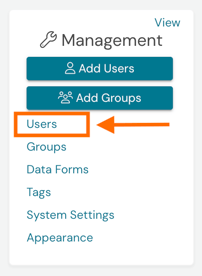
To archive a user individually, first look to your Management Panel on the left-hand side of your Homepage. Then click 'Users.'
-
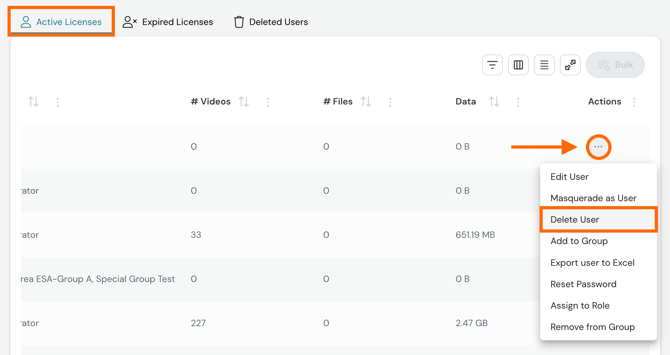
Find the user you wish to delete and archive and click the '...' icon to the far, right-hand side of the user listing. Then select 'Delete User.'
-
In the pop-up that appears, click both checkboxes indicating that you would like to both archive the user and delete them from the system. Selecting to archive a user will open the 'Keep accessible until' field, wherein you can designate archived materials will remain accessible and shared until a specified date. To keep archived materials shared indefinitely, leave the date field blank; otherwise, the user's materials will be permanently removed after the specified date.
Click the 'Delete User' button when you are done.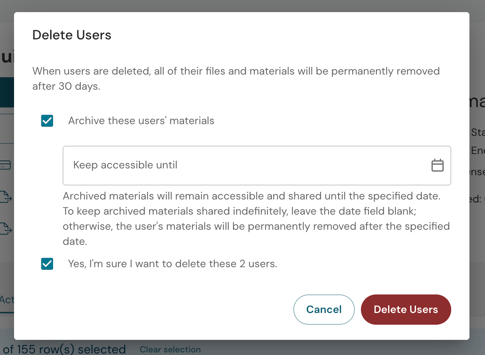
-
The archived materials will take several minutes to generate in the Archive page of that user listing, but they will remain available in the system for those who already had access to them.
How To Archive Users In Bulk
-
To archive multiple users in bulk, first look to your Management Panel on the left-hand side of your Homepage. Then click 'Users.'
-
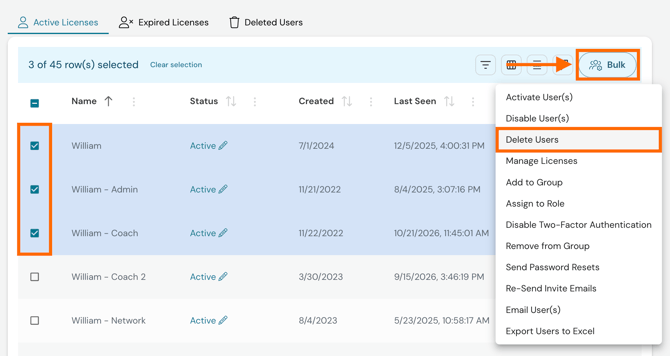
Find the users you wish to delete and archive and select each by clicking the checkboxes to the left side of their Active User listings. Then click the 'Bulk' button in the top right-hand corner of the table. Then select 'Delete Users.'
-
In the pop-up that appears, click both checkboxes indicating that you would like to both archive the users and delete them from the system. Selecting to archive a user will open the 'Keep accessible until' field, wherein you can designate archived materials will remain accessible and shared until a specified date. To keep archived materials shared indefinitely, leave the date field blank; otherwise, the users' materials will be permanently removed after the specified date.
Click the 'Delete Users' button when you are done. -
The archived materials will take several minutes to generate in the Archive page of each user listing, but they will remain available in the system for those who already had access to them.
How To View A User Archive
-
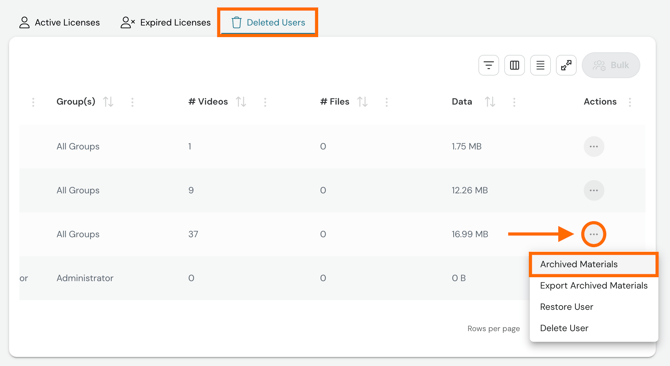
To view a user's archive, find their Deleted User listing and click their '...' icon. Then select 'Archived Materials.'
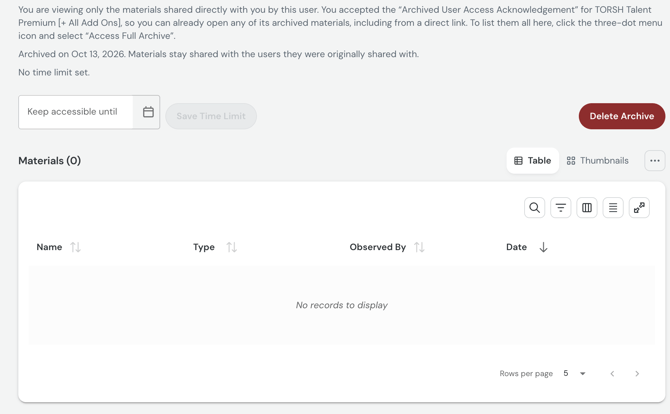
- You will then be brought to a view of only the materials shared directly with you by this user.
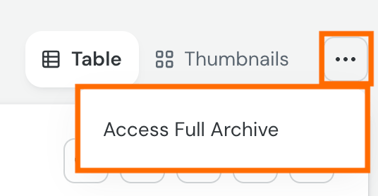
- To list the full archive, click the '...' button in the top, right-hand corner of the table and select 'Access Full Archive.'
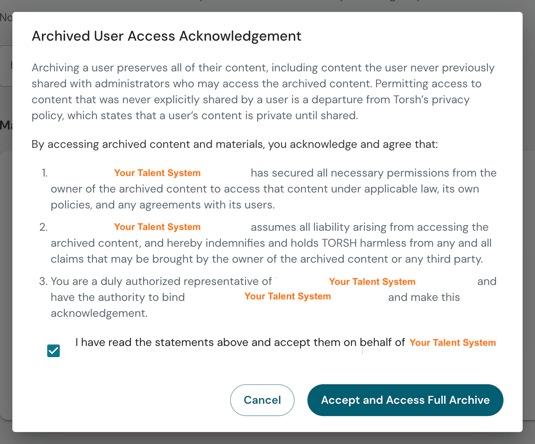
- Before you can access the archive, please acknowledge the agreement before moving forward. Permitting access to content that was never explicitly shared by a user is a departure from TORSH's privacy policy, which states that a user's content is private until shared.
By accessing archived content and materials, you acknowledge and agree that:
- Your organization and its Talent system has secured all necessary permissions from the owner of the archived content to access that content under applicable law, its own policies, and any agreements with its users.
- Your organization and its Talent system assumes all liability arising from accessing the archived content, and hereby indemnifies and holds TORSH harmless from any and all claims that may be brought by the owner of the archived content or any third party.
- You are a duly authorized representative of your organization and its Talent system, and have the authority to bind your organization and its Talent system and make this acknowledgement.
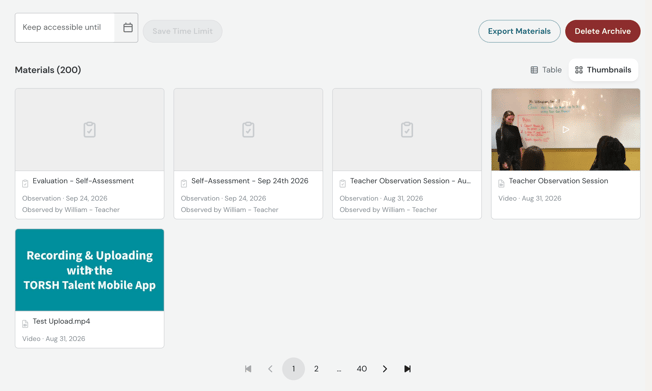
- You can then view all of the uploaded/created artifacts owned by this archived account!
How To Delete A User Archive
When deleting a user archive, you can choose to either soft delete the archive or permanently delete the archive altogether.
-
Soft-deleting the archive deletes the archive from the deleted user but keeps the user as a deleted listing, in case you wish to restore them and attempt to archive again.
-
Permanently deleting the user permanently deletes the user and the archive associated with them.
Soft-Deleting A User Archive
You can access the user archive directly in the deleted user listing and then select 'Delete Archive' in the top, right-hand corner of the table to soft-delete the archive.
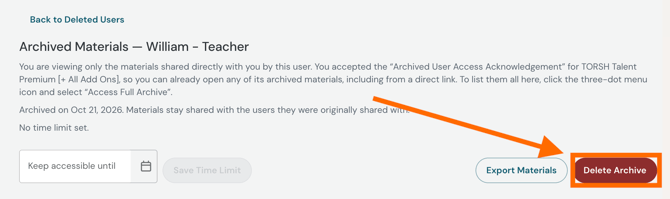
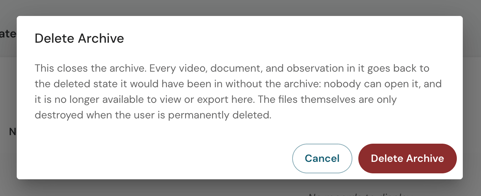
Doing closes the archive but keeps the user as a deleted user listing for the next (30) days. Every video, document, and observation in the archive goes back to the deleted state it would have been in without the archive: nobody can open the archive, and it is no longer available to view or export here. The files themselves are removed from view in the system, but they are only permanently destroyed when the user listing is permanently deleted.
Permanently Deleting A User Archive
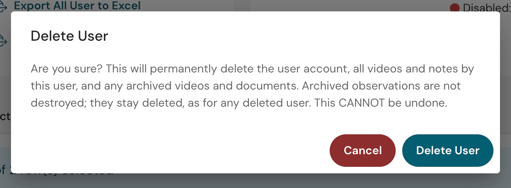
You can permanently delete a user archive by simply deleting the user permanently from the 'Deleted Users' listing in Users Management.
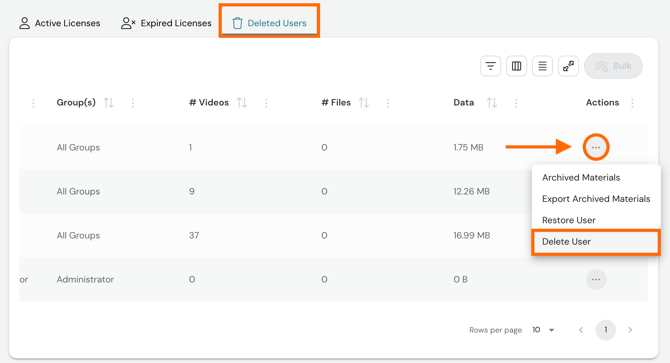
Doing so will permanently delete the user account, all of the videos and notes made by this user, as well as any archived videos and documents. Archived observations are not destroyed; they stay deleted, as for any deleted user. This CANNOT be undone.
How To Export A User Archive
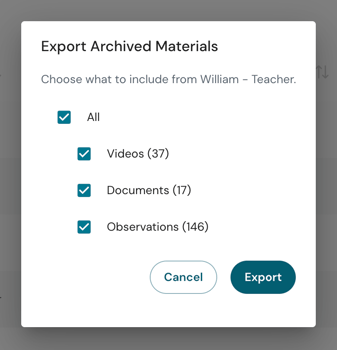
Once a user archive is created, you can export the archive directly from the user listing by clicking their '...' icon and selecting 'Export Archived Materials.'
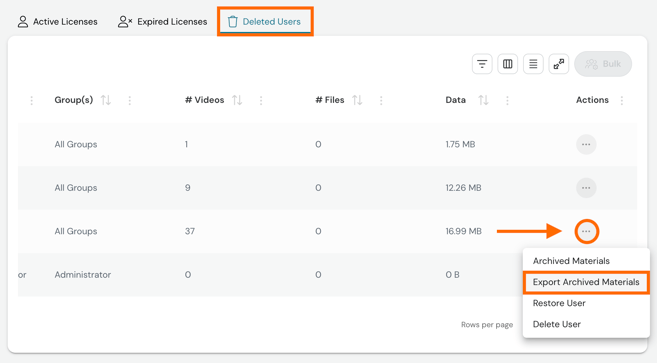
In the Export Archived Materials pop-up, check off the specific types of artifacts from the archive that you wish to download. Then click 'Export.' The archive and its materials will then export into a ZIP folder, which will be emailed to you when it is ready!