
As a System Admin, you can utilize Talent-Ed AI to quickly generate accurate and actionable data form and rubric templates for your system!
-
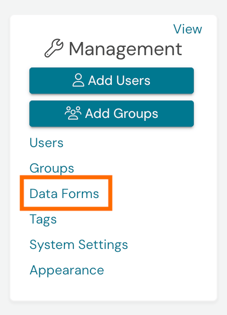
To get started, first locate the Management Panel on the left-hand side of your homepage. Click 'Data Forms.'
-
You'll then be brought to the Data Forms Management page, wherein you will find all of your active, archived, and deleted templates for your system.
To author a data form template using Talent-Ed AI, click the option 'Create with Talent-Ed AI.'
-
Doing so will open the Talent-Ed AI chat window to the right-side of your webpage.
Attach a PDF document of your rubric or data form template using the 'attachment icon' in the chat.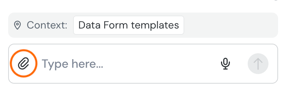
-
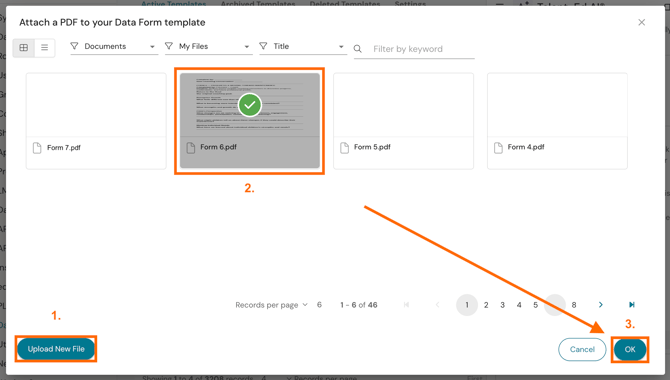
From there, upload your PDF document into Talent. Then select the file once it fully uploads and click 'OK' to finalize your selection.
-
Once you upload your attachment, send the following message:
Create a rubric template based on the PDF document attached. -
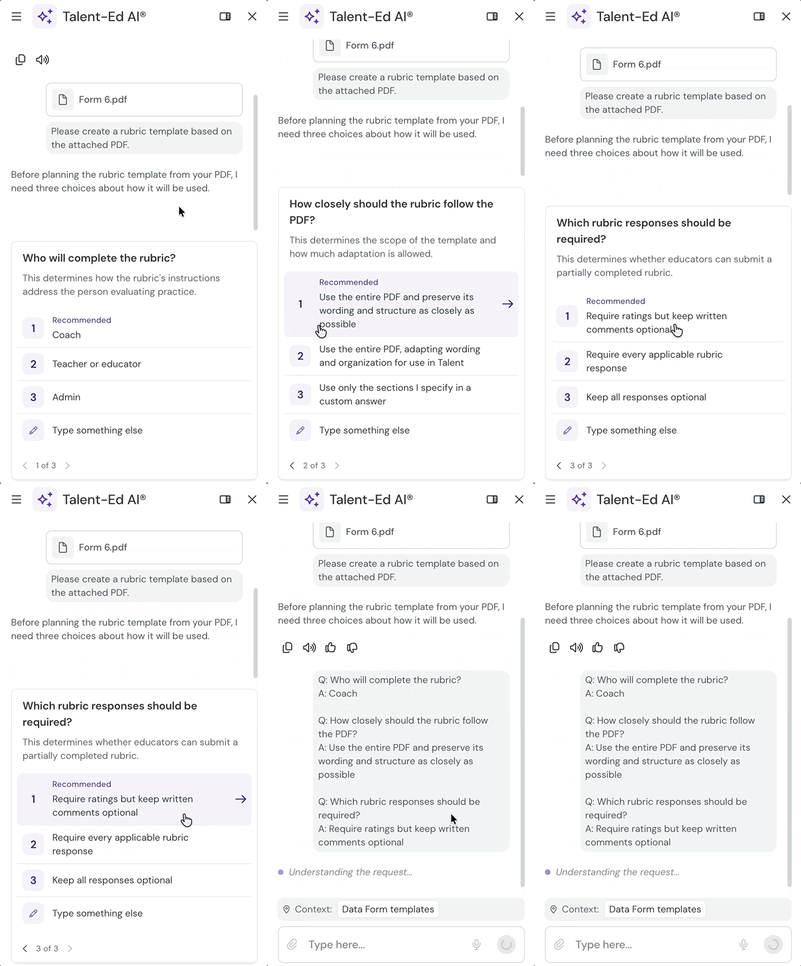
Talent-Ed AI will process the request and follow up with several specific questions for further context. We recommend selecting the 'Recommended' options at the top of each suggestion for a greater match with your original materials.
-
Once you have answered Talent-Ed AI's questions, it will take several minutes to generate the data form template. When the form is finished, Talent-Ed AI will notify you via your in-app Notification Bell.
The AI may hold off on generating the form template for you to verify its notes. If so, verify its notes in the chat window and then click 'Generate Template.'
-
Your generated template will appear at the top of your Data Forms Management page in a green banner for you to view. Click 'Open Template' or follow the hyperlink provided in the Talent-Ed AI chat to view your generated template.

-
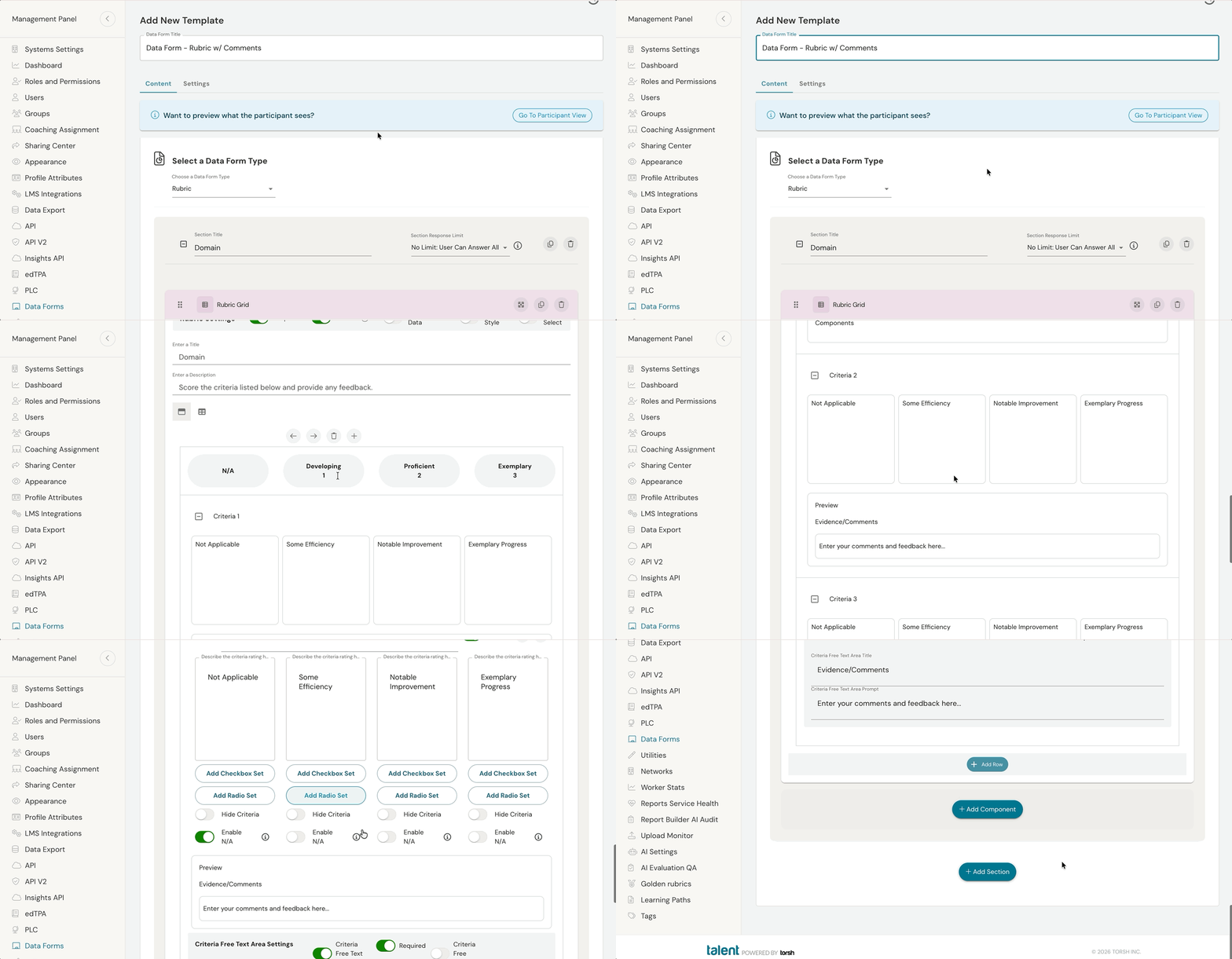
Scroll through the data form template's 'Contents' tab and ensure:
-
The text information of the original PDF was copied over accurately.
-
The correct components were selected for use.
-
The necessary components are marked as *Required.
-
-
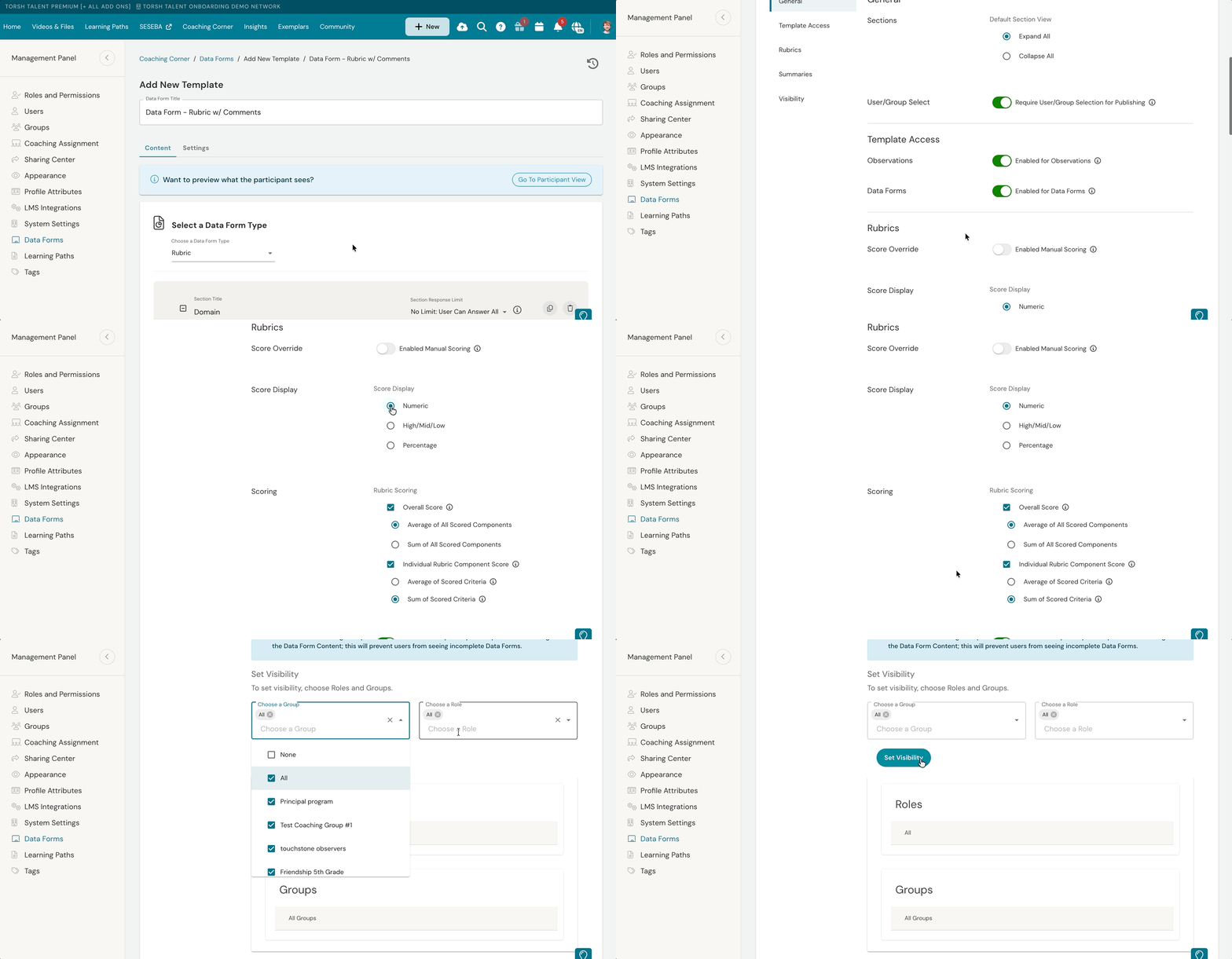
Once you have verified the content of your template, click on the 'Settings' tab of your template and select the proper:
-
Template Access to ensure the form is selectable for your users in either Data Forms or Observations/Self Assessments dropdown menus.
- Scoring Settings to ensure the rubric is calculating the proper score (if your template is scored).
-
Visibility Settings to ensure the form is visible to the correct user Roles and Groups in your system.
- You can learn more about these settings here.
-