Skip to content
English
  • There are no suggestions because the search field is empty.

How to author a Learning Path Module (Admin)

As a System Admin (or a Coach with Learning Path authoring capability), you can create Learning Path Modules for learners to complete! The modules can be housed inside of courses or kept separate as independent lessons.

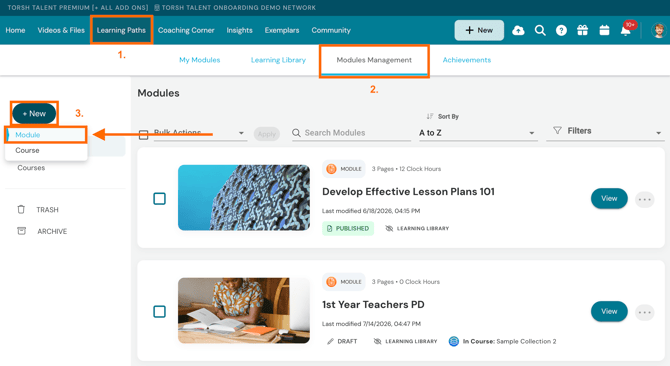
  1. To get started, click on 'Learning Paths' in the top navigation bar. 

  2. Next, click on the ‘Modules Management’ tab.

  3. On Modules Management, click ‘+ New’ and select ‘Module’ in the dropdown. This will bring you to the module’s Contents page.
    Screenshot 2024-08-29 at 12.35.33 PM.png

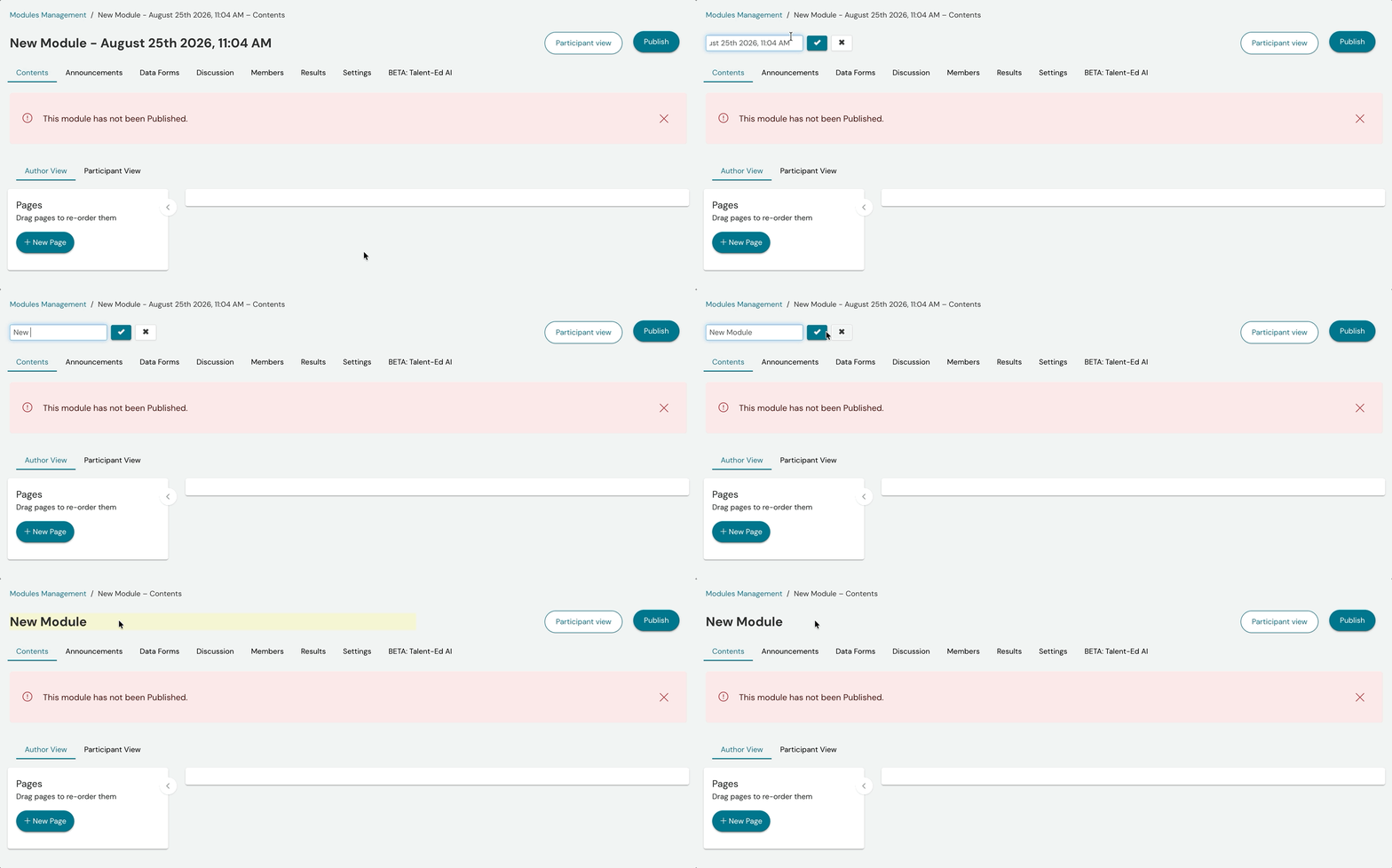
  4. At the top of the module, go ahead and click on the current pre-generated module title and give it a new title. Click the 'checkmark icon' to save your changes.


Adding and Managing Pages in Your Module

When authoring a Learning Path Module, you can easily add content to it by creating a new page and then adding various components to it.

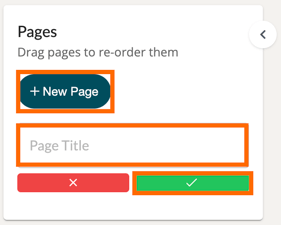
To create a page, select ‘+New Page’ within your module, and give your new page a title. Click the 'checkmark button' to save your changes.

Screenshot 2024-08-20 at 2.19.25 PM.png


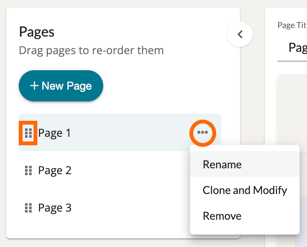
You can reorder your pages by clicking and dragging the 'stack icon' beside each page listed and dropping the selected page to a new location on the list. If you want to rename, remove, or clone and modify a page, you can do so by clicking on the page's '...' icon.
 

Screenshot 2024-08-20 at 2.16.38 PM.png


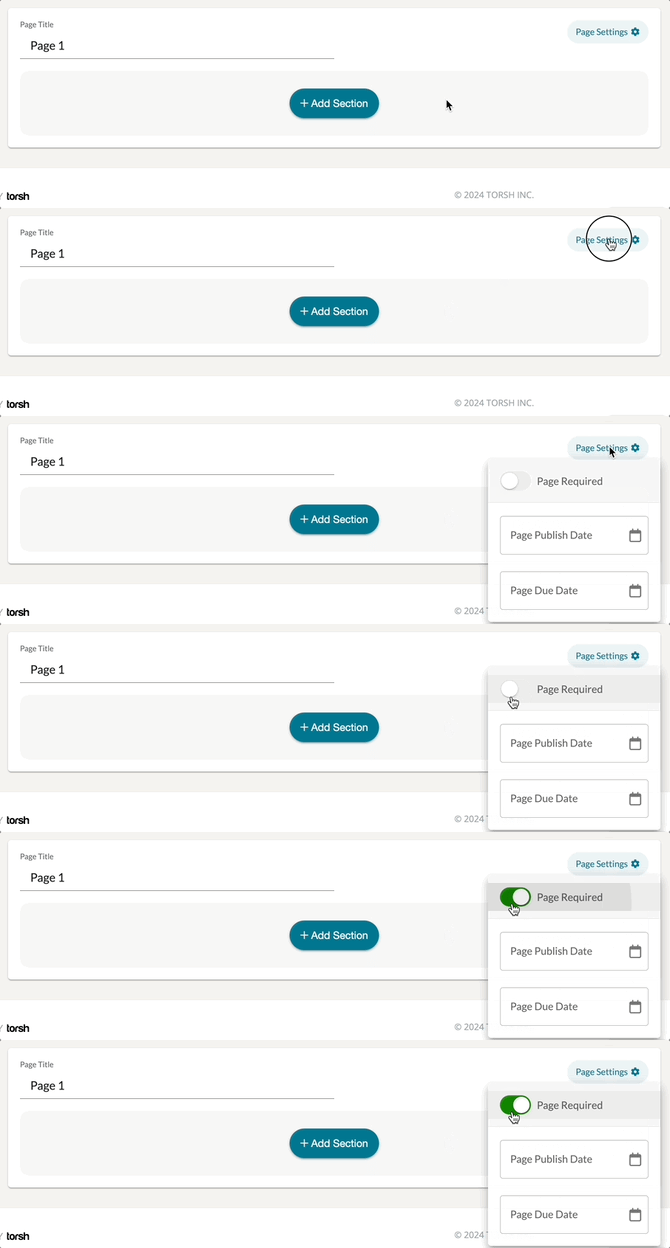
You can also choose to mark the page as required by clicking on the  the 'Page Settings' button in the top, right-hand corner of module's Contents page. This will load a dropdown toggle for the 'Page Required' option. Click on the toggle so that it displays as GREEN/ON to require the page for completion before moving on to the next one.
 

Aug-20-2024 14-25-33.gif


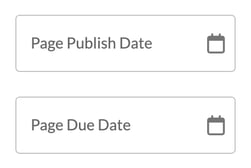
In the Page Settings, you can also set a Page Publish Date for each page, as well as a Page Due Date. These dates of an individual page must take place before the overall module's due date.

Screenshot 2024-08-20 at 2.28.10 PM.png


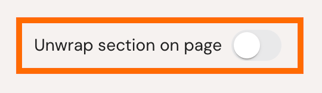
If you would like for specific Sections in your Learning Path module to appear to your Learners as more expanded areas on the page (as opposed to a collapsible section), enable the 'Unwrap section on page' toggle. Otherwise, you can leave it disabled for the section to appear more divided out from the rest of the page.


Adding and Managing Components on Your Page

Aug-20-2024 14-39-47.gif


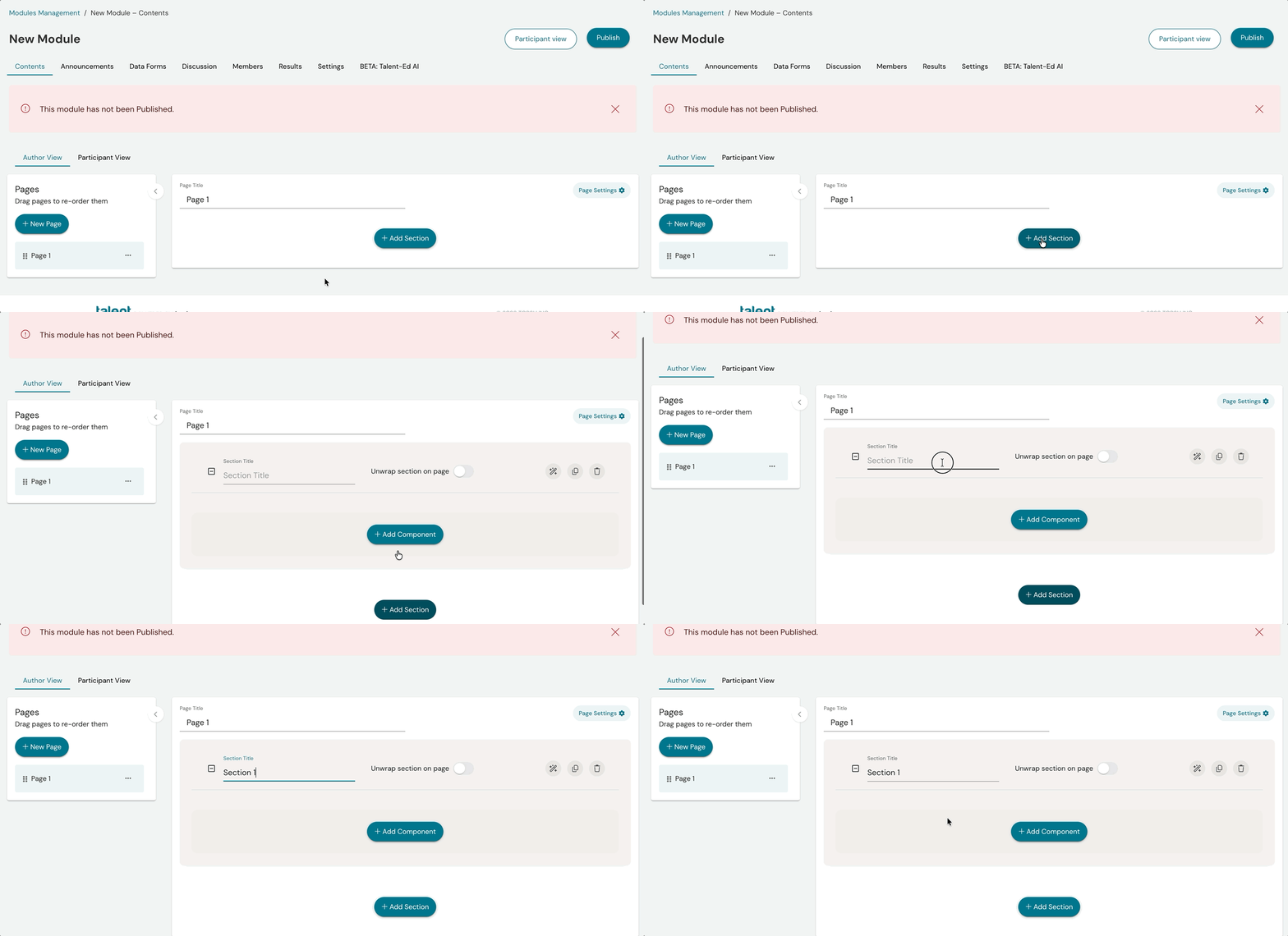
After you have created a page in your Learning Path module, add a section by clicking the 'Add Section' button.
 

Screenshot 2024-08-20 at 2.41.24 PM.png


Within each section you can click the 'Add Component' button to add various components that your learners can interact with!
 

Screenshot 2024-08-20 at 2.41.50 PM.png


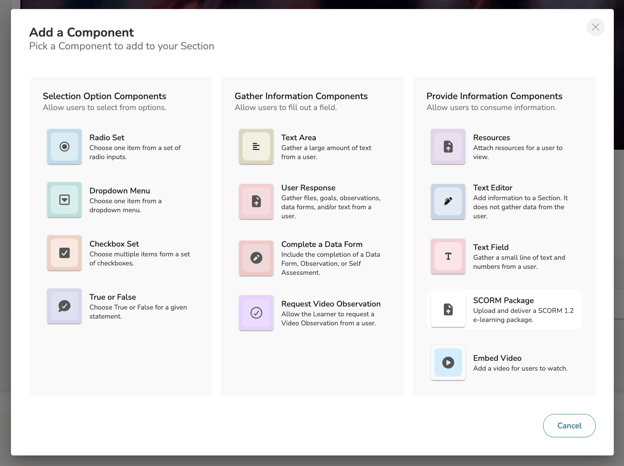
Within each section of a Learning Path module, you can add the following components:


In the top, right-hand corner of each component you can add, you can further adjust it as needed with some general settings.

Screenshot 2024-11-21 at 11.57.28 AM.png

  • To switch from one component type to another, click the 'switch icon.' Screenshot 2024-11-21 at 3.13.13 PM.png
  • To expand a component to see its edit options, click the 'expand icon.' Screenshot 2024-11-21 at 3.13.25 PM.png
  • To duplicate a component, click the 'duplicate icon.' Screenshot 2024-11-21 at 3.13.32 PM.png
  • To delete a component, click the 'trash bin icon.' Screenshot 2024-11-21 at 3.13.42 PM.png


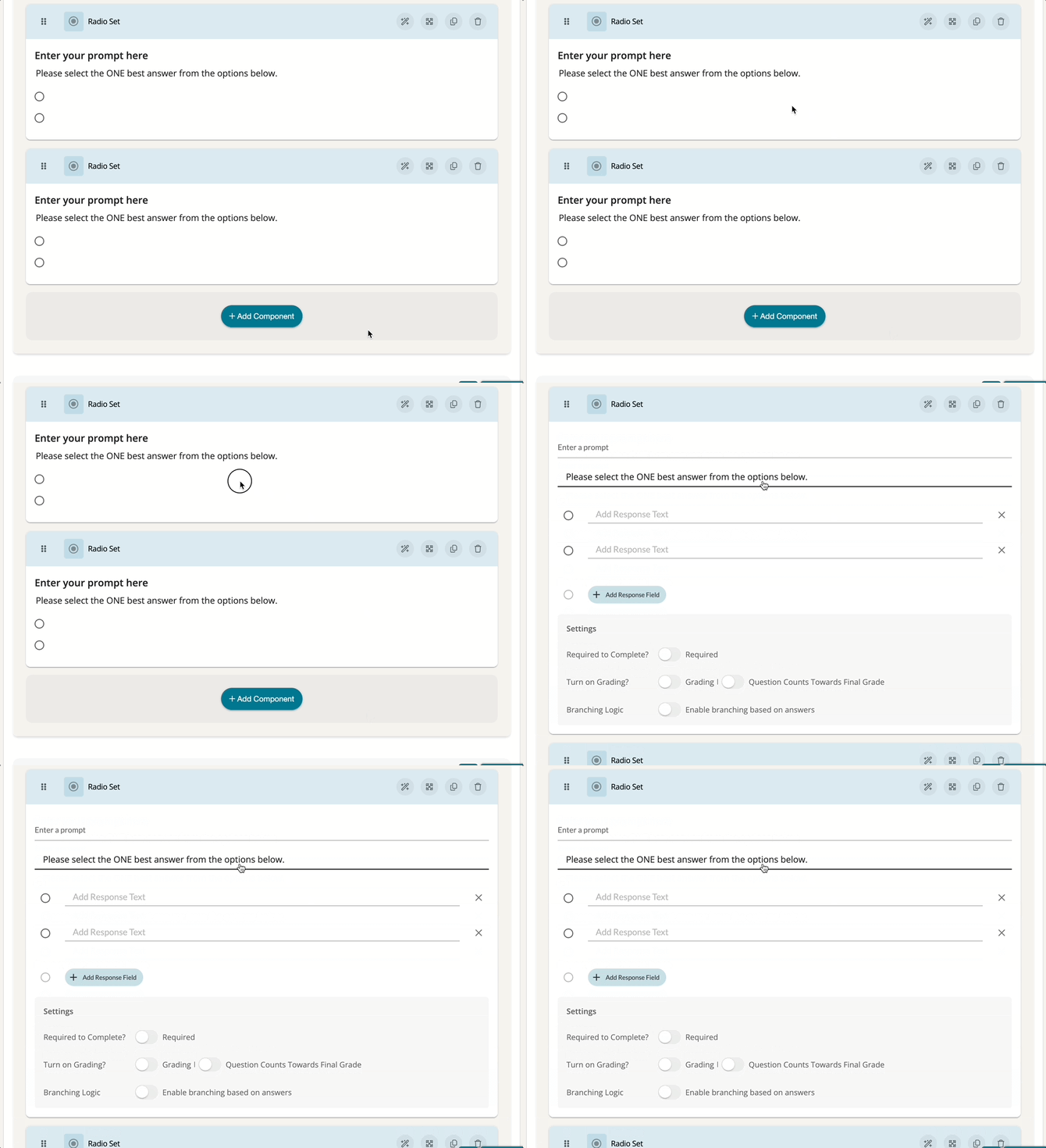
In order to adjust the display and look of a component, simply click in its general preview answer area, and the component will expand to show settings that allow you to manage the title, description and answer choices the users of your system will see! 
 

Aug-20-2024 12-46-21.gif


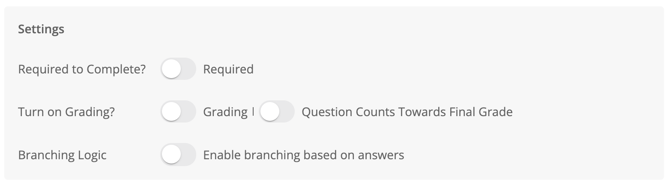
For most Selection Option components, you can designate it to be required, enable it for grading, count the question toward the final grade of the module, and enable Branching Logic


Screenshot 2024-08-20 at 2.54.15 PM.png


Embed Video

The Embed Video component allows users to watch an embedded video that is required for viewing in order to progress through the module. This is especially useful in situations wherein supplementary training is provided through the video, and quiz questions need to be accessed after the fact. If you do not mark the component as required, it can still be a useful tool for embedding a singular video to be accessed within the module!

When all settings of the Embed Video component are marked 'Required,' watching the video will save the learner's progress in the video timeline as they watch it. If a learner happens to refresh their webpage or leave the module while the video plays, they will not lose their place unless there was a temporary disruption in their internet connection. A learner can rewind the video from their place in the video timeline, but they cannot progress past the point they have viewed up to. Once the video has fully completed, their module page will be allowed to be 'Marked as Complete.'

When all settings of the Embed Video component are NOT marked 'Required,' watching the video will still save the learner's progress in the video timeline as they watch it. If a learner happens to refresh their webpage or leave the module while the video plays, they will not lose their place unless there was a temporary disruption in their internet connection. A learner can rewind or fast forward the video to any point in the video timeline. The video will not be required to watch completely in order to mark the module page a 'Mark as Complete.'

Preview:

Settings:

At the top of these settings, add a prompt to guide the participant or provide a title to the video. You can then click 'Select Video' to embed a video that you have uploaded as an artifact.

  • If you would like for the embedded video to be required viewing in order to progress past this page, toggle the 'Required to Complete?' button ON. 
  • If you would like to restrict a learner's ability to fast forward through the video, toggle the 'Disable Fast Forwarding' button ON.


SCORM Package

The SCORM Package component allows authors the ability to import specific SCORM package ZIP files of their learning courses directing into TORSH Talent Learning Path Modules. These SCORM Package components then allow learners to directly engage in the learning materials of that imported course all in one place! 

Preview:

Settings:

At the top of these settings, add a prompt to guide the participant, and provide a further description if needed. To add your SCORM Package ZIP file, click the 'Select SCORM Package (.zip)' button and add the SCORM Package of your course to this component. 

You can only add (1) ZIP to a SCORM Package component. If you would like to house more SCORM Packages, consider adding the next SCORM Package in either a separate Learning Path module, or adding it into a separate SCORM Package component within the module page, or adding it into a separate page of the same Learning Path module, depending on how you wish for the material to be accessed and organized.

Within the component, the SCORM Package will be presented to the learner as the fully accessible course:


Radio Set

The Radio Set component allows users to choose one item from a set of radio button inputs. These can be useful when creating a multiple choice questionnaire.

Preview:

Screenshot 2024-02-07 at 9.01.13 AM.png

Settings:

Screenshot 2024-08-20 at 12.46.47 PM.png

At the top of these settings, add a prompt to guide the participant. Make sure to add response text for each Response Field. If you would like for a response field to have a score/value, you can enter that beside the response text. You must have at least (2) Response Fields for this component.

To add another Response Field, click the '+ Add Response Field' button.

Screenshot 2024-02-07 at 11.41.15 AM.png


Dropdown Menu

The Dropdown Menu component allows participants to choose one item from a dropdown list. This can be useful if, say, participants need to select the location that their practice took place in.

Preview:

Screenshot 2024-02-07 at 9.01.23 AM.png

Settings:

Screenshot 2024-08-20 at 12.47.20 PM.png

At the top of these settings, add a prompt to guide the participant. Make sure to add response text for each Response Field. If you would like for a response field to have a score/value, you can enter that beside the response text. You must have at least (2) Response Fields for this component.

To add another Response Field, click the '+ Add Response Field' button.

Screenshot 2024-02-07 at 11.41.15 AM.png


Checkbox Set

The Checkbox Set component allows participants to choose multiple items from a set of checkboxes. This can be useful for participants to check off all items that apply to their practice.

Preview:

Screenshot 2024-02-07 at 9.01.33 AM.png

Settings:

Screenshot 2024-08-20 at 12.47.50 PM.png

At the top of these settings, add a prompt to guide the participant. Make sure to add response text for the Response Field. If you would like for a response field to have a score/value, you can enter that beside the response text. 

To add another Response Field, click the '+ Add Response Field' button.

Screenshot 2024-02-07 at 11.41.15 AM.png


True or False

The True or False component allows participants to select if a statement is true or false. This can be useful to quiz participants based on their memory of previously taught material.

Preview:

Screenshot 2024-08-20 at 12.48.00 PM.png

Settings:

Screenshot 2024-08-20 at 12.48.09 PM.png


User Response

The User Response component offers a variety of options for a participant to respond with. Depending on the settings you enable, a participant can choose to either upload a video or file, insert a URL, and/or provide a typed response. This can be great when asking participants to provide a short answer to a question or when requesting for specific material be uploaded.

Preview:

Screenshot 2024-08-20 at 12.48.39 PM.png

Settings:

Screenshot 2024-08-20 at 12.48.48 PM.png

At the top, add a prompt to guide the participant. Then check off from the Select Response Types Allowed section to designate how a user can respond to this component.


Text Area

Text Area component offers a larger space to type a large amount of text for a response. This component can be useful when asking participants to respond in full sentences and paragraphs.

Preview:

Screenshot 2024-08-20 at 12.48.21 PM.png

Settings:

Screenshot 2024-08-20 at 12.48.28 PM.png

At the top, add a prompt to guide the participant. Below the prompt, you can also enforce a minimum character count permitted for the response as well as a character limit.


Discussion

Discussion component allows participants to write and respond to one another. This is only available to modules with Discussion capability enabled. This can be useful for collaboration between members completing a shared training experience.

Preview:

Screenshot 2024-08-20 at 12.48.59 PM.png

Settings:

Screenshot 2024-08-20 at 12.49.10 PM.png

At the top, add a prompt to guide the participant. 


Activity Task

As an Admin or an author/moderator of a Learning Path module, you can assign an Activity Task component to help direct learners in completing various observations, self assessments. Through the Activity Task, learners can evaluate assigned artifacts and complete forms directly through the Learning Path module!

To implement an Activity Task component, first open a module. Add a new Page if needed and add a Section to that page. Then choose 'Add Component.' In the list of components, choose the 'Activity Task' component.

Once the component has been added to the section, click on the Activity Task component to open its Edit view. Give your Activity a prompt title and a further description with instructions of what to complete.

Screenshot 2025-01-13 at 10.58.05 AM.png

Next, choose the Data Form Template you would like for the user to complete. Then choose the user or group you would like to assign the completion of this form to.

Under 'How will this Data Form be used?' choose the the type of form you would like to have this template completed as:

  • Observation
  • Self Assessment
  • Data Form

If you choose an Observation or Self Assessment, you will then be need to choose whether the form process is Informal/Formal and whether it is for an in-person session or for an uploaded artifact

Screenshot 2025-01-13 at 10.59.04 AM.png


If the Observation or Self Assessment to complete is for an artifact, you will then be prompted to choose the artifact in question.

Afterwards, feel free to add an Resources (videos and/or files) that you think would be helpful for the completion of this task. 

Screenshot 2025-01-13 at 10.59.15 AM.png


Lastly, you can mark this Activity Task component as 'Required' if necessary. You can also enable Feedback Requests in case you would like for the participant of the form to be able to request further feedback on what they observe. Lastly, you can enable 'Edit After Completion' for the participant of the form to make further adjustments after marking the form as complete.

To learn more about how a participant completes an Activity Task component, read this Help Center article here.


Resources

Resources component allows participants to review various artifacts provided by the author. This can be helpful for referencing or learning specific material that they will be quizzed on later.

Preview:

Screenshot 2024-08-20 at 12.49.26 PM.png

Settings:

Screenshot 2024-08-20 at 12.49.35 PM.png

At the top, add a prompt to guide the participant. 


Text Editor

The Text Editor component is strictly for providing explanation and instruction from whomever is creating the data form template. This component does not gather any data, but it can be useful for providing further information in your forms.

Preview:

Screenshot 2024-02-07 at 9.00.36 AM.png

Settings:

Screenshot 2024-02-07 at 9.00.46 AM.png

Click on the space where your text would appear to reveal the text entry space. Here you can find multiple text formatting tools that you might find in your favorite word processor! You can even insert a file to display an image with your text!