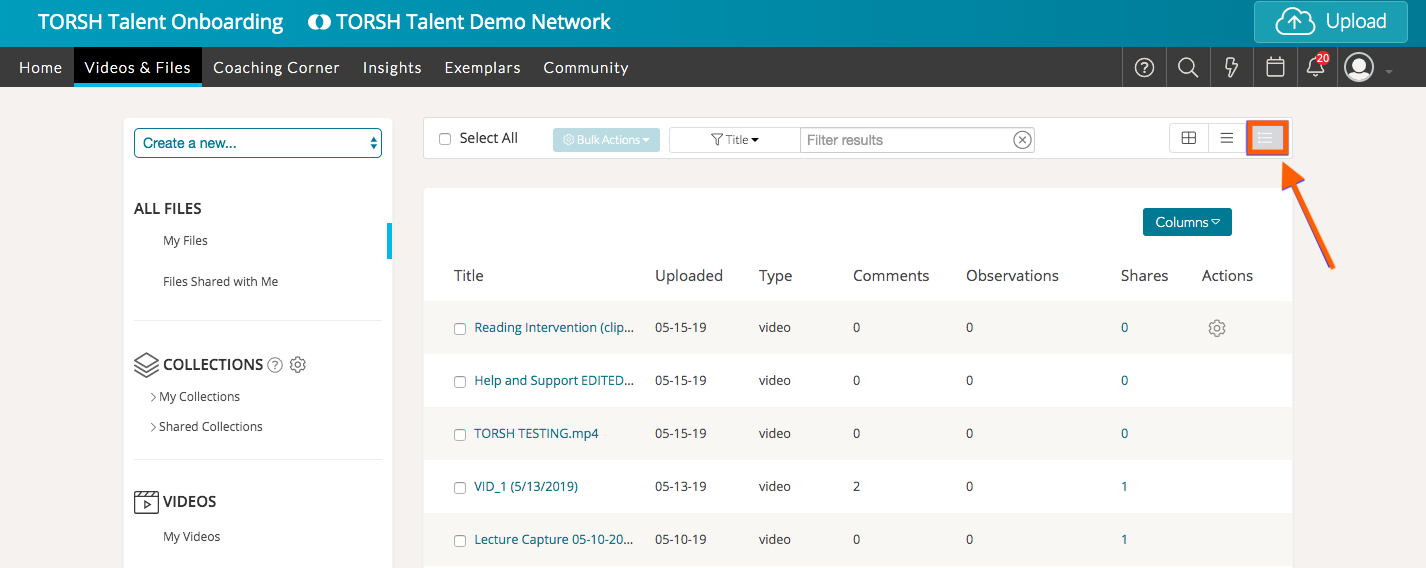
In TORSH Talent, wherever you see the following three icons, you can switch up your view to more or less condensed views:

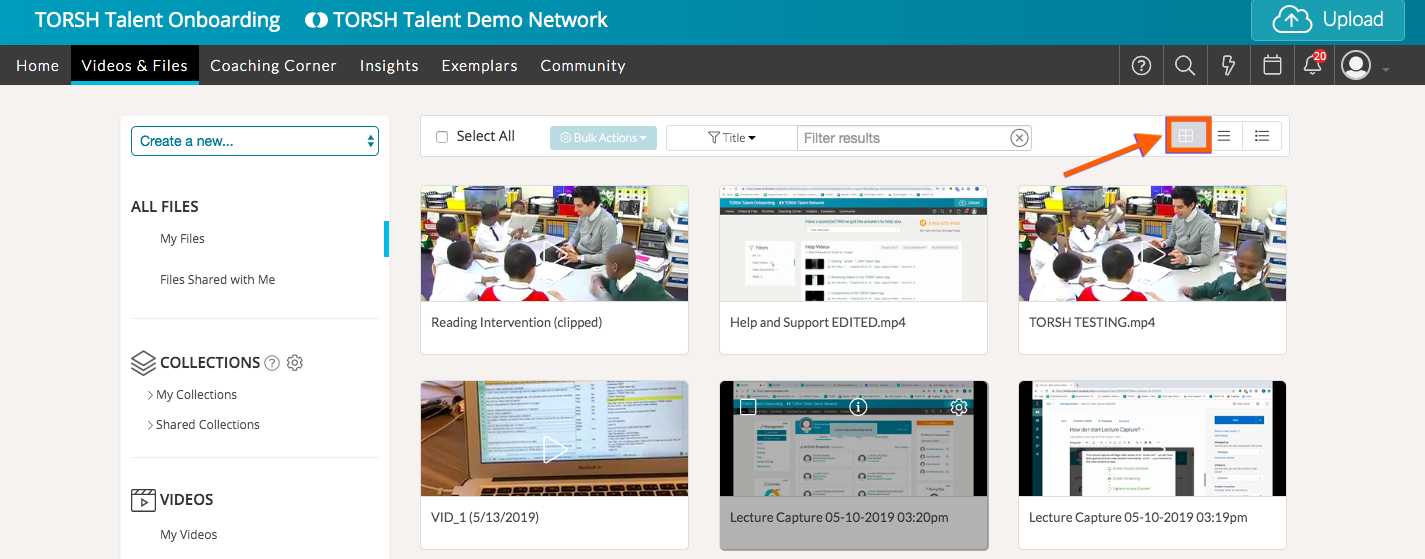
- Thumbnail View - click on the 'boxed icon' to view your page as a list of thumbnails or icons arranged across your webpage.
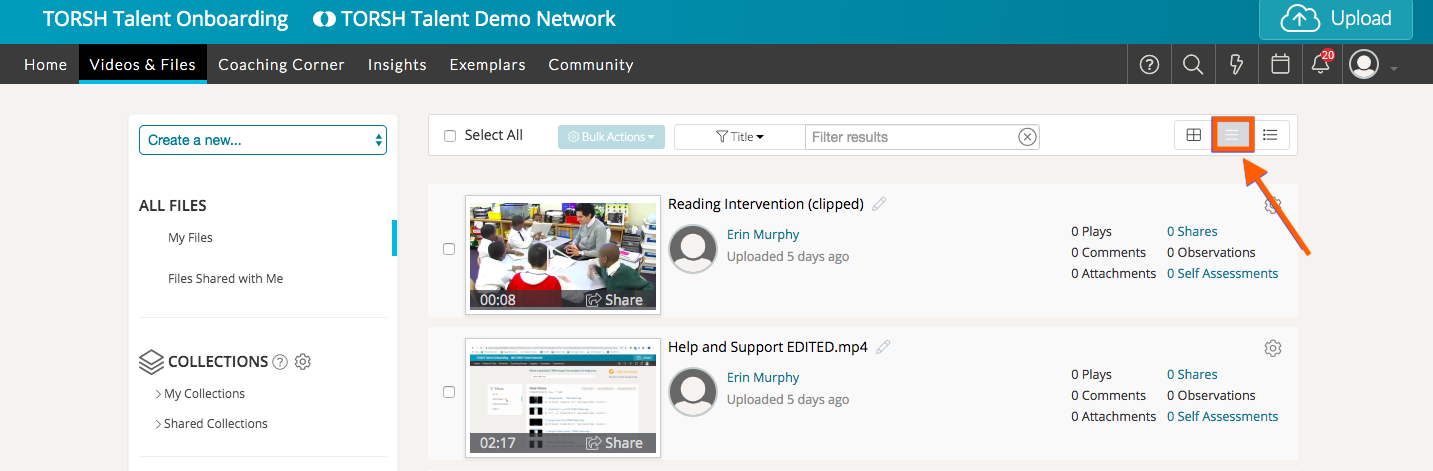
- Thumbnail List View - click on the 'three line icon' to view your Videos & Files page as a descending list of video thumbnails, one on top of the other.
- List View - click on the 'bulleted three line icon' to view your Videos & Files page as just a descending list without any images.
In this article, we will demonstrate this with the Videos & Files page but you will also see these icons in Coaching Corner, Exemplars, and Community.
Thumbnail View
The first view is the 'Thumbnail View.' This view gives you the least amount of data surrounding the artifacts and only displays preview thumbnail images and file titles.
Thumbnail List View
The 'Thumbnail List View' still gives you a preview thumbnail image, but you will also see more data regarding the artifacts you view.
List View
The third view, 'List View,' found all the way on the right, is the most condensed list view. Choosing this display option will remove preview thumbnail images from view; however, you will see the most data regarding your artifacts.