Skip to content
English
  • There are no suggestions because the search field is empty.

How to comment on a video in TORSH Talent

While watching a video uploaded to TORSH Talent, you can leave a comment to the video in three different ways - via Time-Synced Comments, Summary Comments, or Rubrics Tags.


Contents:

I. Time-Synced Comments

II. Summary Comments

III. Rubric Tags


Time-Synced Comments

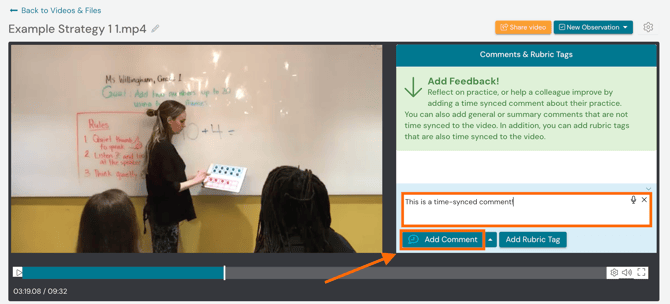
To leave a Time-Synced Comment, first, open the video and click the 'play button.' To the right of the video, you will see the comment box pane. To add a Time-Synced Comment, click 'Add Comment' and type in your comment. Once you've finished typing, click 'Add Comment' again. The Time-Synced Comment will be linked to that particular moment in the video.
 

Screen Shot 2019-05-14 at 3.22.40 PM.png


Summary Comments

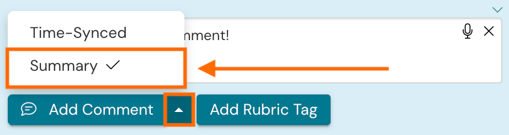
Summary Comments are not tied to a specific moment in the video. They are mostly used for reflection prior to or after watching the video. To leave a Summary Comment, click on the 'upward pointing arrow' on the right side of the 'Add Comment' button and switch your comment type from 'Time-Synced' to 'Summary.'
 
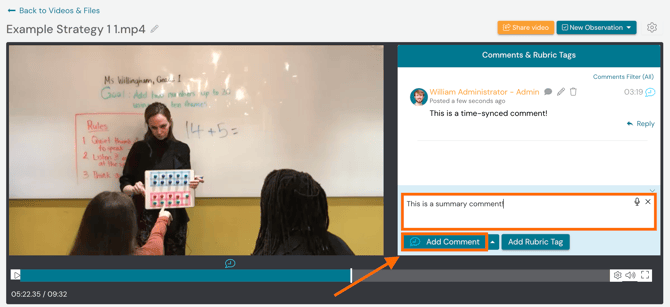
Once you've entered the comment, click 'Add Comment' again to post it. Summary Comments will always live beneath any Time-Synced Comments or Rubric Tags in the comment box pane.

Screen Shot 2019-05-14 at 3.25.12 PM.png


Rubric Tags

If you are part of a system with Data Forms and Rubric Tags enabled for your system, you can add Rubric Tags to videos.Rubric tags utilize the Domains and Dimensions of your Data Form Rubric Templates, and they can be a great way to check off the progress others are making to meet their goals. 


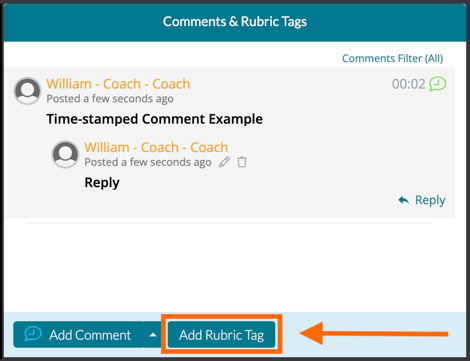
To add a rubric tag to a video, navigate to the comment box beside the video and then click 'Add Rubric Tag.'
 

Screenshot_2023-04-11_at_2.22.38_PM.png


Next, select a rubric from the dropdown menu.
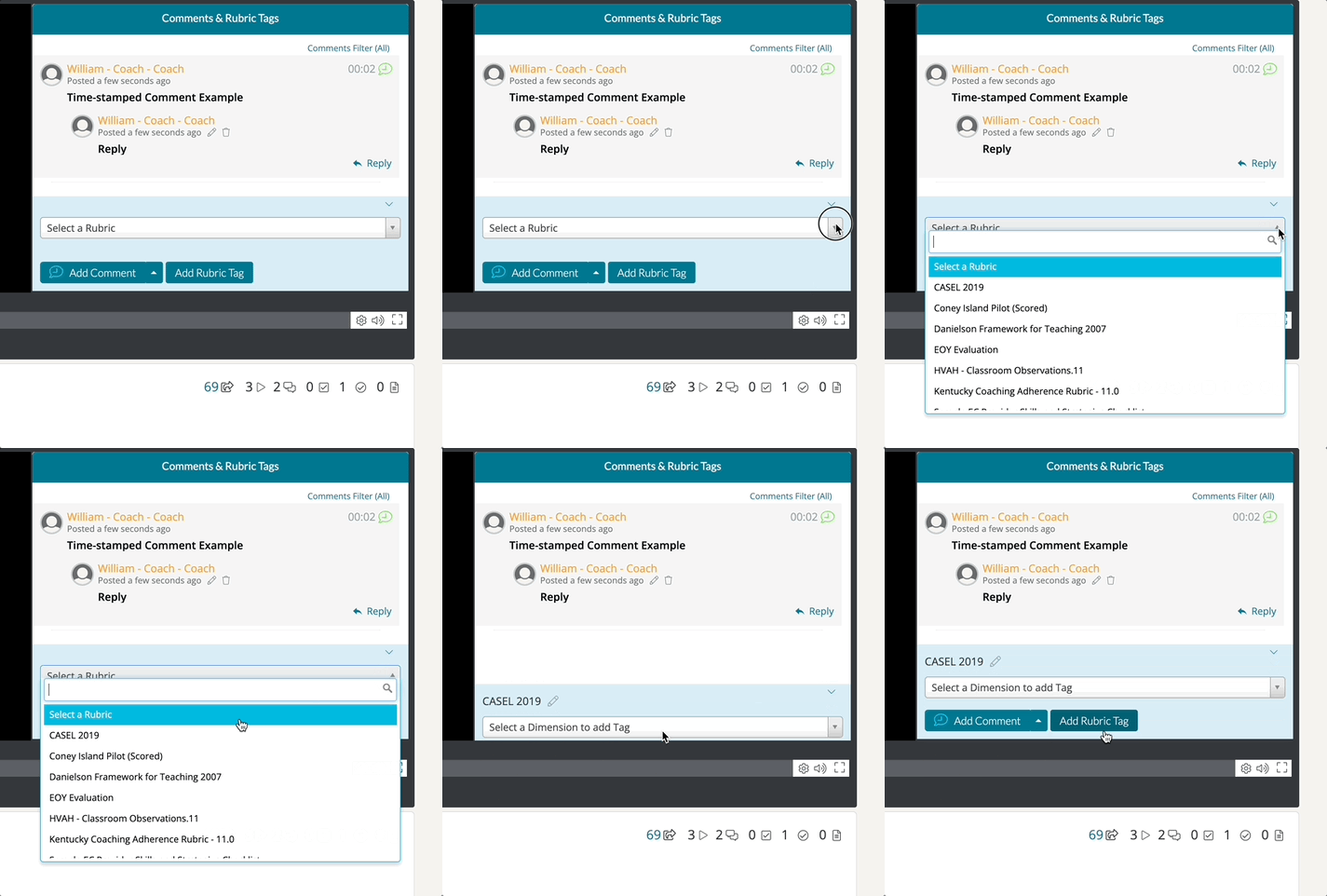
 

Apr-11-2023_14-31-13.gif


Once you have selected the rubric you would like to tag from, click 'Select a Dimension to Add a Tag.' This will generate a dropdown list of all of the associated text columns (or dimensions) found on the rubric. Click on the dimension best suited for your tag.
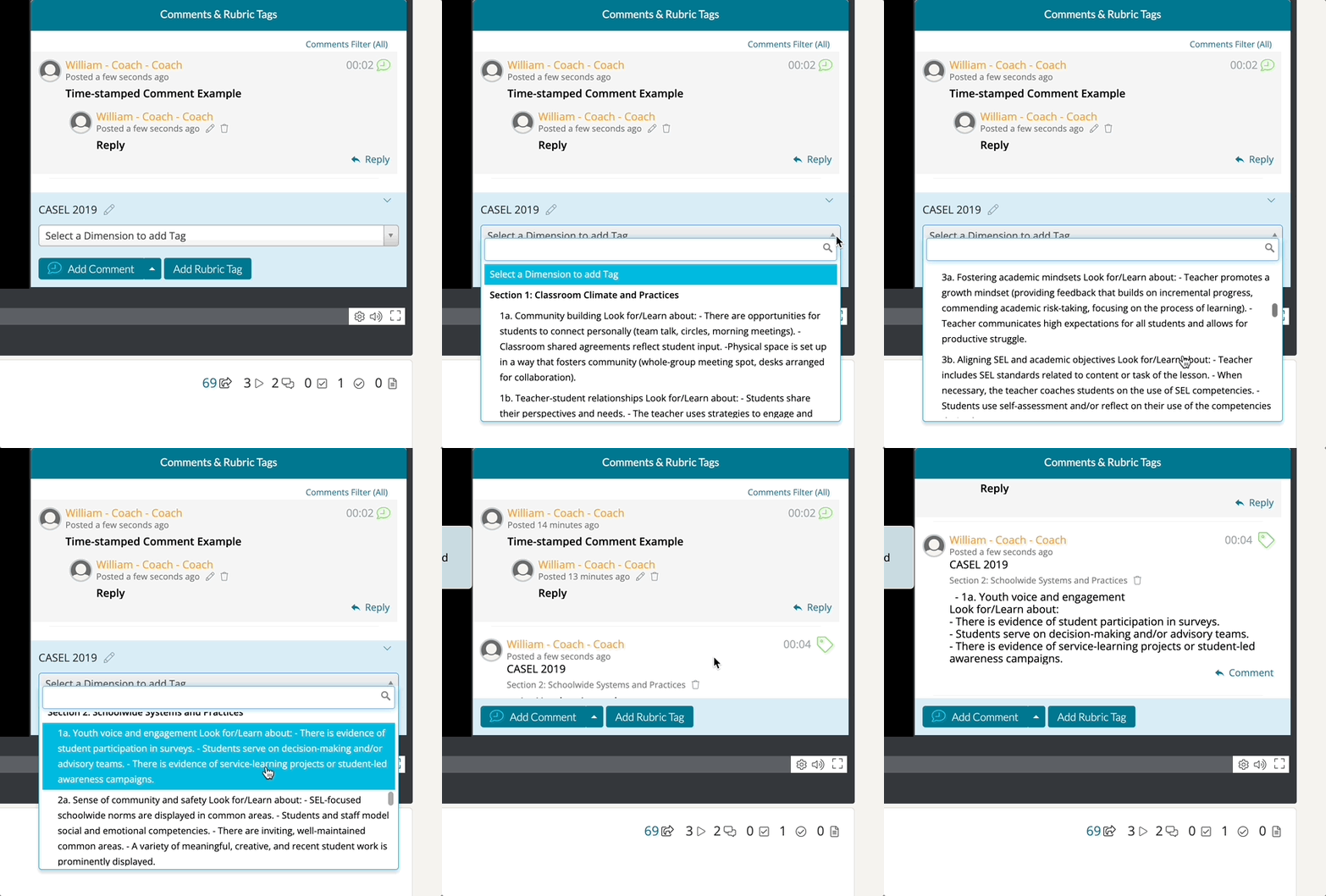
 

Apr-11-2023_14-35-34.gif


When you have chosen the dimension, the tag will post to the video. Please keep in the mind that the rubric tag is time-stamped relative to where the video player is currently on the timeline.

If you would like to comment on the rubric tag further, please click on the 'Reply' button found underneath your posted rubric tag. This will function as a response thread to the posted rubric, much like replying to a regular time-stamped comment.


Rather watch a video? Learn more about leaving Video Comments in our tutorial hereHIPAA users, click here