
TORSH Talent does not currently offer caption/transcription services, but users can still transcribe their videos and upload time-synced transcription files to them using a variety of third-party resources. For captions/transcriptions, TORSH Talent requires a transcription file be uploaded (in either .SRT or a .VTT format).
To learn more about how to create a caption/transcription file for your video, read about the following options below:
YouTube Subtitles
You can create free caption/transcription files using YouTube! To do so, you will first need to create a YouTube account. You will then need to upload your video to YouTube as a Private upload. YouTube automatically generates captions for most videos when they are uploaded using their own speech recognition technology. These machine-generated captions are rarely fully accurate, however.
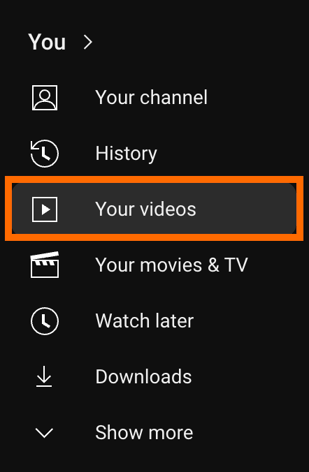
That said, if their accuracy is decent, the captions can be edited further with only a few minor corrections directly through the YouTube Creator page. For instructions see the Edit Captions help page on YouTube. You can view your captions on YouTube by going to 'Your videos.'
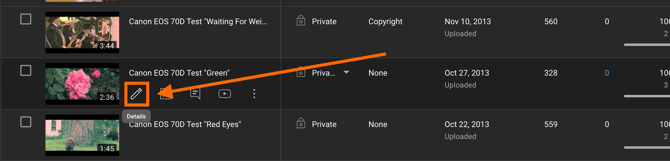
In your video list, find your video file and click on its 'pencil icon.'
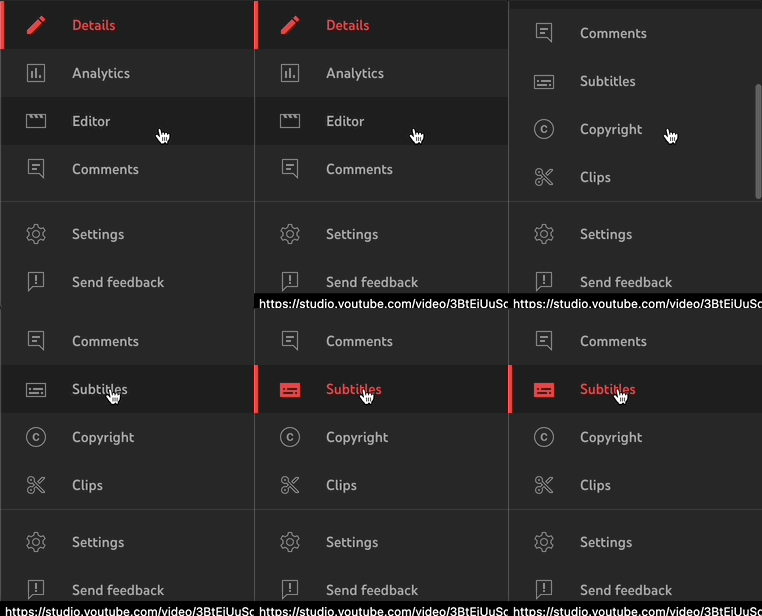
Once on the video's editing page, scroll down on the left-side panel and click 'Subtitles.'
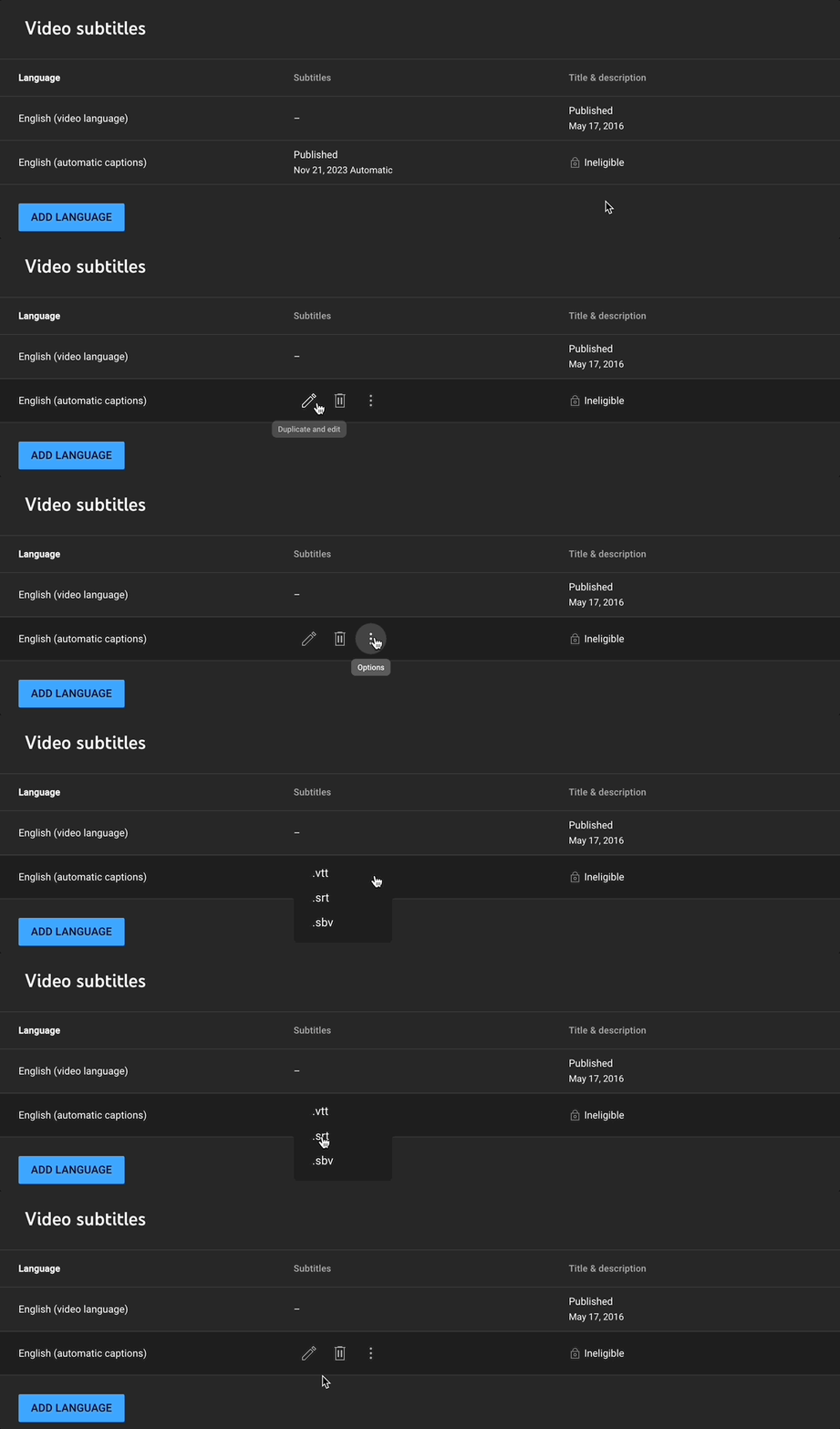
You should see your auto-generated subtitles here. To download the .SRT or .VTT file, hover over where it says 'Published,' and several icons will appear. Click the 'three dot icon' to display a 'Download' option. Click Download and select either '.SRT' or '.VTT' as your download option.
Capcut Captions
Most free captioning tools online have a file size or time cap before they require a paid subscription; however, Capcut offers a free video editing software with automatic subtitling generation via their web browser app. You may need to create a free account in order to stabilize your uploads/downloads. After you create a free account, you can upload your file by clicking 'Click to upload.'
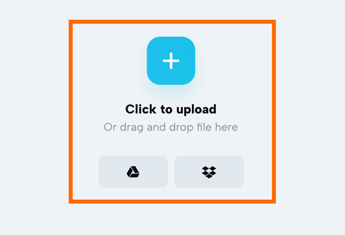
After your video upload has processed, drag-and-drop the video file into your timeline. Once the video has been placed into your timeline, go to the left-side panel and click the 'Captions' icon. In the Generate captions menu, click 'Auto captions,' and then click 'Generate.'
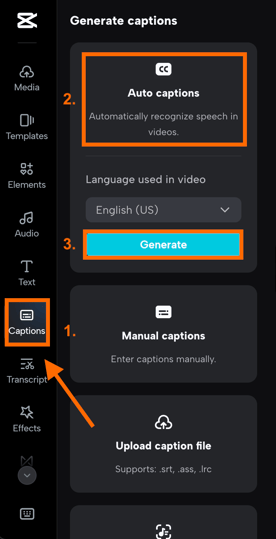
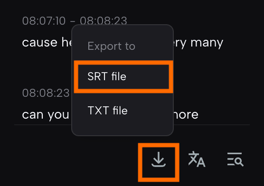
Allow the captioning to process. Once the captions have fully generated, they will appear as orange text boxes above your video in the timeline. Go to the Generate captions menu and at the very bottom, click the 'download icon' and select '.SRT file.'
Use a Paid Service
Companies such as Rev , ScribeBuddy , Otter.ai , and many other captioning service providers will caption videos for a fee. Contact these companies directly for additional information. The benefit of using a paid service is that you have a higher chance of having accurately transcribed or even translated captions for your videos!
To learn more about uploading caption/transcription files to videos in TORSH Talent, click here.