
Module Completion Pathways are a feature of Learning Paths that create pathways to another module or a specific award result based on the final results of a learner's responses to Quiz Components or their summative scores.
In some cases, an Admin might want their learners to continue down a Pathway based on their answers to Quiz Component questions. Other times, an Admin might want to send learners down a specific Pathway based on their score. Module Completion Pathways are helpful to facilitate this process!
NOTE: If your learner is choosing their own Pathway and you don't want to route them, do not add a Module Completion Pathway.
Where to add Module Completion Pathways
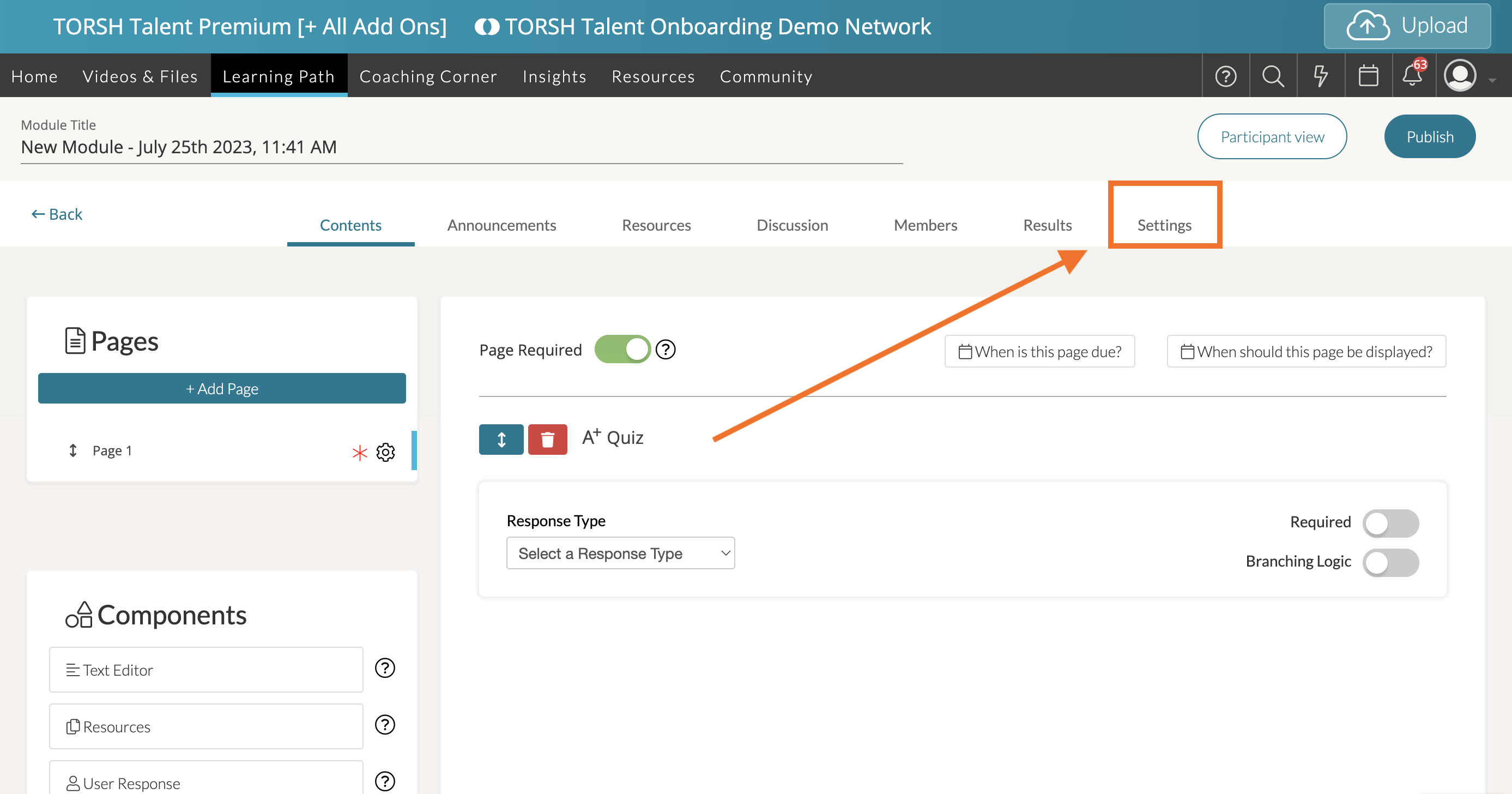
- To add a Pathway to your module, visit the module's 'Settings' tab.
- From here, scroll down to the section labeled 'Module Completion Pathways.' Click 'Add A Pathway' to create a Pathway.
You will then be presented with the option to set the following for your Pathway:
- Condition - What needs to be achieved in order to activate the Pathway.
- Outcome - Where your learner is routed after achieving the Condition you set.
- Results Message - The specific Results Message your learner will receive after activating this Pathway.
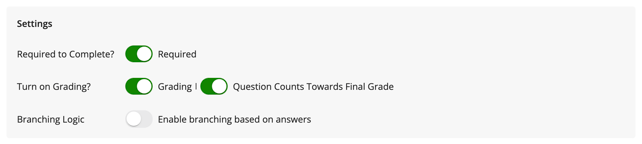
We have assembled a couple of example Pathways below. Do note that in order for Completion Pathways based on graded outcomes to work, you will need to enable Grading and Question Counts Toward Final Grade for all quiz components in your module.
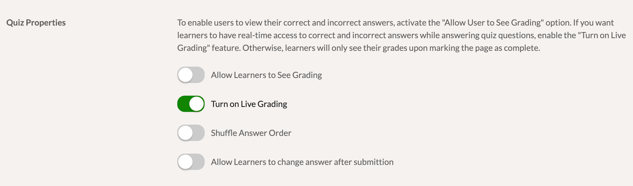
You will also need to enable 'Turn on Live Grading' in the module's Settings page.
Pathway 1: Learner Completes Module with Satisfactory Score
- For this Pathway, you can set the Condition as follows:

- Next, you can set the Outcome as follows.
Note: If a module does not have any units/points associated with it, you DO NOT have to award any.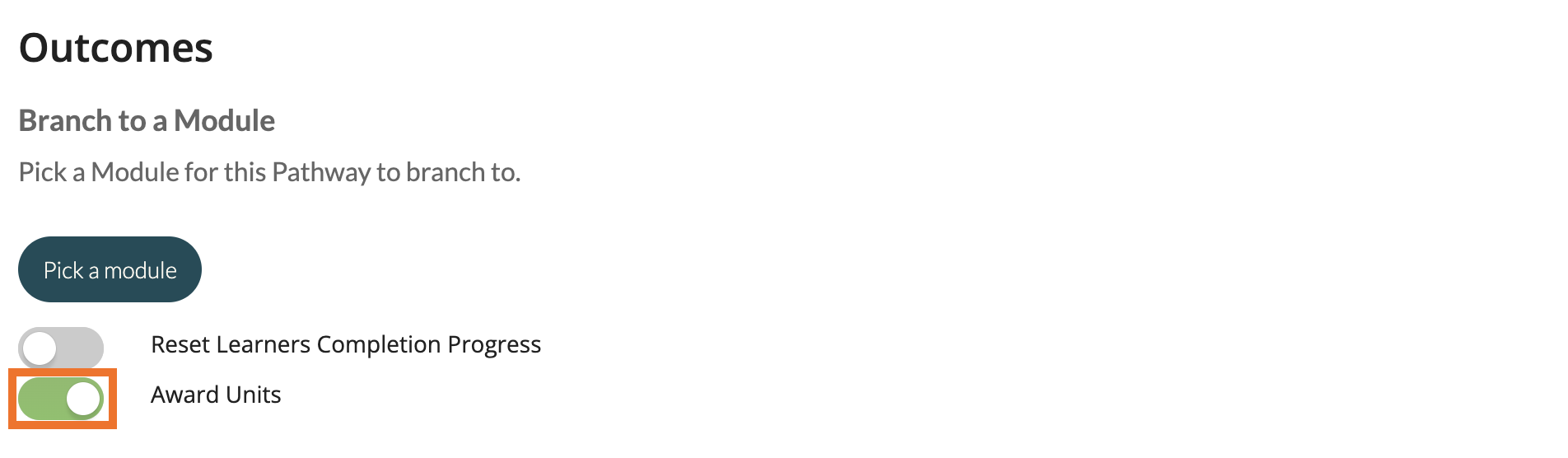
- Lastly, you can display a customized Results Message for when a user makes a satisfactory score!
Pathway 2: Learner Completes Module with Unsatisfactory Score
- For this Pathway, you can set the Condition as follows:

- Next, you can set the Outcome as follows. You do not need to pick a module in this case:
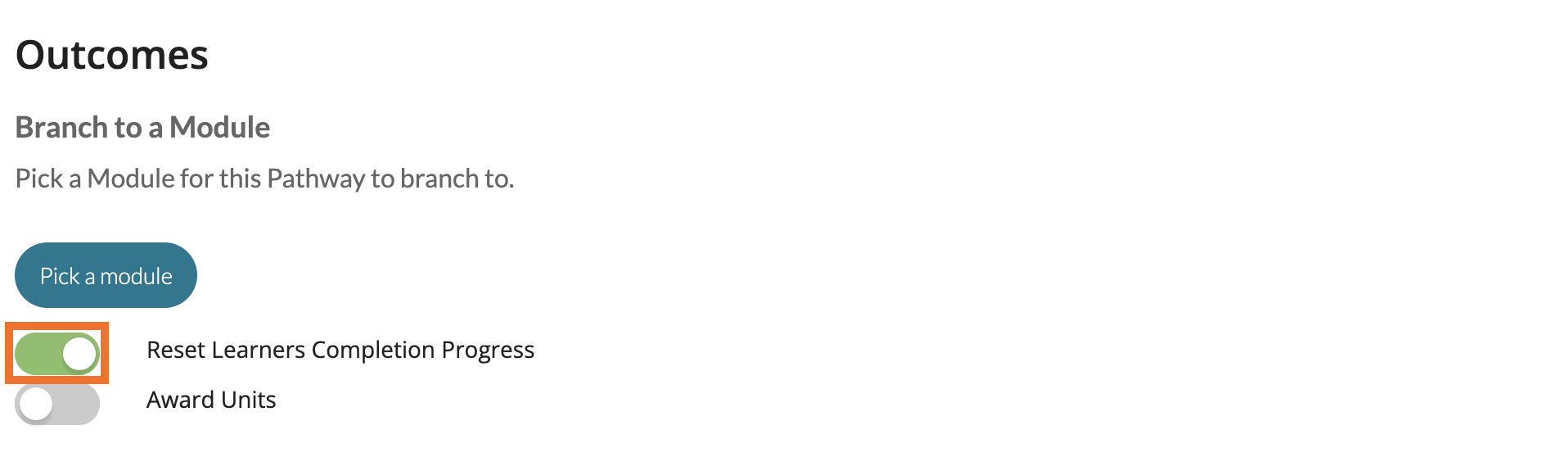
- Lastly, you can display a customized Results Message for when a user makes an unsatisfactory score!
How to Route a Learner to a New Module
- If you would like for your Pathway to route a learner to another module, simply click 'Pick A Module' from the 'Outcomes' section of your Pathway. You will then be brought to a page listing every module available in your system.
- Choose the specific module, then click the 'Add To Pathway' button in the top, right-hand corner.
- You will now see the title of the module listed under 'Branch To a Module' in the Outcomes section of your Pathway. Now whenever your learner activates the pathway, they will be routed to the module you selected upon completing their original module.