
As a System Admin, you can quickly delete any user accounts as needed. Doing so will immediately free up their license.
Once a user's account is deleted, all of their uploaded and created artifacts in TORSH Talent are deleted as well. However, the data surrounding those artifacts remains in your systems reporting. Please make sure you have a plan in place to download or duplicate that user's files to another Admin if you will need to access those files in the future.
Contents:
I. How To Delete an Individual User
II. How To Delete Users in Bulk
How To Delete an Individual User
Deleting a user account removes the license associated with it and marks the user account for deletion by sending their listing to the 'Deleted Users' tab in your Users Management page. After (30) days, the account will be permanently deleted.
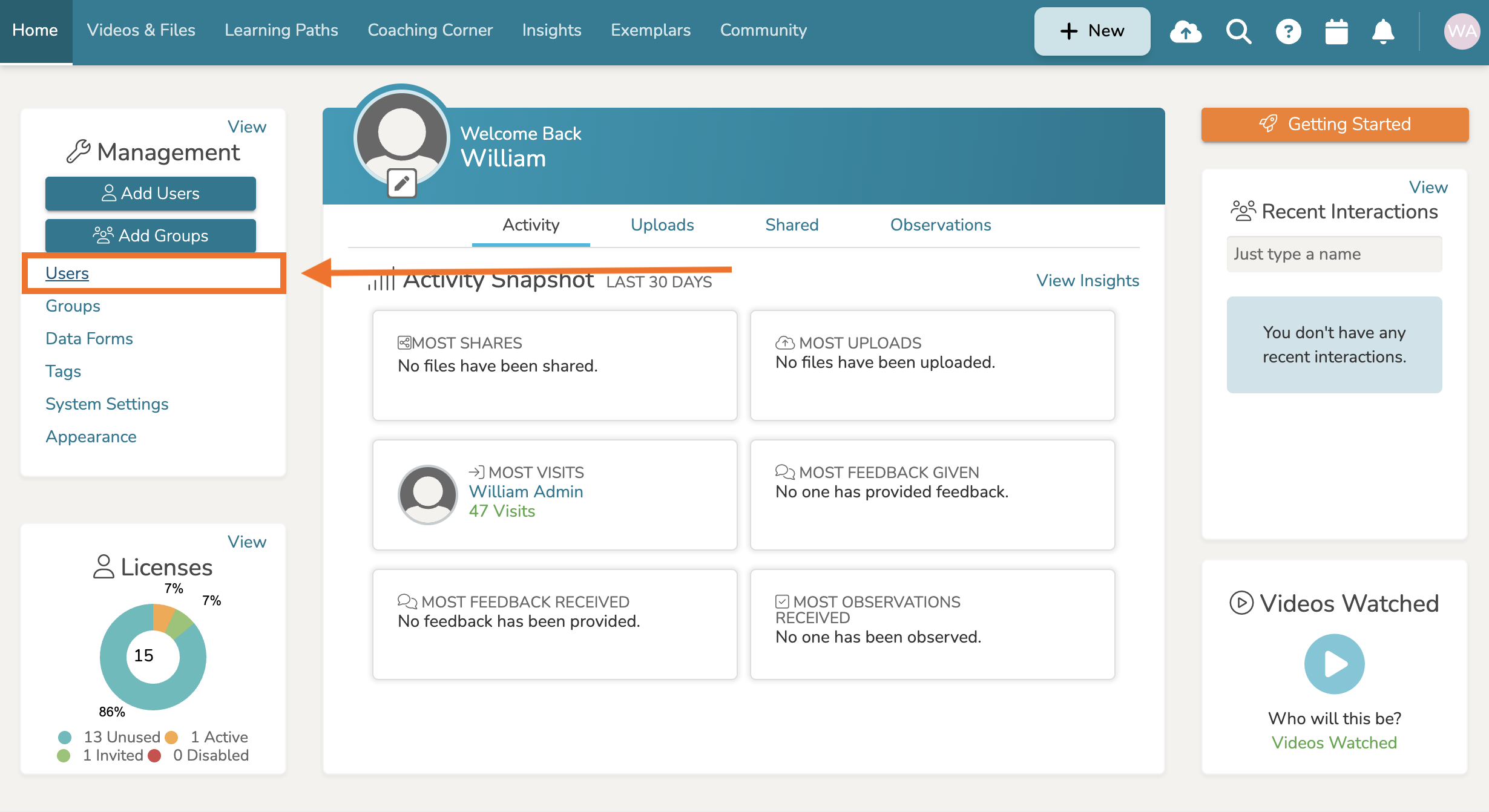
In order to delete a user's account in TORSH Talent, first find the Management Panel on the left-hand side of your Homepage and click 'Users.'
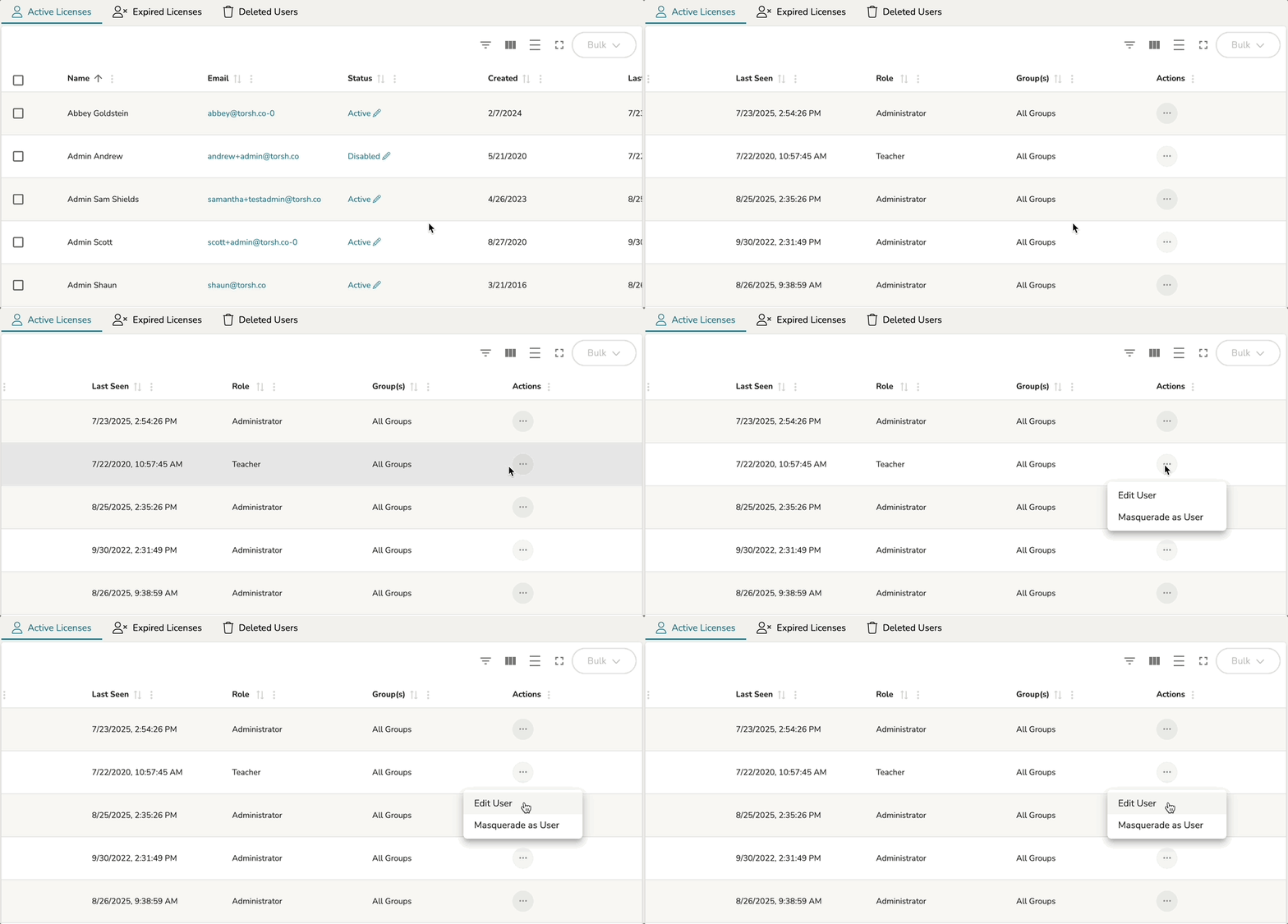
This will take you to your Users Management page. Next, locate the user you wish to delete via the Active Licenses table. Hover over their '...' icon, and select 'Edit User.'
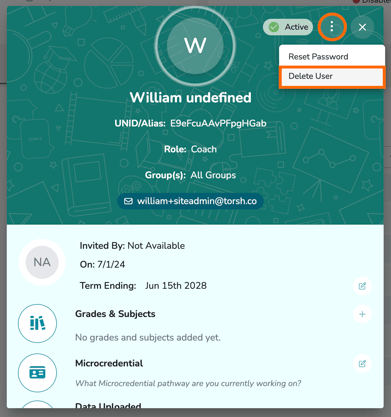
This will open the User Details pop-up window. In this pop-up, locate the '...' icon in the top, right-hand corner and select 'Delete User.'
How To Delete Users in Bulk
Deleting user accounts removes the licenses associated with them and marks them for deletion by sending their listings to the 'Deleted Users' tab in your Users Management page. After (30) days, the accounts will be permanently deleted.
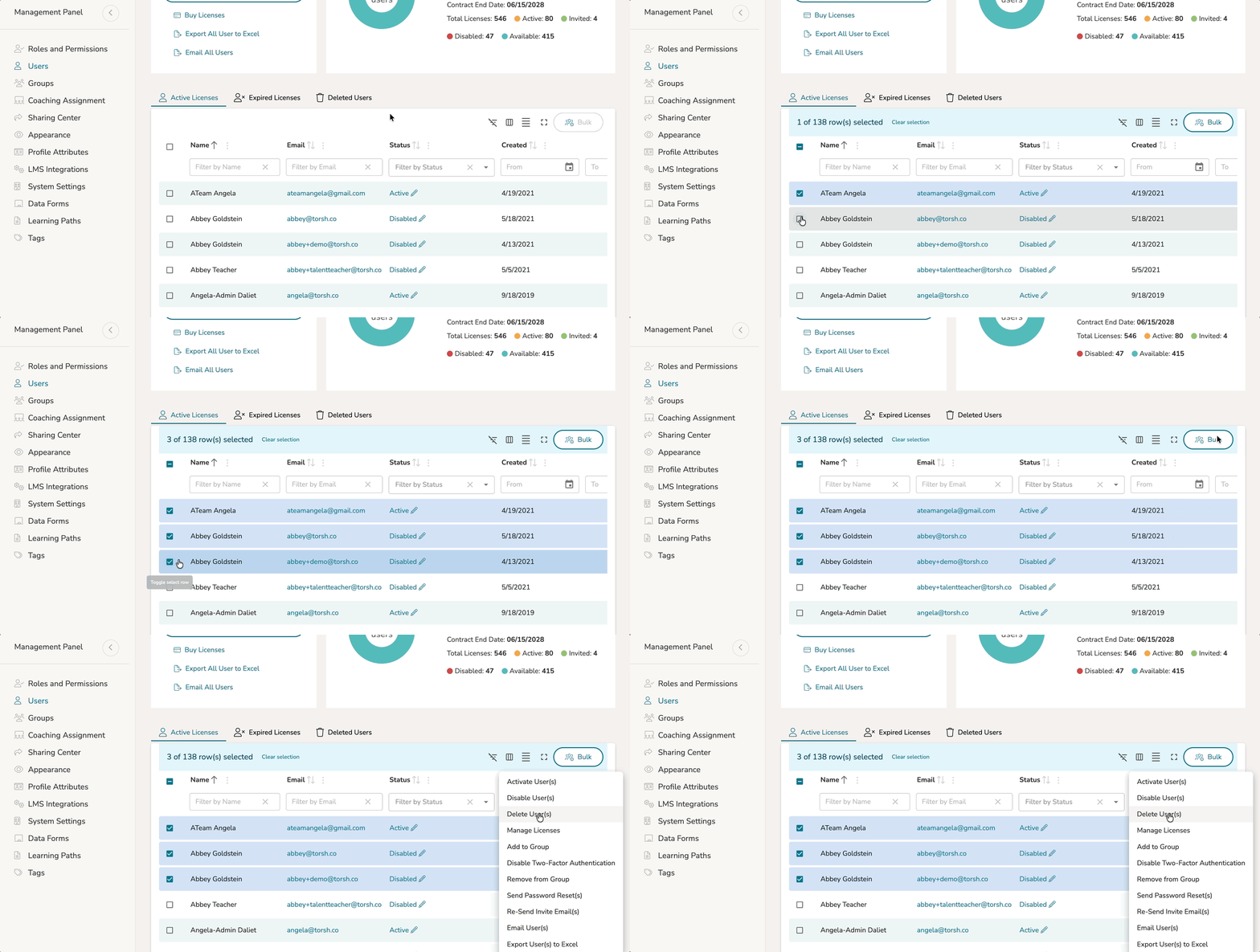
If you want to delete multiple users at once, select the users you would like to delete using the associated checkboxes in the Active Licenses table. Then click the 'Bulk' button on the top, right-hand corner of the table. From there, click 'Delete User(s).'
Rather watch a video? Check out our tutorial on Managing Users here. HIPAA Users, click here.