
If your system has purchased the Talent-Ed AI Coaching add-on, you can further streamline your data form completion by using our Talent-Ed AI to analyze uploaded videos and automatically fill out the assigned data form template/rubric based on the audio transcript of the video.
This AI Observation tool is designed to save time by offering a first pass on forms that coaches can then adjust as needed. With each answer choice provided, Talent-ed AI also provides rationale for its choices to enhance transparency and further understanding.
Requirements for Generative AI Observations
Only once 'AI Observations' have been enabled for your system can you begin using this Talent-Ed AI feature. Once AI Observations are enabled, any video with the following in place can be observed with the tool:
- An audio Transcript generated for the video.
- A rubric for the video using Data Form Templates. AI Observations are not available for Legacy Rubrics.
NOTE: Talent-Ed AI only pulls its data from the audio transcript of the videos you upload. It does not and cannot observe the visual data of a video file.
If your video does not have already have a transcript generated, please generate one by clicking on the video's 'gear icon' and selecting 'Generate AI Transcription.'
How To Generate an AI-Generated Observation
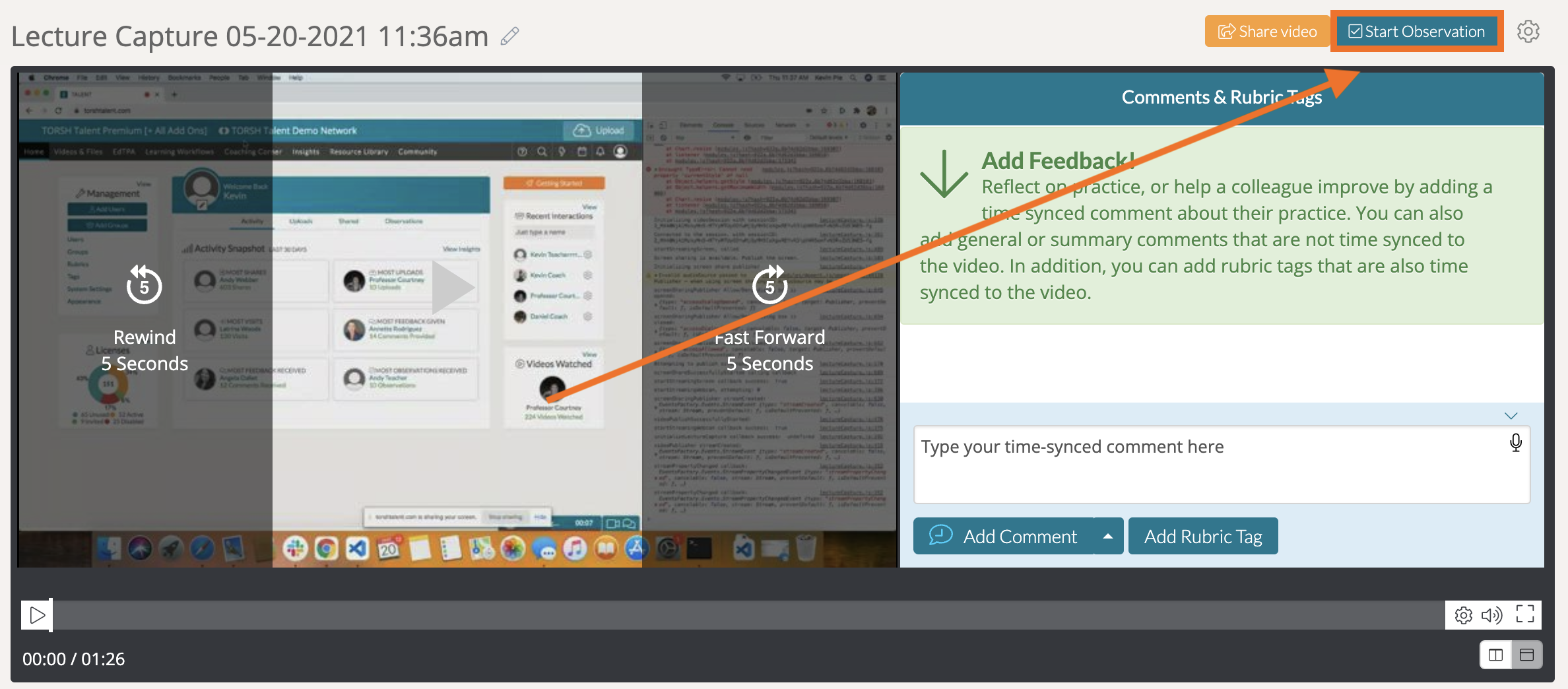
Once a video has been uploaded and shared with you, click 'Start Observation' in the top, right-hand corner.
Choose your data form template if you have not already. At the top of your template, you should find a purple tab that states 'Let Talent-Ed Al® pre-fill this observation form.'
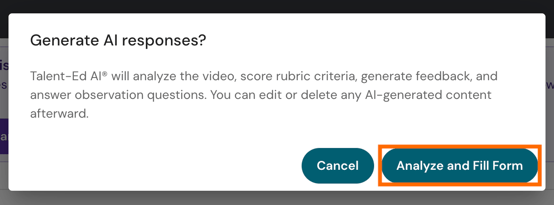
Click 'Analyze and Fill Form' to use the tool.

In the pop-up that appears, click 'Analyze and Fill Form.'
A purple progress bar will then appear at the top of your data form, indicating the generation of the Talent-Ed AI analysis.

Once the analysis is complete, your form will appear modified with answer choices framed in purple and rationale presented in separate tools underneath each component of the form.
For instance, some AI-selected answer choices will appear with a 'Talent-Ed AI's choice' label.

Other AI-selected answers will have a purple 'star icon' displayed beside them.

And every component will display the AI's Rationale that can then be expanded for further reference.

This information offers further transparency on how the AI arrived at its conclusions and helps you understand its interpretation of the video content.
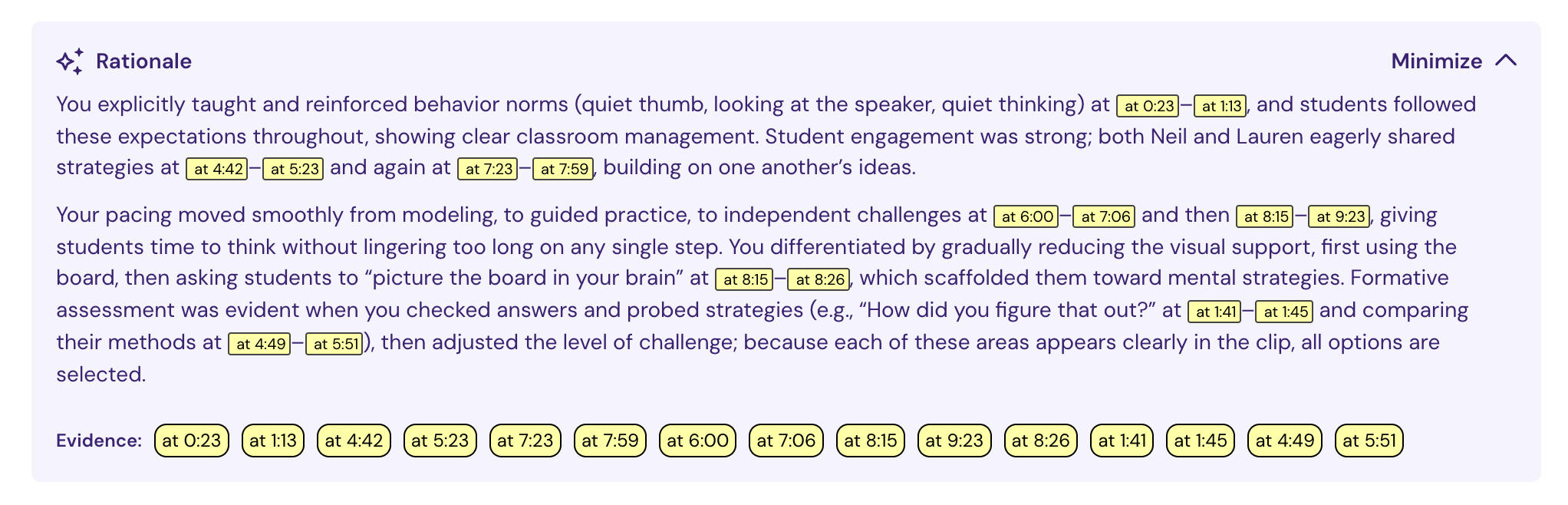
Once the AI analysis is completed, please review each section of your form for accuracy. Feel free to make any necessary adjustments based on your own observations!
Saving Your AI-Generated Video Observation
Once you have reviewed and adjusted the AI-generated data form to your liking, save the form as needed by either clicking 'Save as Complete' to save a version of this form to come back to or 'Complete and Share' to fully publish and share the observation with the owner of the video.
From here you can either choose to re-run the AI by clicking the 'magic wand' icon again and choosing a different grading style, or you can make your personal adjustments and observations from here! If you re-run the AI with the same style, the system will display the original generation without regenerating content.