
Along with adding comments to video uploads, you can also edit and/or delete the comments that you have posted - both on your videos or another user's videos.
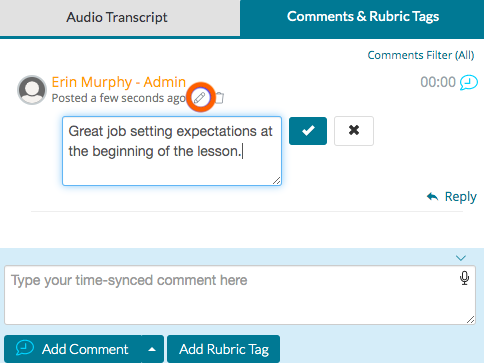
To edit the comment you've posted, scroll to the comment on the video's webpage and click on the 'pencil icon' underneath your name. This will open a box that allows you to edit your comment. Once you are done editing your comment, click the blue 'checkmark icon' to save your changes.
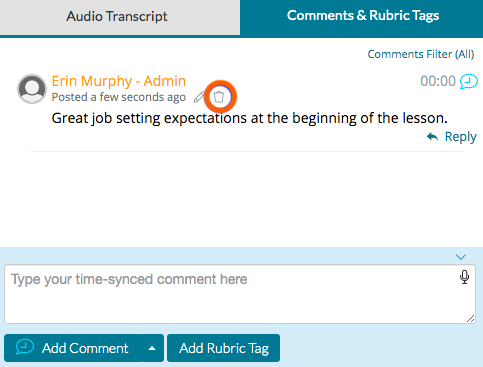
To delete a comment you've posted, scroll to the comment on the video's webpage and click on the 'trashcan icon' underneath your name. A warning box will pop up that lets you know that you cannot recover the comment once it has been deleted. Click 'Delete Comment,' to delete your comment.
Rather watch a video? Learn more about our commenting feature here. HIPAA users, click here.