
Using the Report Builder feature, you can choose to group your columns in order to display one data set that is associated with another. For instance, you may want to see all of the actions performed by a Coach for all of the Mentees they are coaching.
Within Report Builder, you have (3) different methods by which you can group your column data into different row groups:
Grouping with the Group Button
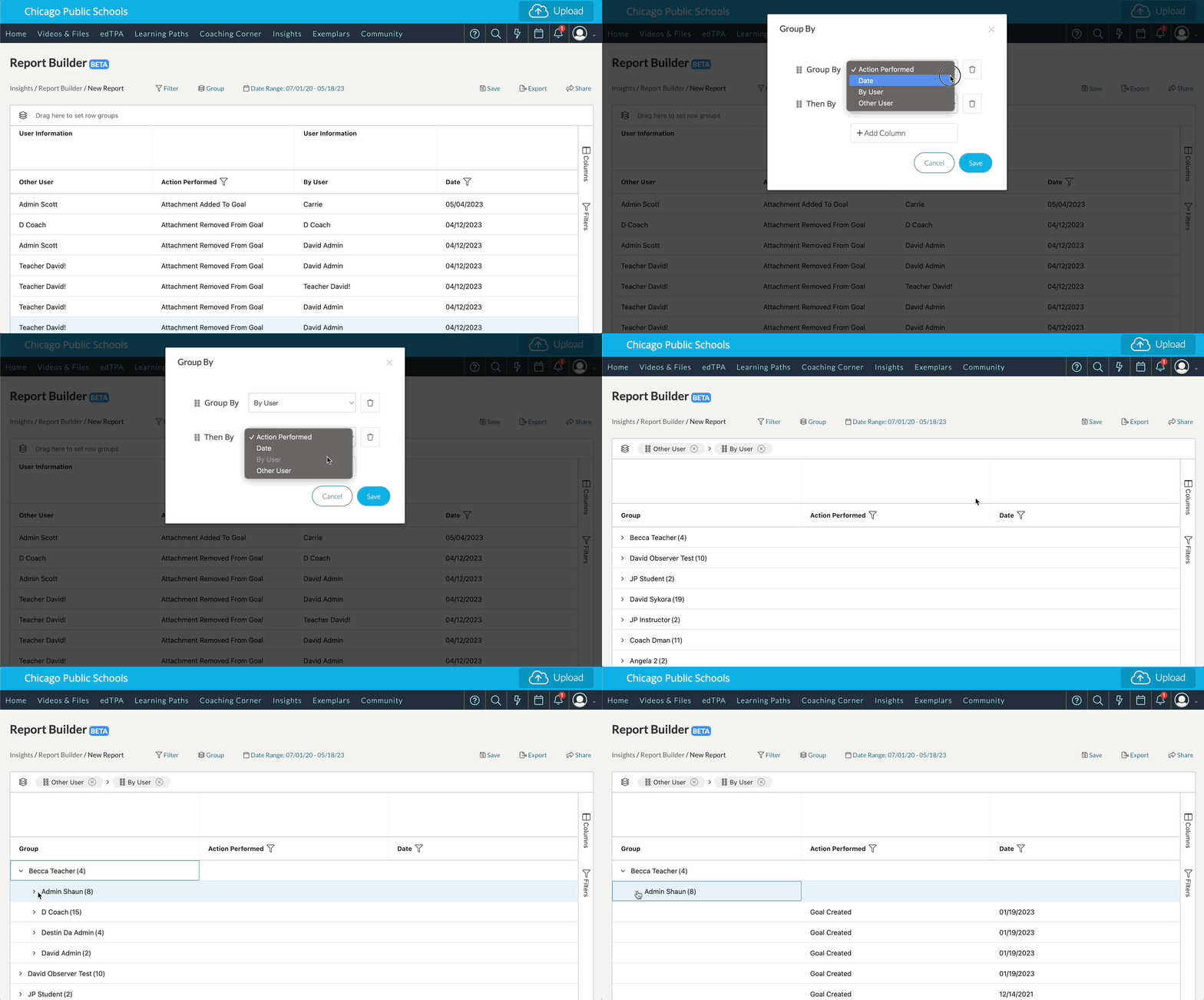
Firstly, you can click the ‘Group’ option above the report. This will load a new window wherein you can specify the first column you would like to ‘Group By’ as well as the next column you would then like to group your data by afterwards (‘Then By’).
You can add another column to group when you click ‘Add Column.’ You can delete a grouped column by clicking the ‘Trash Bin’ icon on the right side of the column selection. Click ‘Save’ to save any changes you make to your grouping.
Grouping by Drag n' Drop
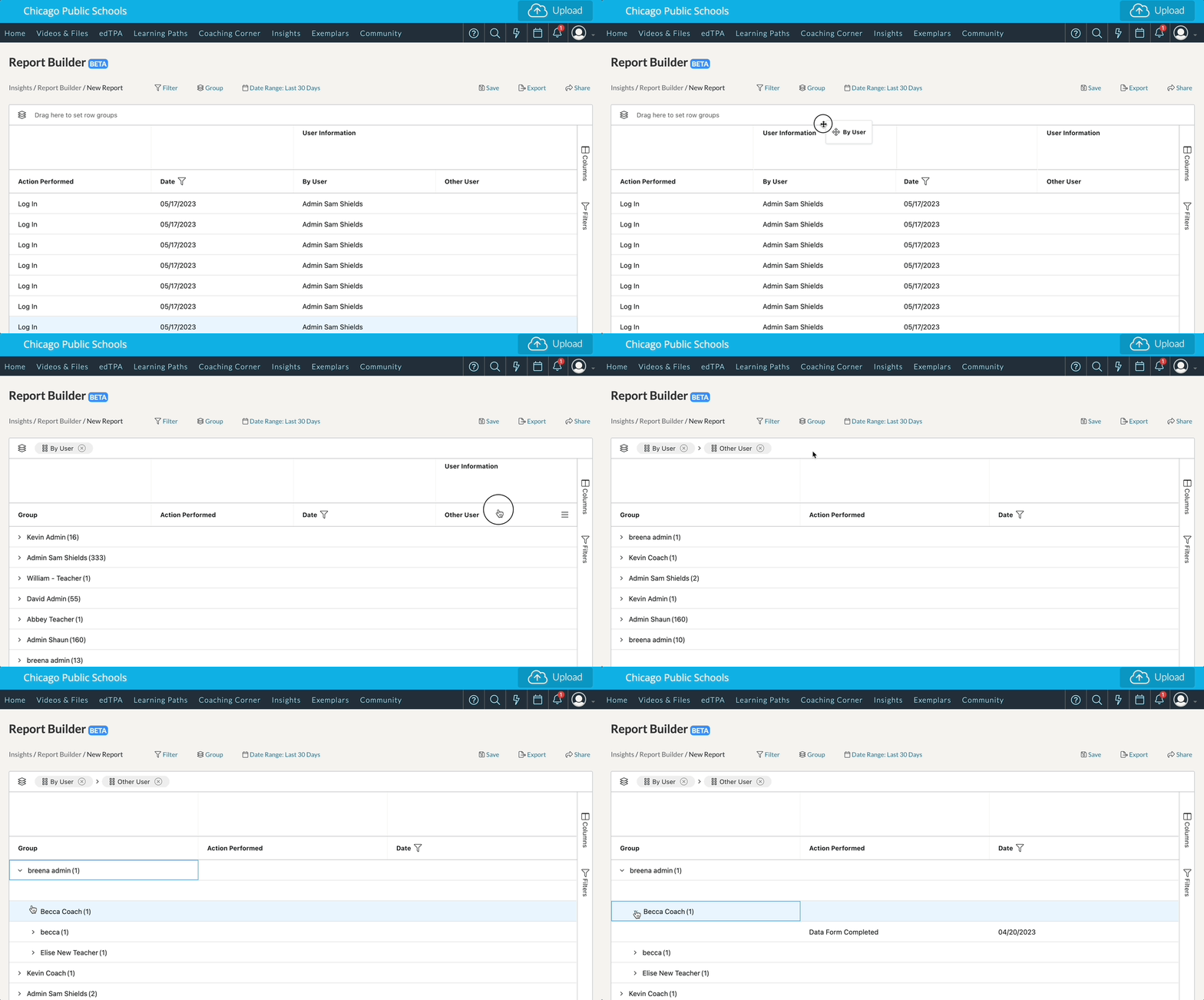
You can also group columns into different row groups by simply dragging and dropping a column header to the area specified ‘Drag here to set row groups.’ Doing so will automatically group the data by the column you selected.
If you click the ‘stacked group icon’ beside the row group title, you can then drag it again to rearrange the order in which your data is grouped (see below):
If you would like to delete any of your groups, simply click the ‘X’ icon beside the title of the row group.
Grouping with the Columns Menu on the Right
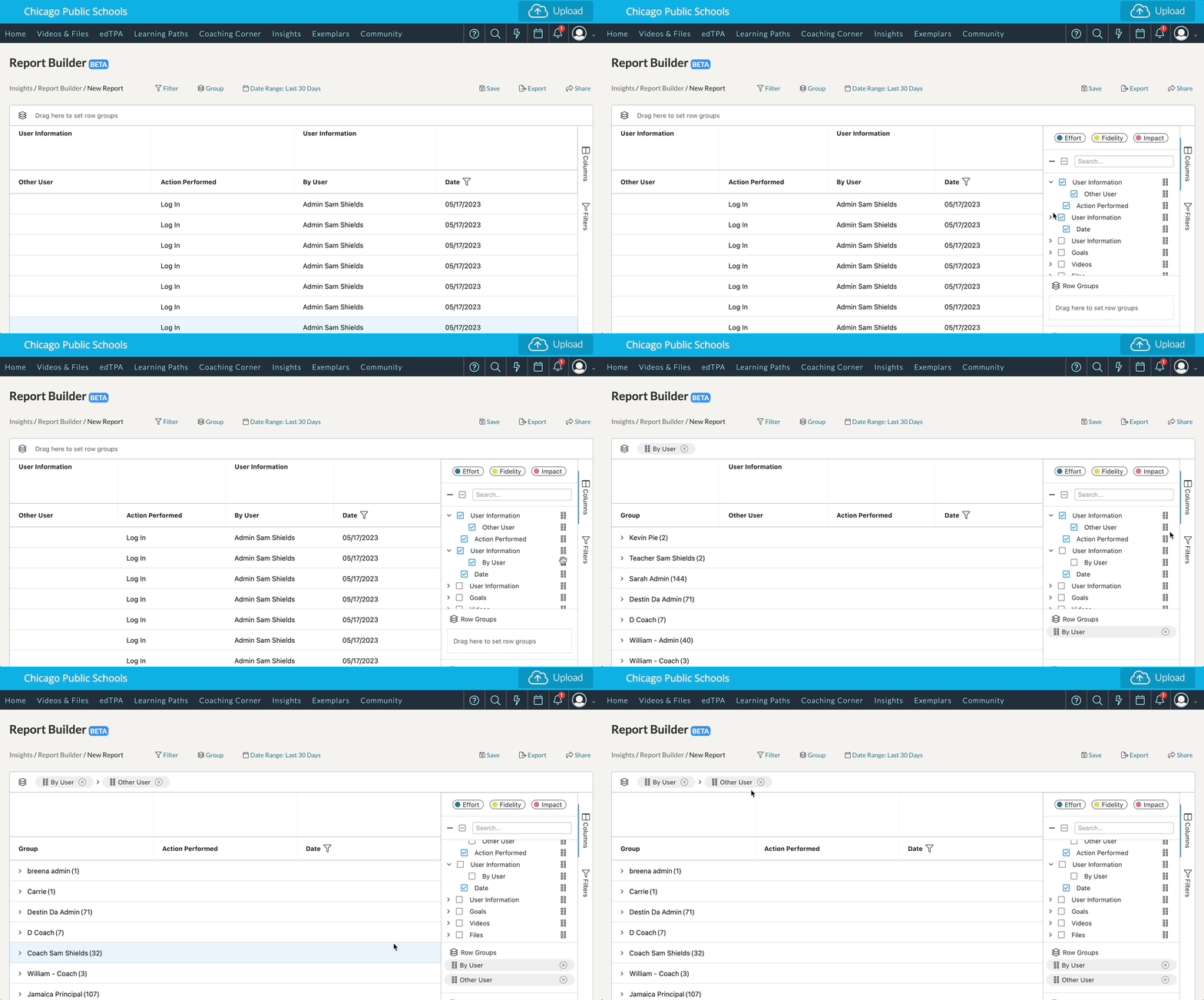
The third way you can group columns can be found on the far right side of your report. Click the ‘Columns’ menu. Underneath the list of columns, you will find another designated area stating to ‘Drag here to set row groups.’ Click the 'stacked group icon' beside each column title and drag it to the Row Groups section to automatically group the data by the column you selected. You can also drag these options to the section found above the report.
If you would like to delete any of your groups, simply click the ‘X’ icon beside the title of the row group.
NOTE: In some cases, you may find a list of '(Blanks)' when grouping the column 'By User' with the column 'Other User.' This list of (Blanks) designates actions that are performed by one user but do not involve another user with the action.