
If you would like to use TORSH Talent within Canvas for assignment submission purposes, you can setup TORSH Talent as an external tool using LTI 1.3 integration!
With TORSH Talent as an external tool in Canvas:
- Your instructors can have students submit videos and data forms uploaded to TORSH Talent for their assignments.
- New users from Canvas can even have accounts automatically provisioned in TORSH Talent.
- You can even have user groups in Talent provisioned automatically based on Canvas Course user placement.
Please follow all of the steps provided below in order to integrate your Canvas Course(s) with your TORSH Talent system via LTI 1.3.
NOTE: If you are already integrated with TORSH Talent via LTI 1.0/1.1 integration, you can implement our LTI 1.3 integration using the steps outlined below! Doing so will immediately replace any previously integrated Courses and Assignments with the LTI 1.3 integration method to ensure your entire Canvas integration with TORSH Talent remains stable and secure!
Contents:
I. Create a Developer LTI Key in Canvas
II. Create a Platform in the LTI 1.3 Settings of TORSH Talent
III. Integrate Your Canvas Course By Adding the Talent App
IV. Managing Canvas Integration Settings
I. Create a Developer LTI Key in Canvas
To get started, you first need to create an LTI Key in your Canvas Admin panel that your TORSH Talent integration will be linked through.
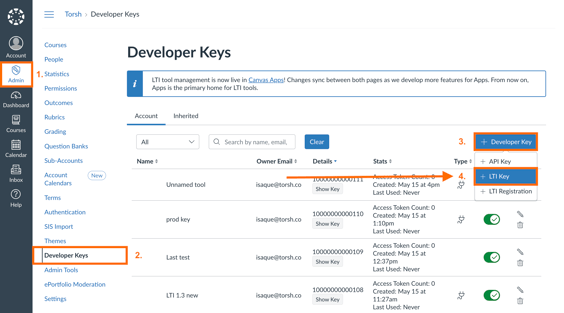
- First login to Canvas with your Site Admin account. Then go to your Admin Panel.
- From your Admin Panel, choose 'Developer Keys.'
- From your Developer Keys page, click '+ Developer Key' in the top, right-hand corner. A dropdown list will appear.
-
Then choose 'LTI Key' in the dropdown menu.
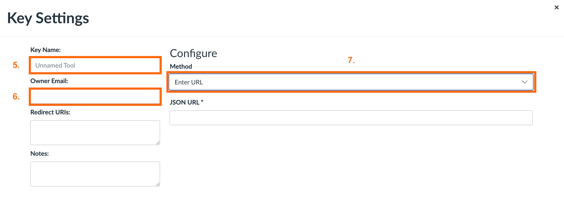
- In the LTI Key pop-up that appears, provide it with a 'Key Name.'
- Then provide an 'Owner Email.'
-
Next, choose the 'Method' as 'Enter URL.'
-
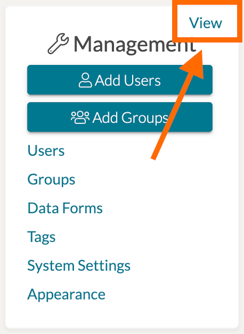
From here, open TORSH Talent in a separate tab and login to your Talent Admin account. Find your 'Management Panel' on your Talent homepage. Click 'View.'
-
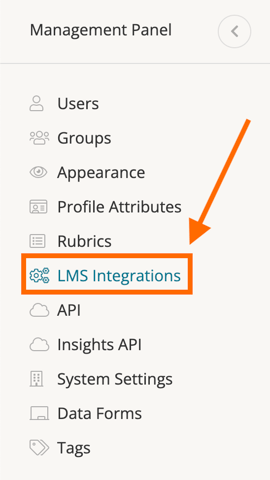
On the next page in Talent, click 'LMS Integrations' on the far, left side panel.
-
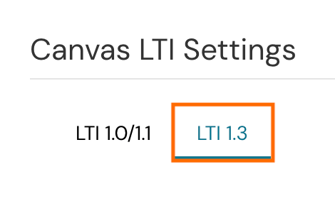
This will take you to a page wherein you can find the settings needed to copy into your preferred platform. Make sure you have Canvas selected on the top tab. Scroll down to the Canvas LTI Settings section and click the 'LTI 1.3' tab.
-
Scroll down the page further and find the section labeled 'Canvas Configuration URL (Recommended).' Copy the text provided there.

-
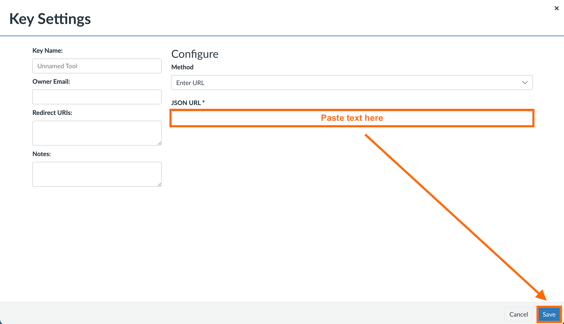
Return to your Canvas tab and the Key Settings pop-up you had open before. Paste the copied Configuration URL from Talent into the 'JSON URL' field. Then click 'Save' in the bottom, right-hand corner of the pop-up.
-
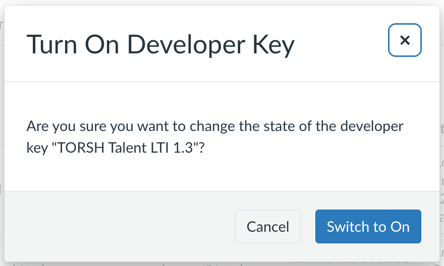
Now that your LTI Key is created, enable it by clicking the toggle switch on the right-hand side of its listing in Canvas. Click 'Switch to On' on the next pop-up to activate the key.
II. Create a Platform in the LTI 1.3 Settings of TORSH Talent
With your LTI Key in place, you will then need to create a Platform in your TORSH Talent LTI 1.3 Settings that helps to connect this LTI key with your Canvas Course!
-
First, return to your TORSH Talent tab and open the LMS Integrations settings page. Make sure you are viewing the 'LTI 1.3' tab in Talent. Then click the 'Add Platform' button on the right-hand side of the page.
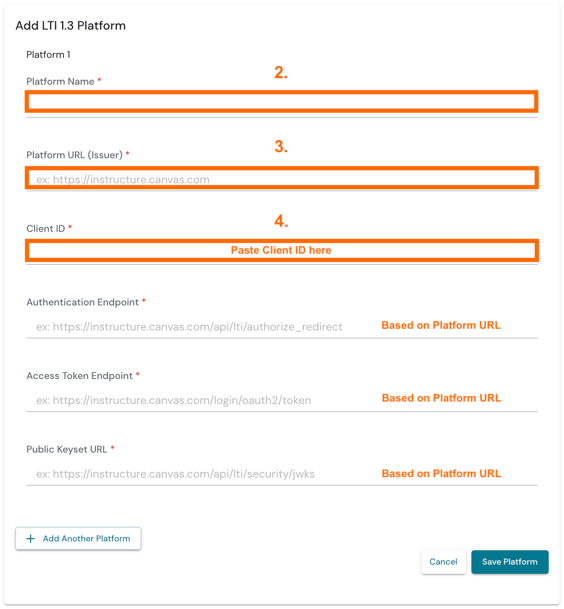
- An 'Add LTI 1.3 Platform' window will open with various fields to provide information for. You will only need to enter the top (3) fields. The rest will populate automatically when providing the Platform URL. First, provide a 'Platform Name,' preferably one that refers to your Canvas instance.
- Then enter your 'Platform URL (Issuer).' This URL is the domain of your Canvas instance/site. Providing this will automatically populate the Authentication Endpoint, the Access Token Endpoint, and the Public Keyset URL.
-
Next, please provide the 'Client ID.' You can find this ID in your recently created Developer Key. It's the 14-digit number found under the 'Details' column of your LTI Key.

-
Once you are done entering the necessary information for your Platform in Talent, click the 'Save Platform' button to save your platform in your TORSH Talent LTI 1.3 Settings.
III. Integrate Your Canvas Course(s) By Adding the Talent App
Now that you have an LTI Key in Canvas and a Platform linked to it in Talent, we will want to create an App that integrates TORSH Talent as an external tool with your Canvas Course(s).
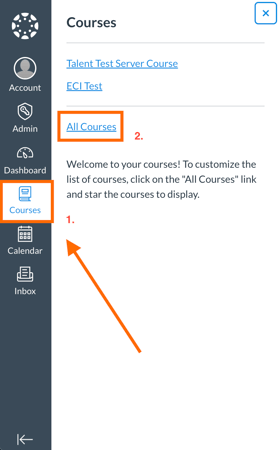
- Return to your Canvas Admin account once again. Click 'Courses' on the far, left side panel of Canvas.
- NOTE: If your Canvas instance operates with Sub Accounts, and you wish to integrate the external app across all of your courses therein, you can instead select the specific Sub Account and implement the app as needed there instead.
-
Then select the Course you would like to integrate with TORSH Talent. A new panel will open on the left side of your Canvas webpage.
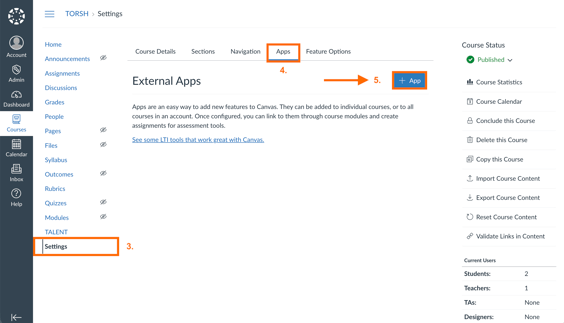
- Select the 'Settings' option from this new side panel inside your Canvas Course.
- On the Settings page, click the 'Apps' tab.
-
Then click the '+ App' button to create TORSH Talent as an external app to the Canvas Course.
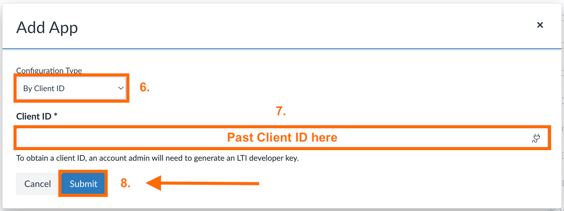
- You will then be brought to a window asking for specific LTI Settings information. Change the 'Configuration Type' to 'By Client ID.'
- Next, provide the same 14-digit Client ID from your LTI Key into the 'Client ID' field.
-
Then click 'Submit.'
-
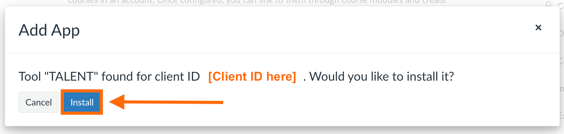
Finally, if all is correctly configured, an 'Add App' confirmation pop-up will appear, stating that the TORSH Talent tool has been located.
Click 'Install' to finish integrating your Canvas Course with TORSH Talent.
If you previously used an LTI 1.0/1.1 integration with TORSH Talent, you can now return to Admin > Developer Keys in Canvas and disable the specific API Key used to sync Grades via the older LTI method. Once the LTI 1.3 integration is in place, you do not need to worry about manually modifying any previously connected external apps to previously integrated Assignments in Canvas.
IV. Managing Canvas Integration Settings
Moving forward, you can adjust further settings for your Canvas integration through the LMS Integrations page of your TORSH Talent system admin account.
Automatic User Enrollment
If Automatic User Enrollment is turned on users coming to TORSH Talent from Canvas who do not yet have an account in TORSH Talent will have one created for them automatically.

Default User Group Placement
You can set the default group that new users coming from Canvas will be placed in via this dropdown. You can always change the group that users belong to with the Users Management menu on Talent.

Links in Email Notifications
When this setting is enabled, users will receive an email notification for when new content is available for them view. For example, if a video is shared or a new note is posted on a video, users will receive an email notification that they are available.

Many of these emails contain links that will take a user directly to the video or note. With a Canvas integration you have the option of letting TORSH Talent automatically create an account for new users coming from Canvas. In this case, since Canvas acts as a single sign on service, the user might not have a password set. If a user doesn't have a password and follows a link from a notification email, they will be asked to login with their email and password, which may be confusing. If you disable email links we will suppress links in notification emails sent to users whose accounts were automatically created from Canvas.
Talent Observation Score Is Transmitted to Canvas Assignment Score
If this option is enabled, scores from observations in TORSH Talent will be saved in the Canvas grade book. When an instructor for a course completes a scored rubric in TORSH Talent on a video that has been submitted for a Canvas assignment, the total average score will be saved as the grade for the submission in Canvas. Only scored rubrics will pass back their grade, and only on videos which have been submitted for Canvas assignments. Also only the latest observation score from an instructor will be saved to Canvas since Canvas has only one grade per assignment.
NOTE: A Developer Key will be necessary for this setting be enabled. To learn more about how to create a Developer Key for our Canvas integration, please read this help article .
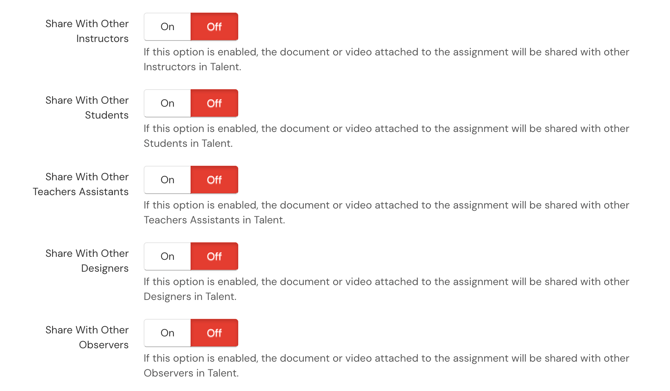
You can further designate Share setting behavior with Assignment submissions.
Canvas Courses To Become Groups on Talent
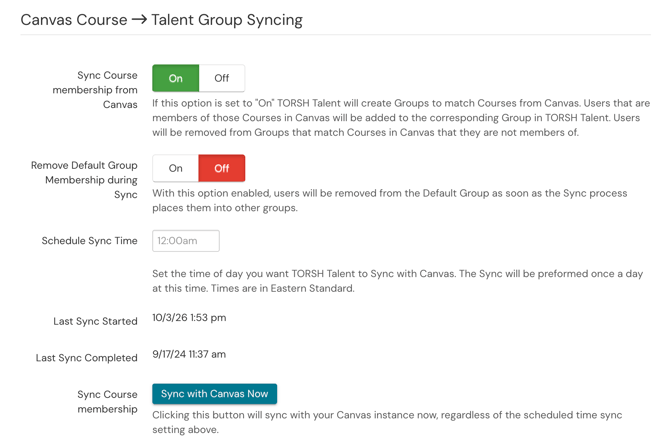
If this option is set to "On" TORSH Talent will create Groups to match Courses from Canvas. Users that are members of those Courses in Canvas will be added to the corresponding Group in TORSH Talent.
Users will be removed from Groups that match Courses in Canvas that they are not members of.
You can further indicate whether or not to keep Default Group placement during the Course to Group sync.
In to establish an accurate Group sync with Canvas, we highly recommend setting the 'Schedule Sync Time.' Doing so will set a specific time of day that Talent will sync with Canvas. You can further track when the Last Sync was started and when the Last Sync was completed below this setting.
To initiate a manual sync with Canvas Courses to Groups, click 'Sync with Canvas Now.'
Lastly, if you would like to create a Talent-integrated Assignment in Canvas, learn more here.