As a System Admin, you can easily invite new users to your TORSH Talent system, setting their Role type, their user Group placement, and their license Term End Date in the process.
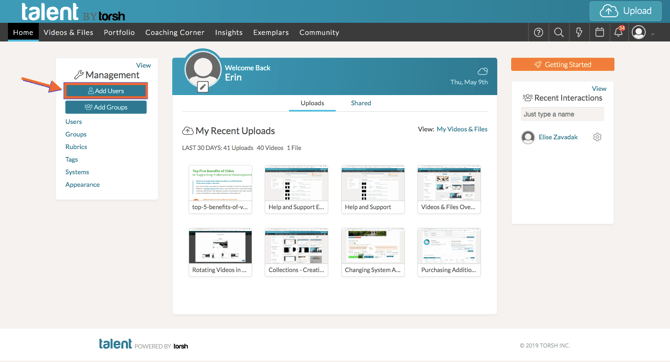
To invite new users, first navigate to your homepage. Then select the 'Add Users' button on the Management Panel, OR click your profile icon in top right and select 'Management' from the dropdown.
You will then be redirected to the Users section of the Management page. Click the 'Invite New User' button to begin inviting new users.
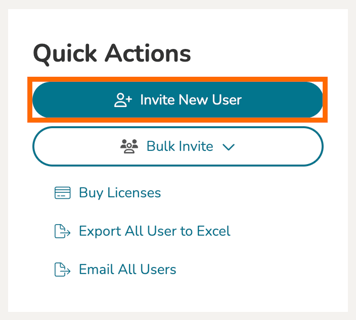
NOTE: System Admins can also invite new users in bulk by using our 'Bulk Invite ' feature.
You will be brought to the Invite New Users pop-up.
- To add new users, first enter the email addresses for each account separated out by spaces, commas, or semicolons, into the field provided.
- Once you have entered the email addresses needed, click the 'Enter' key on your keyboard, and they will appear in a table below.
- From here, you will see each email address listed out in table. For each new account listing, set the desired Role and Group placement.
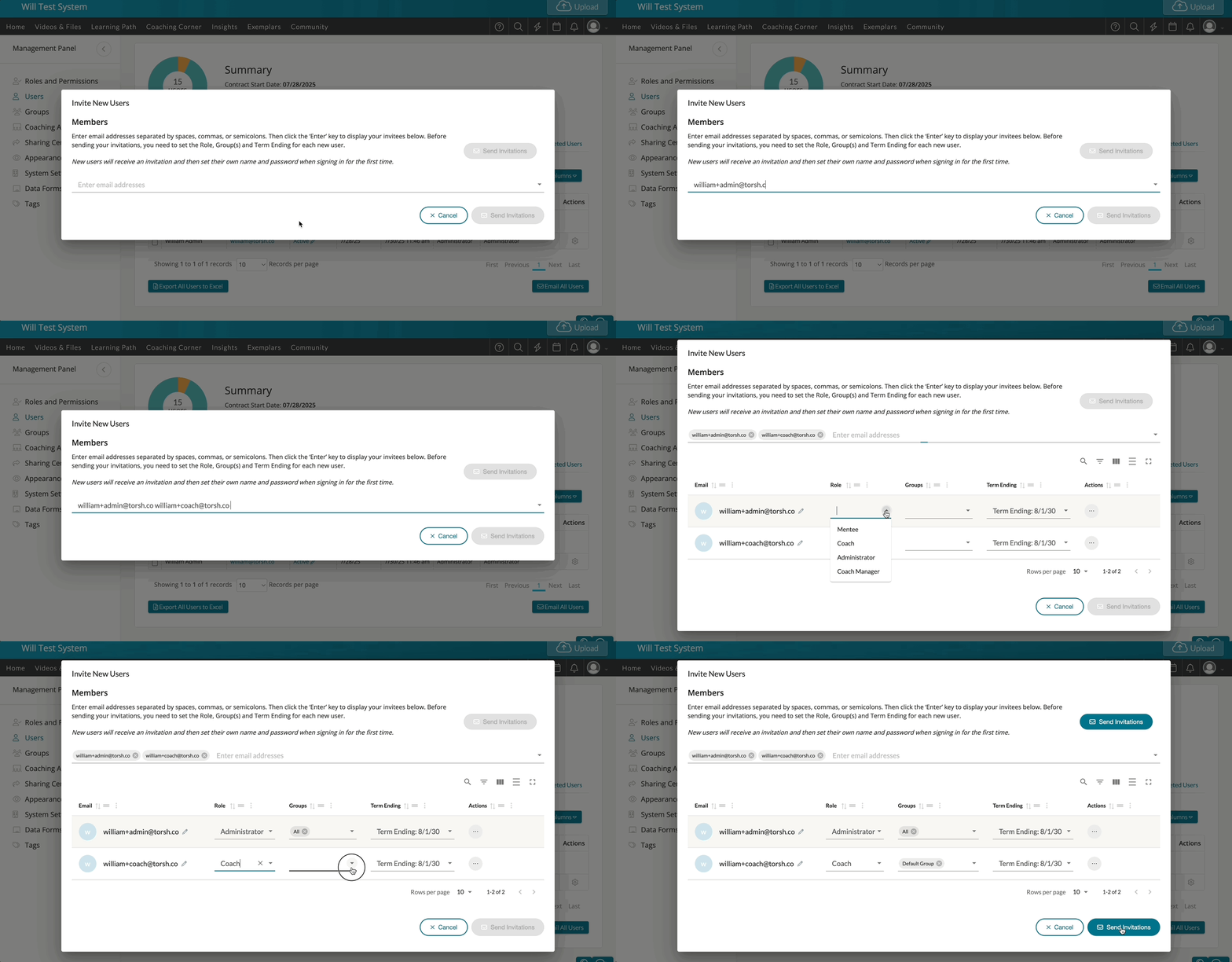
- The license Term Ending will default to the overall system's contracted End Date, but you can manually adjust this to be a different license Term Ending, if those slots are available.
- Admins are not restricted to any specific group and instead have All Groups access. Coaches/Mentees will be assigned Default Group placement at first, but you can modify this from the Groups dropdown as needed. Please see our article on how groups work here .
- When you have listed all of the email addresses you would like to invite, click the blue 'Send Invitations' button. Users will receive an invitation and then set their own name and password when signing in for the first time.