
The 'Recording Time Available' shown on the TORSH Talent mobile app is dependent on how much space is available on your mobile device to save the video. Videos are compressed and saved to the device so that you can record without the need of an internet connection. Your videos are then uploaded when Wi-Fi or Cellular Data is available to your device and the mobile app.
To free up storage on the TORSH Talent mobile app, you can delete any old photos, videos, or unused apps. Please see below how to manage your storage space for:
Managing Storage Space on iOS Devices (iPhone/iPad)
If you use an iOS mobile device (iPhone/iPad), then you can quickly manage your storage space by first opening your Settings app.
- In your Settings app, scroll down and tap on the 'General' option.
- On your General page, scroll down and tap on 'iPhone Storage' (or iPad Storage, depending on your device type).
- This will open a page with a visual display of all of your used/unused storage space on your immediate device. If you scroll down further, your device will provide several 'Recommendations' for what large files to delete on your device. Tap on each option and remove any large files that you are comfortable deleting from your device.
Managing Storage Space on Android Devices
If you use an Android mobile device, then you can quickly manage your storage space by first opening your Settings app.
- In your Settings app, scroll down and tap on the 'Device Care' option.
- On your Device Care page, scroll down and tap on your 'Storage' listing.
- This will open a page with a visual display of all of your used/unused storage space on your immediate device. If you scroll down further, your device will provide an option to 'Review old files.' Review the recommended files to remove and delete any files that you are comfortable with deleting.
- Your Android device may also present a 'Trash' option that houses various files housed in your apps' trash bins. Feel free to empty this out.
- Be sure to look through the other suggestions to clear out any clutter on your device:
- Unused apps
- Duplicate files
- Large files
Managing Storage Space in the TORSH Talent Mobile App
Additionally, if your videos have been successfully uploaded to the Talent web platform and display with a Status of 'Location: Web & Mobile', they can be deleted from the mobile app by tapping the gear icon of each video on the Videos & Files section of the mobile app and selecting 'Delete from Device.'
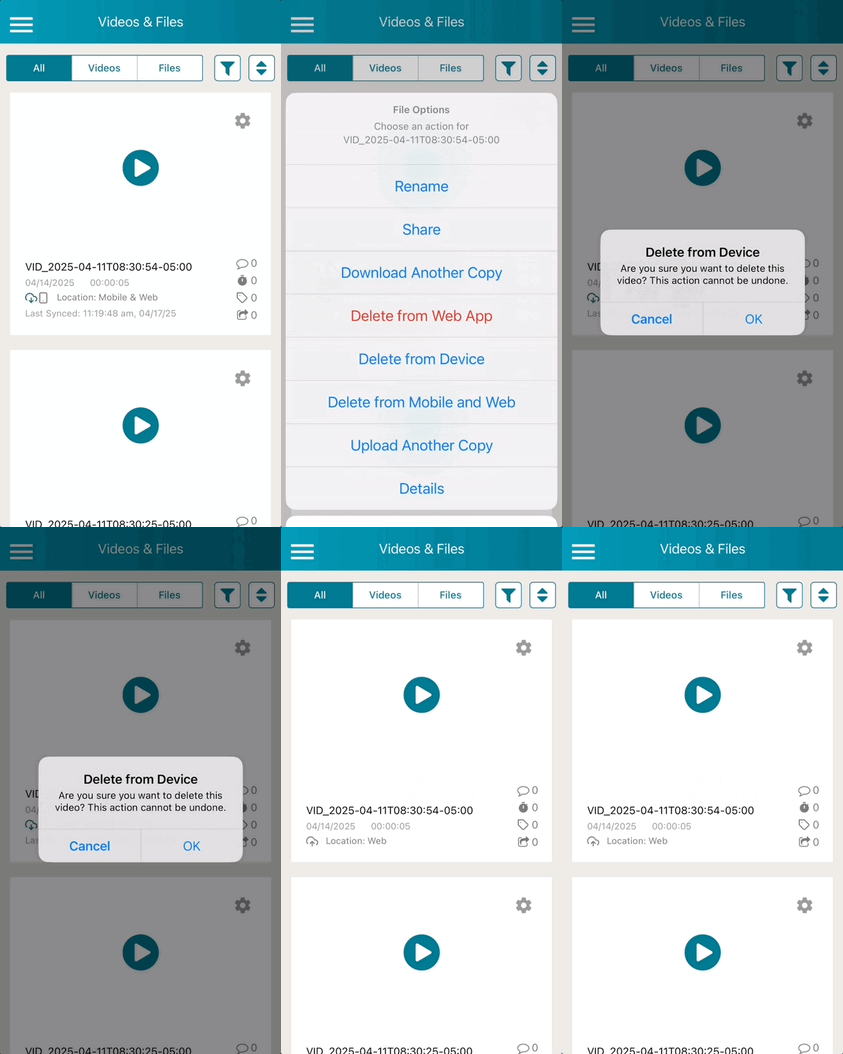
NOTE: If your system has any Mobile App settings in place, it's possible your video recordings will automatically appear as either 'Location: Web' if the upload was successful and only exists on the web platform, or 'Location: Mobile' if the upload was unsuccessful and only exists on your device's TORSH Talent mobile app to make sure it's available for reupload.
To learn more about these Mobile App system settings your organization manages, please see this Help Center article here .