
If your system has licenses that are set to expire within the next (30) days - or has licenses that have already expired - all Admins in your system will receive a red notification banner on their homepage in TORSH Talent when they log in.
This notification will display the number of days left before those specific licenses expire, as well as the number of licenses set to expire. On the right-hand side of the banner is a button to manage the licenses.
Selecting 'Manage Licenses' will bring you to the Users Management page wherein you can assign new license terms (if they are available to your system). Otherwise, you will need to contact your assigned Customer Success Manager to discuss your contract renewal with TORSH Talent.
Contents:
II. Renewing Your System Contract
III. Assigning New License Terms To Expiring/Expired Accounts
Account Expiration Flow
All accounts in TORSH Talent are granted a license term, either based on the overall contracted End Date of your system or based on a specific Term (Ending) purchased for a separate set of licenses. All current term licensed accounts will display on your Users Management page under the 'Active Licenses' table until they reach their license expiration date.
If a user's account expires, it will be removed from the Active Licenses table and placed into the 'Expired Licenses' table. Users with Expired accounts will be unable to login. Expired accounts will remain in this table for another (30) days post-expiration unless they are marked for deletion or given a new and updated license term.
After that 30 day period in the Expired Licenses table, expired users will automatically be marked for deletion and moved to the 'Deleted Users' table. Their uploaded and created artifacts will be removed from the system. Users marked for deletion will then be held in the Deleted Users tab for another (30) days before their accounts and materials are permanently deleted.
NOTE: The data associated with any deleted artifacts will remain in the reporting of your system.
Renewing Your System Contract
If your system has only one license term available to it, and you would like to extend the Term (Ending) made available to all user accounts in your system, you will need to renew your contract with TORSH Talent.
To do so, please reach out to your assigned Customer Success Manager, and they will be happy to assist you! Once the system renewal has been fully processed, all expired/expiring users in your system will be assigned the new overall contracted End Date for your system in Talent!
Assigning New License Terms To Expiring/Expired Accounts
If your system has multiple license terms available to it due to the purchase of multiple, separate license terms, then you will be able to manage your expired/expiring users and assign new license terms to their accounts. To do so, please follow the 'Manage Licenses' button on your red notification banner (if you have any expired/expiring accounts) or find the 'Management Panel' on your Homepage and click 'Users.'
Once on the Users Management page, click on the 'Show Columns' icon and select to display the 'Term (Ending)' column. With this, you can sort and filter your active licenses by their expiration date.
When an account has a license set to expire in the next (30) days before the end of the license contract, it will display the days left before expiration.
Hover over the account listing's '...' icon under the Actions column and select 'Manage License.'
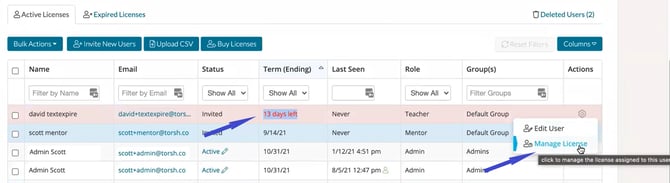
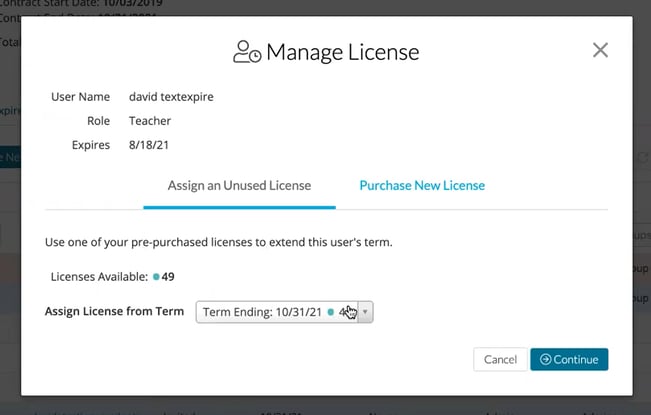
When you select 'Manage License,' the Manage License pop-up will appear. Here you can assign an available/unused license term for the account. This window also gives the option to purchase a new license if there are no more unused licenses.
If you would like to learn more about purchasing new licenses, please click here.