
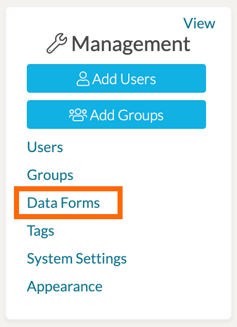
If you need to modify an existing Data Form Template in your system, you can do so via your Data Forms Management page found via the Management Panel on the left-hand side of your TORSH Talent homepage. In the Management Panel, click 'Data Forms.'
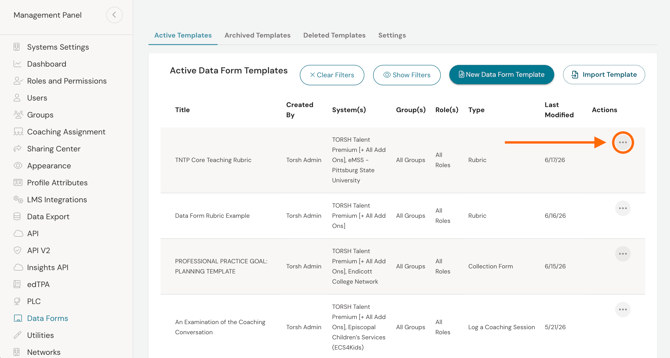
On your Data Forms Management page, you will find all of your existing Active Templates. Find the template you would like to modify and click on its '...' icon found to the far, right-hand side of its listing.
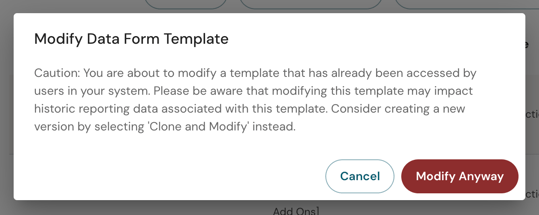
If your Data Form Template has been used by others in your system to fill out any forms, a warning will appear, stating:
Caution: You are about to modify a template that has already been accessed by users in your system. Please be aware that modifying this template may impact historic reporting data associated with this template. Consider creating a new version by selecting 'Clone and Modify' instead.
Please read more below before moving forward:
Modifying a Template with Wording and Answer Choice Changes
If your changes to a data form template are minor and only involve updating wording or adding/removing answer choices to existing components, you are fine to modify the existing template directly. Click 'Modify Anyway' and make your changes.
However, if you need to make larger, structural changes, such as:
-
Moving/adding/deleting a Section
-
Moving/adding/deleting a Component
-
Moving/adding/deleting a Rubric Grid criteria row
-
Modifying Score Settings
Please follow this process instead - LEARN MORE.
Otherwise, for minor changes click 'Modify Anway' on the original template. This will take you to the authoring view of the template, wherein you can modify your template.
From there, click on any of the existing components to edit them further as needed.
NOTE: Previously completed forms using the older version of your template will remain in Talent when minor changes are made. Anyone currently using the older version in a drafted form tool will still be able to complete their form as needed.
If users need to access the newer version of the template, they will need to start a new data form, observation, or self assessment with the specific template after your changes have been made.
If you need to make larger, structural changes to your form template outside of word choice or answer choices available, please read more below.
Modifying a Template With Structural Changes
If your changes to the template involve the following structural changes, do not modify the original template, or else you will negatively impact the display of historic data for previous usage of the original template:
-
Moving/adding/deleting a Section
-
Moving/adding/deleting a Component
-
Moving/adding/deleting a Rubric Grid criteria row
-
Modifying Score Settings
Instead, please click 'Clone & Modify' from the '...' dropdown menu and make these changes to your cloned copy instead.
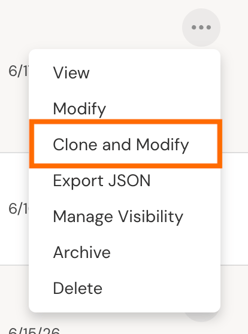
Cloned Copy Changes
In your cloned copy, please update the Template Name to differentiate it from the previous template in place. We recommend a naming convention that pinpoints the date that changes were made. This will help to make reporting across time much easier to manage!
EX: If the original template was titled 'Observation Rubric,' and your larger changes were made to a new template in June of 2026, we recommend calling the new template 'Observation Rubric - June 2026.'
From there, click on any of the existing components to edit them further as needed. Add/delete/more components or sections around as desired.
Your cloned template should automatically be accessible to all users who originally had access to the older template.
Original Copy Changes
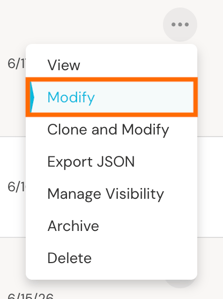
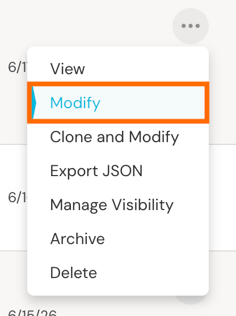
Once you have made your changes to the new template, go back to the Data Forms Management page and click on the '...' icon for the original template. In the dropdown menu of the original template, click 'Modify.'
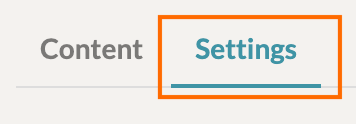
In your original template, click the 'Settings' tab found in the top, left-hand corner of the template (beneath the title).
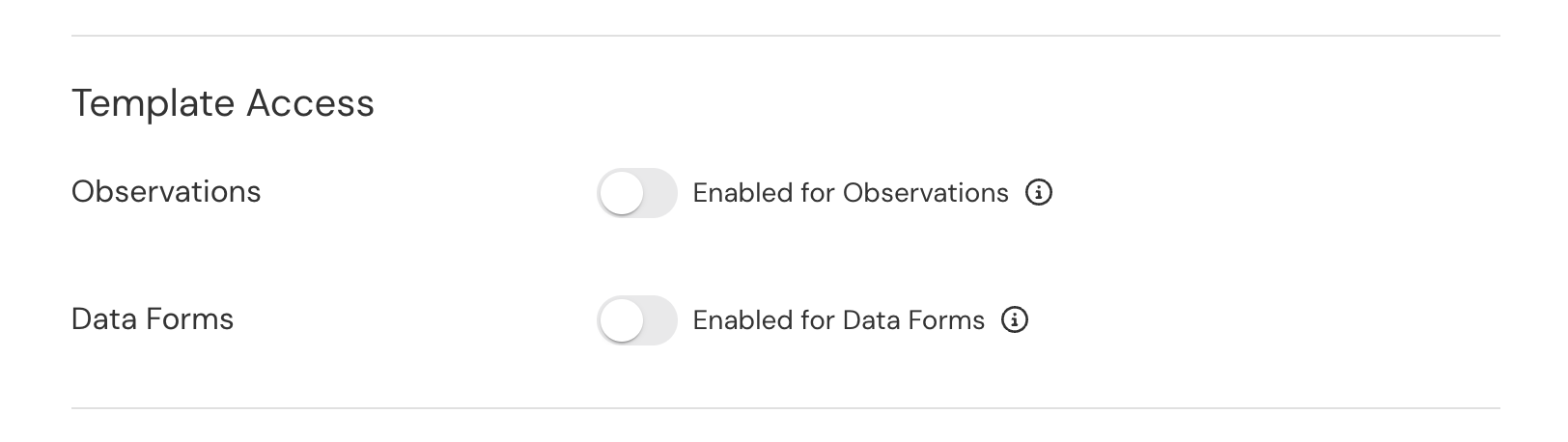
Then scroll down to the Template Access section and disable the old form from both Data Forms and/or Observations access. This will ensure your old template is removed for selection moving forward from the users in your system.
NOTE: Previously completed forms using the older template will remain in Talent when visibility or template access is modified. Anyone currently using the older template in a drafted form tool will still be able to complete their form as needed.