As a System Admin, you can create and manage the level of access that each Role has in your system to Talent-Ed AI features! You can only manage these tools at the role level once they have been enabled for your system by a Customer Success Manager.
Once Talented-AI tools have been enabled for your system, you can modify each role's access via the Roles & Permissions feature. their associated permissions within your system!
-
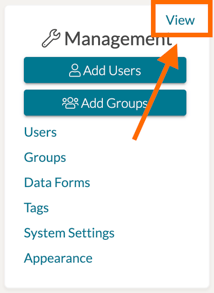
First, navigate to the 'Management Panel' on your homepage. Then click 'View.'
-
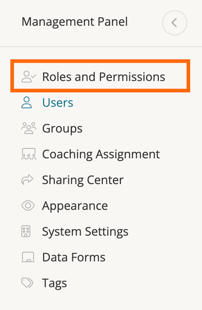
On the next page, look to the left-side panel and click 'Roles & Permissions.' You will be brought to a page with each of your system's roles displayed as a separate card.
-
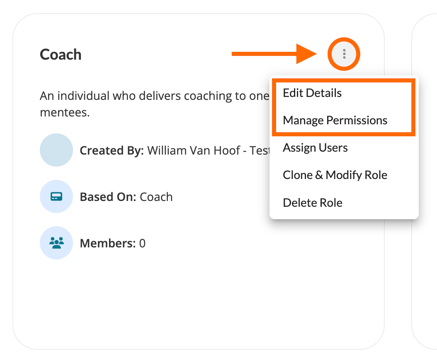
To modify existing Roles in your system, simply find the Role card and click on it. Or find the Role card's '...' icon and select 'Edit Details' or 'Manage Permissions' from the dropdown list. You will be brought to a view of specific feature tabs wherein you can manage that role's level of access.
- To manage the level of access this role has to Talent-Ed AI tools in your system, click on the 'AI' tab located on the far, right-hand side of the Manage Permissions features tabs.
- Here you will find options to enable whether or not this role can/cannot access the following AI features (if they are enabled for your system). These AI feature permissions are only available when the corresponding AI feature is enabled for your System Settings by a Customer Success Manager. Users without access to a specific AI feature will not see or be able to use that functionality.
- Goals Al Chat - Roles with this permission can use Al assistance when creating and managing goals.
- Learning Paths Al Creation - Roles with this permission can use Al to generate learning path content.
- Data Forms Al Fill - Roles with this permission can use Al to fill out coaching logs and data forms.
- Transcription Summaries - Roles with this permission can view Al-generated transcription. summaries.
-
Talent-Ed Al Chat - Roles with this permission can interact.
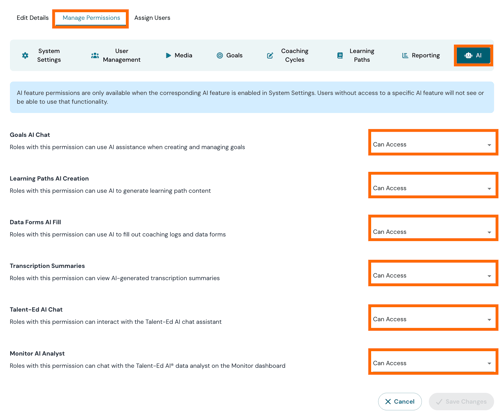
- Lastly, once your changes have been made to role, you will need to save them by clicking the 'Save' button found in the bottom, right-hand corner of the role card's Manage Permissions display.