
In TORSH Talent, there are several ways you can have the default interface of and observation interaction options for video observations and self assessments! These account specific options help to configure a workflow that is most efficient for you when completing rubrics for videos you observe and evaluate in the platform.
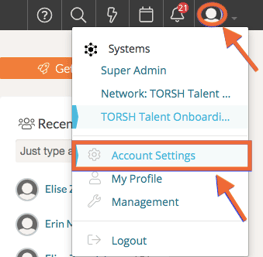
To access these options, first click on your 'profile icon' in the top, right-hand corner of Talent and then select 'Account Settings' from the dropdown menu.
Modifying Interface Options
Interface Options modify the default playback behavior of videos when either loading a video page or leaving a video comment or a comment within a data form text box.
To modify this default setting for your account, first scroll down your Account Settings page until your reach the 'Interface Options' section.
To enable or disable an interface option, click on its 'checkbox,' and the setting will automatically save for your account moving forward.
-
Auto Play Videos - enables your videos to automatically begin playback upon loading a video webpage in TORSH Talent. This setting is enabled by default for your account.
-
Play Video While Commenting - enables your videos to automatically begin playback while leaving either a video comment or a comment within a data form text box. When you click outside of the text box, the video pauses (you'll need to manually click the 'play' button for the video again). This setting is enabled by default for your account. Enabling this setting hides the Play Video When Clicking Outside of Comment Box option.
-
Play Video When Clicking Outside of Comment Box - enables your video to resume playback when you click outside of a comment box. This setting is disabled by default for your account.

Modifying Observation Options
Observation Options modify the default display and placement of where a rubric appears for video observations and self assessments when you go to complete the form.
To modify this default setting for your account, first scroll down your Account Settings page until your reach the 'Observation Options' section.
To enable or disable an observation option, click on its 'checkbox,' and the setting will automatically save for your account moving forward.
-
Automatic Selection of Most Used Rubric - enables your most used data form template to display as the default form template that loads when starting a new Observation or Self Assessment. This setting is enabled by default for your account.
-
"Side by Side" is Default Observation View - enables all video observations and self assessments you initiate to display in 'Side By Side' view by default, as opposed to displaying the video above the data form. This setting is disabled by default for your account.
