
In the Exemplar Library, you can manage the visibility of multiple Exemplar artifacts at once! To edit the visibility of Exemplars in bulk, please follow the steps below.
Login to TORSH Talent. Click 'Exemplars' in your top navigation bar.

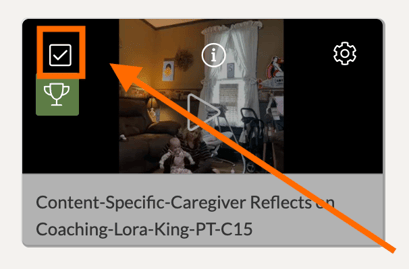
On your Exemplars page, find each exemplar video/file you would like to change the visibility for. Click the 'checkbox' to mark each video file you would like to edit the visibility of together.
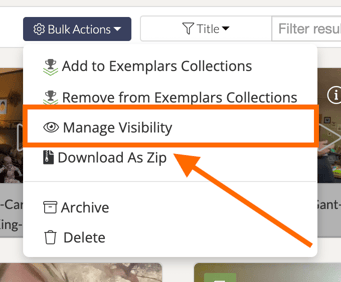
Once you have all of your exemplar videos/files selected, click the 'Bulk Actions' button at the top of the page. A dropdown list will appear

In the dropdown, select 'Manage Visibility.' A new pop-up will appear.
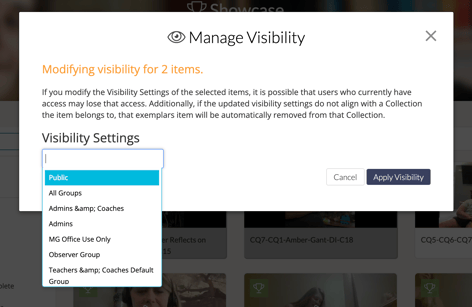
In the Manage Visibility window, click on the blank space under 'Visibility Settings' to display a dropdown list of all of your groups in your system. Select your group(s).
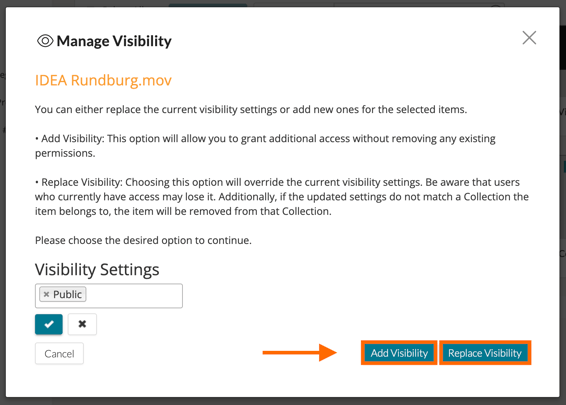
When you are satisfied with your selection, click either 'Apply Visibility' or 'Replace Visibility.'
- Apply Visibility - Adds the group(s) you selected onto the current visibility settings of each exemplar you selected.
- Replace Visibility - Completely replaces the visibility settings of the exemplars you selected in favor of the group(s) you selected.
NOTE: If an exemplar video/file was part of a collection, and you change the visibility setting of a video/file to no longer match the collection's visibility setting, it will remove that exemplar from the collection.