If you need to regenerate the Shared Secret of your Canvas Course's integration with TORSH Talent via LTI 1.0/1.1, you can easily do so as an Admin role in TORSH Talent!
NOTE: For LTI 1.3 Talent integrated courses, you do not need to worry about regenerating a Shared Secret, as that integration is an oauth protocol, and there is no Shared Secret in use.
How To Regenerate a New Shared Secret
-
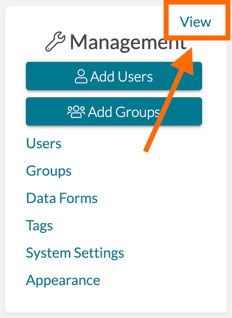
To regenerate your shared secret, first log into your Admin role TORSH Talent account. Then locate your Management Panel on the left-hand side of your Home page. Click the 'View' option.
- On the next page, look to the left-side panel and click 'LMS Integrations.' Scroll down to the 'Canvas LTI Settings' section, and you should find a listing for 'Shared Secret.' Click the 'Regenerate Shared Secret' button.
NOTE: Clicking 'Regenerate Shared Secret' will generate a brand new shared secret in your Talent system's integration settings. As a result, this will disconnect your Canvas Course's integration TORSH Talent. You will need to paste the new Shared Secret into your corresponding Talent-integrated Canvas Course(s)'s App settings.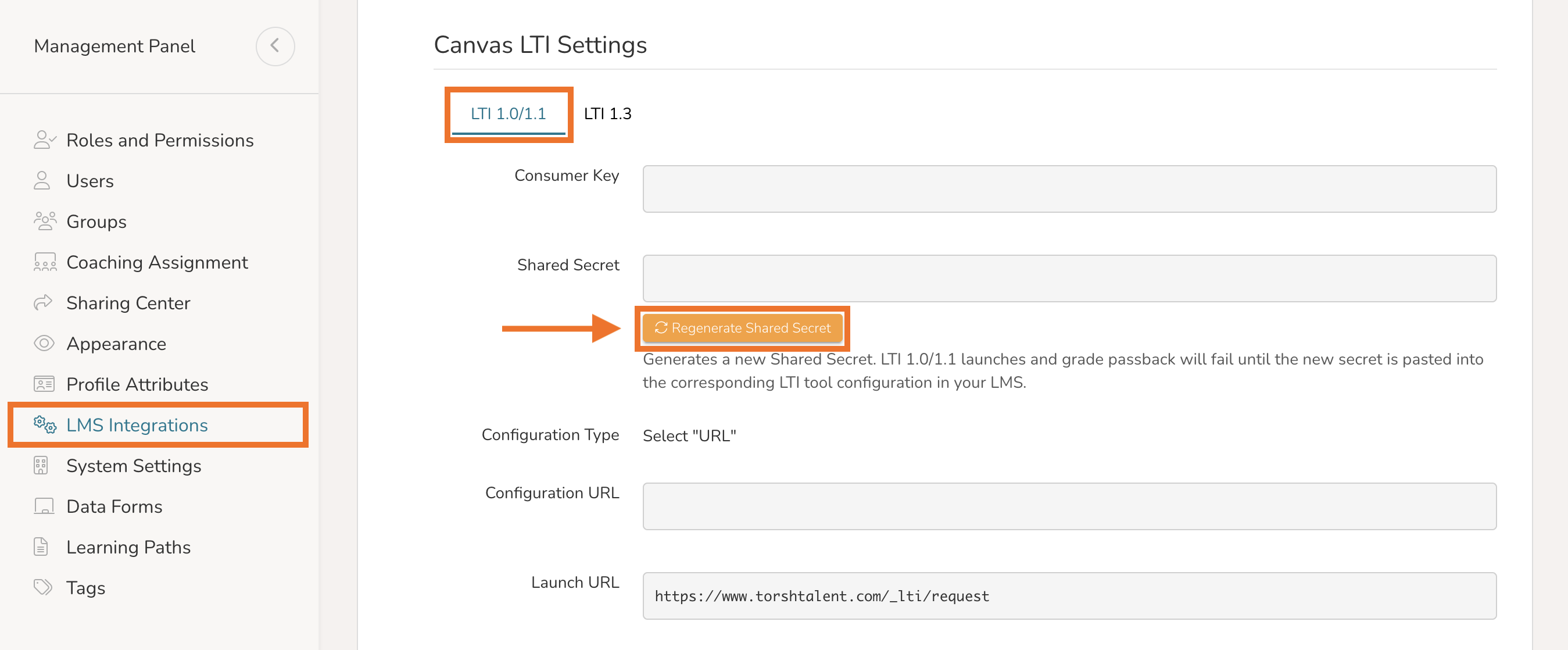
How To Link Your New Shared Secret With Your Talent-Integrated Canvas Course
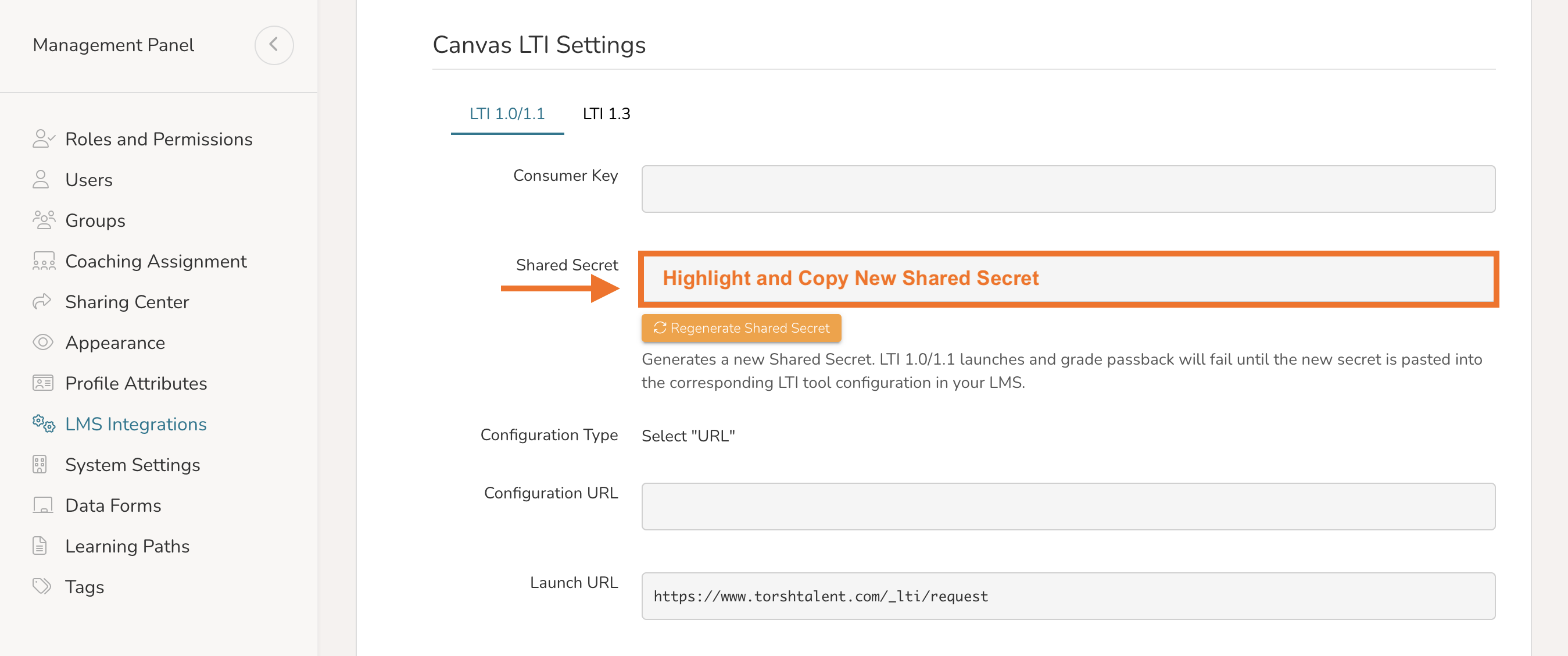
- To link your newly generated Shared Secret with your Canvas Course(s), first highlight and copy the newly generated Shared Secret from your TORSH Talent LMS Integrations page.
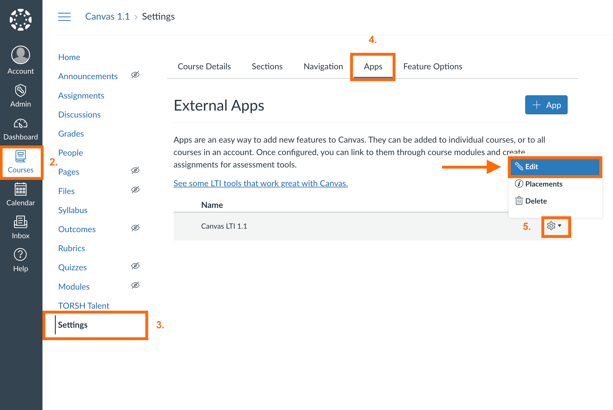
- In a new tab, open and log into Canvas as a Canvas Admin. Click on the 'Courses' option to the left-hand side panel and open the course you wish to modify.
- Next, click on the 'Settings' listing in the Course side panel.
- On the Settings page of the Canvas Course, click on the 'Apps' tab.
- Locate your TORSH Talent app listing and click on its 'gear icon.' Select 'Edit' in the dropdown that appears.
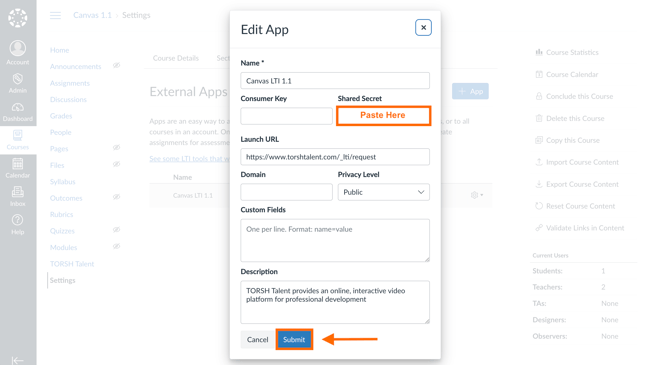
- In the 'Edit App' pop-up, paste your copied Shared Secret into the 'Shared Secret' field. Then save your changes to the app by clicking 'Submit' in the bottom, right-hand corner.
Your Canvas Course and its Talent-integrated Assignments will be fully operational again, now with a newly implemented Shared Secret!