
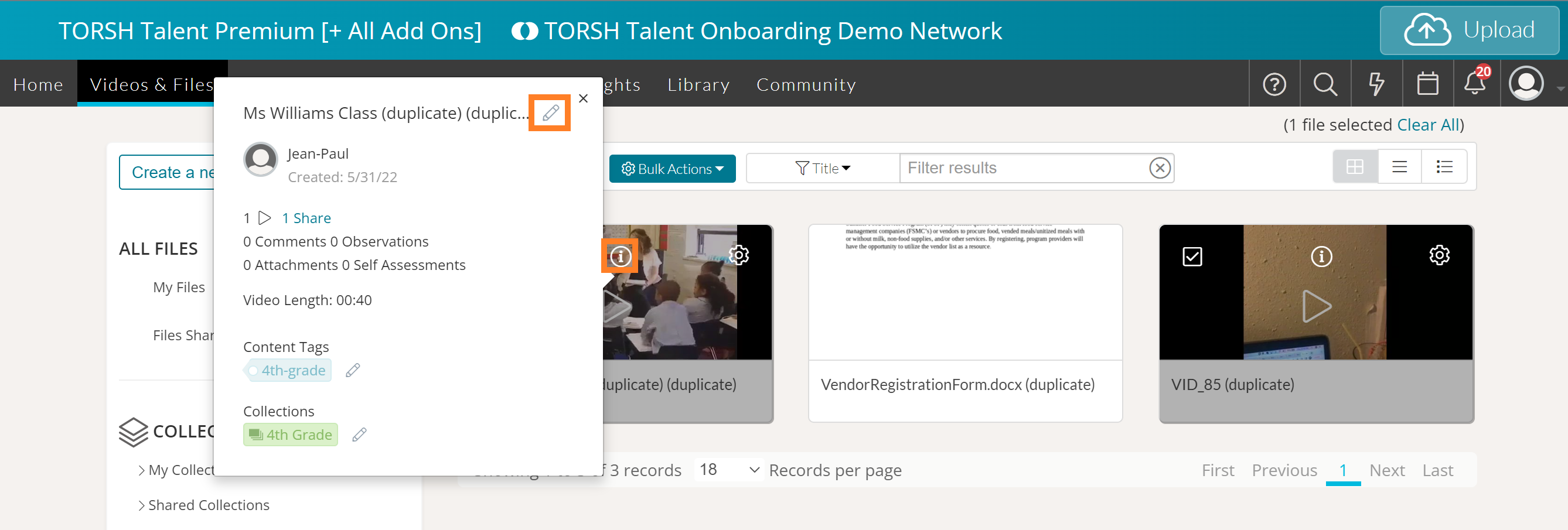
To rename a video or file that you have uploaded to TORSH Talent, first navigate to the 'Videos & Files' tab. Once there, locate the artifact that you want to rename and click on the 'information icon' found on the top, center of the video preview thumbnail.
A pop-up will appear with general upload information for the specific file. Inside the pop-up, you can edit the title of the video or file by clicking on the 'pencil icon' and typing in a new name. Click the 'checkmark icon' to save your changes, and your artifact will be renamed!
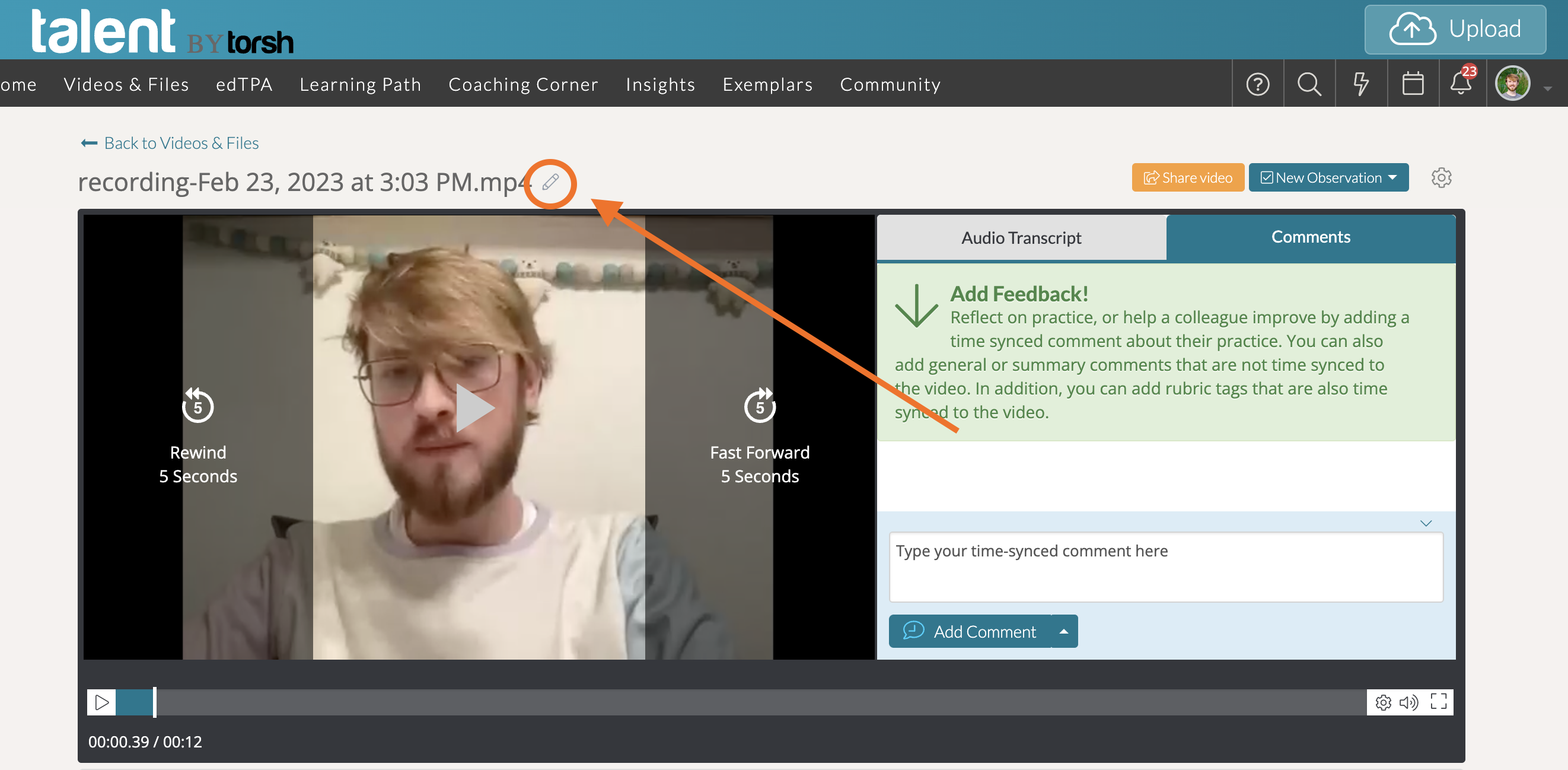
You can also change the name of a video or file upload by opening up the artifact's webpage and clicking on the 'pencil icon' next to the title. Type in the new name of your artifact and then click the 'checkmark icon' to save your changes.
Rather watch a video? Check out our tutorial on Managing Videos & Files here. HIPAA users, here.