
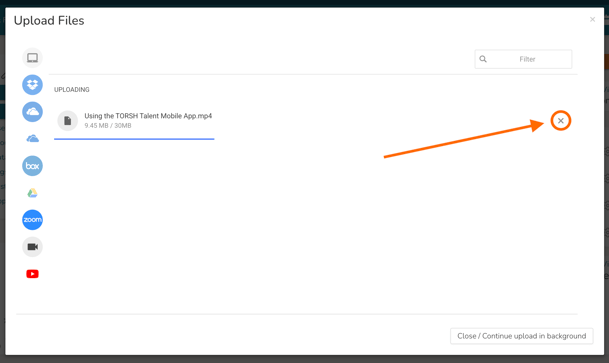
If you are uploading a video/file directly on the TORSH Talent website, and you wish to restart the upload process, you will first need to cancel the upload by clicking on the 'X' icon on the far, right-hand side of the upload listing within your Upload pop-up.
You can also cancel the upload by refreshing your web browser. The 'refresh' icon is a circular arrow found in the top, left-hand corner of your browser window, usually located beside the address bar.

Once the upload is cancelled, you can restart the upload process as needed by selecting the original file again in the Upload pop-up.
If you need help restarting your upload made via the TORSH Talent mobile app, please read the instructions outlined in this Help Center article here.