
In Report Builder, you can generate a customizable report of Goals and Action Steps activity, including action steps completed and goal progress across time.
To do so, first go to your top navigation bar and click 'Insights.' This will take you to the Report Builder Hub page.

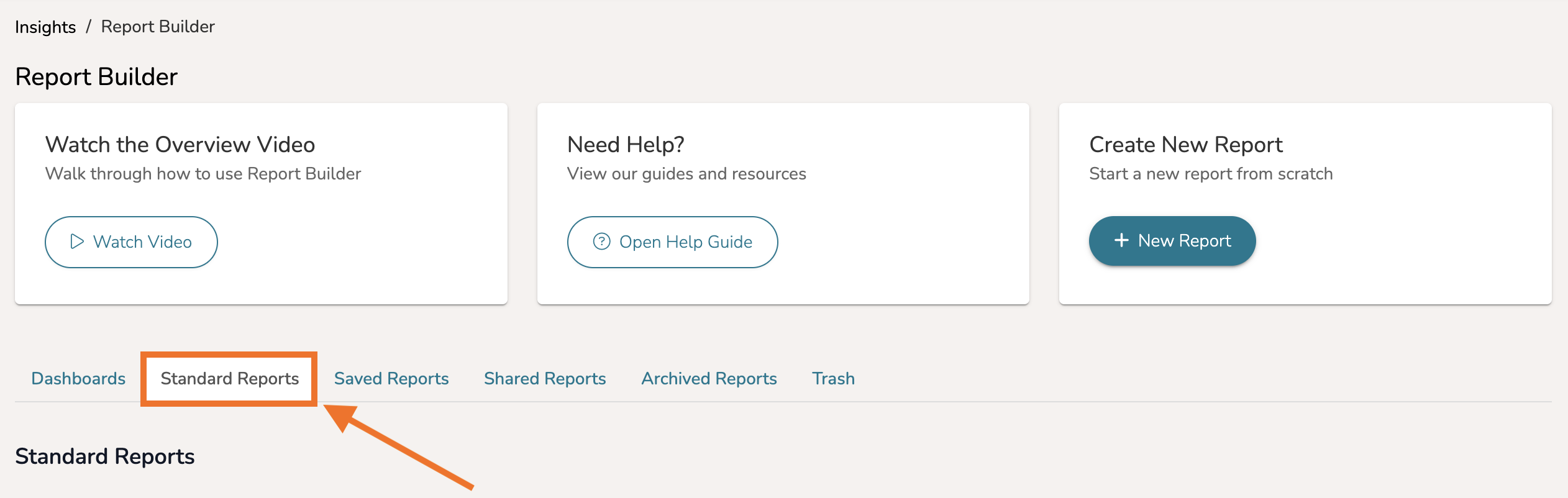
Next, navigate to the 'Standard Reports' tab.
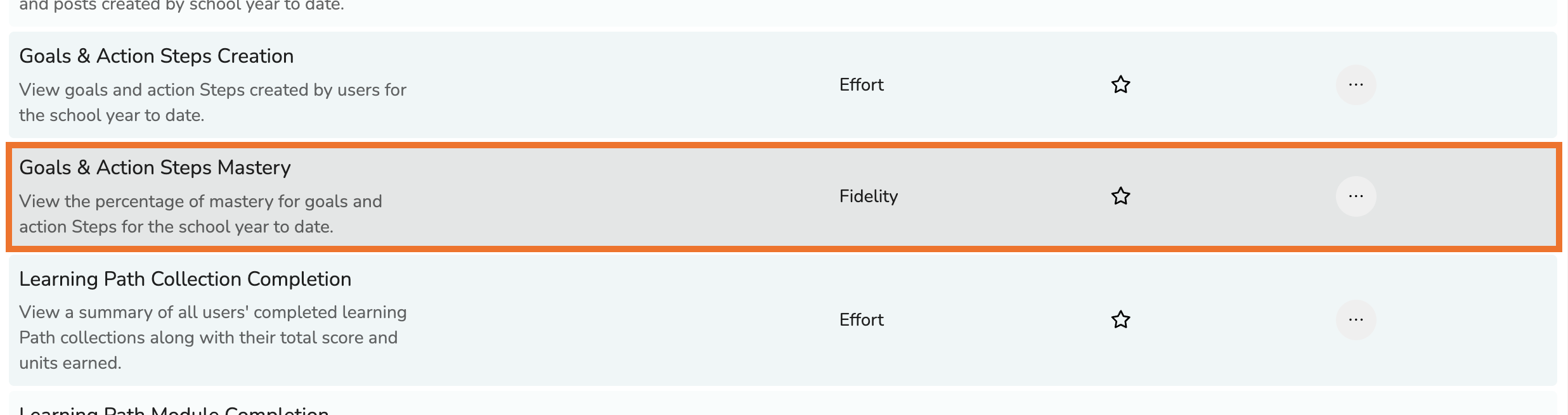
From there, scroll through the list of templates and open 'Goals and Action Steps Mastery.'
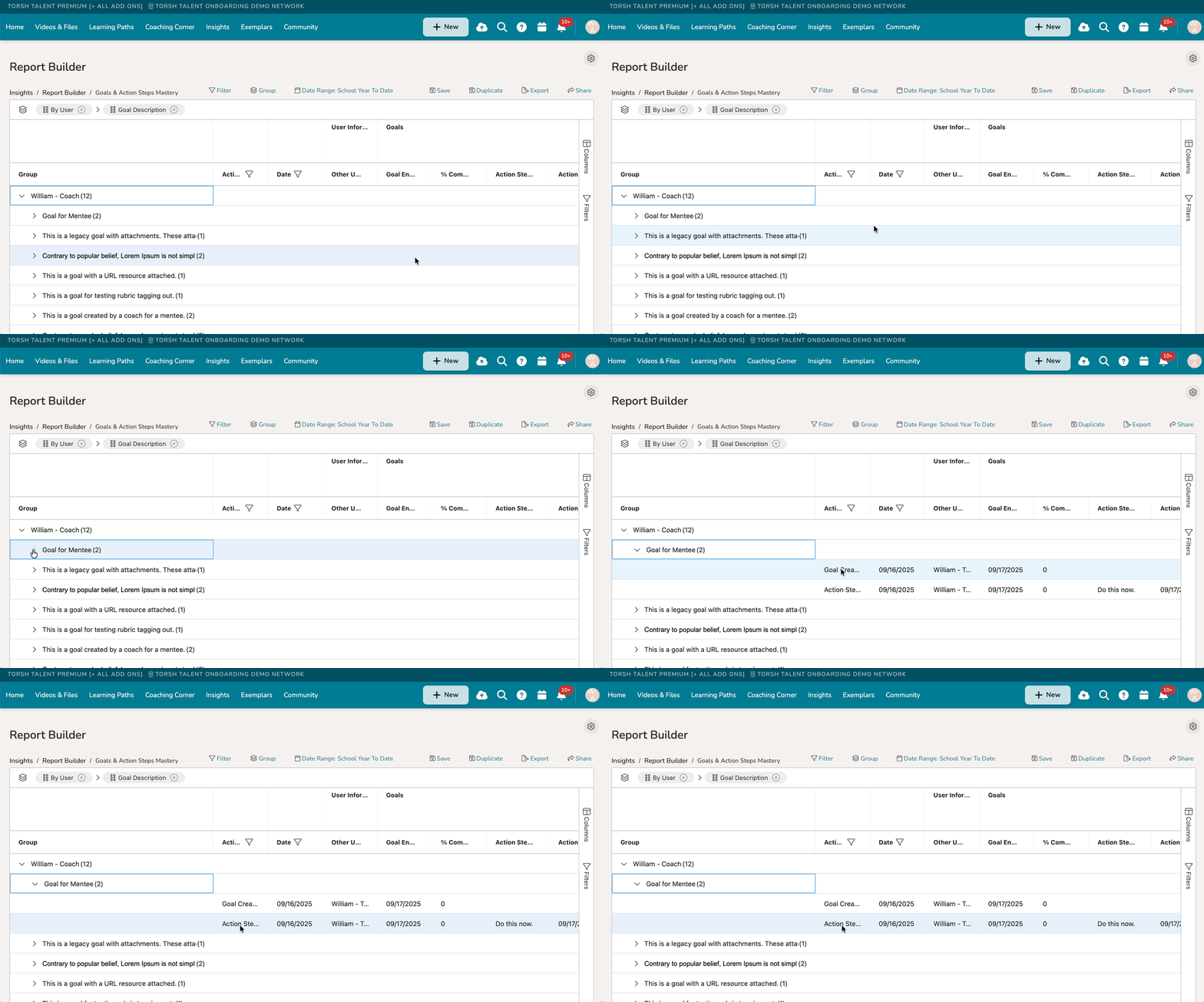
This report displays groupings of 'By User' activity and each of their individual goals modified within a specific date range. Click beside each goal description listed to display each of the actions performed for that specific goal.
Filtering Other User
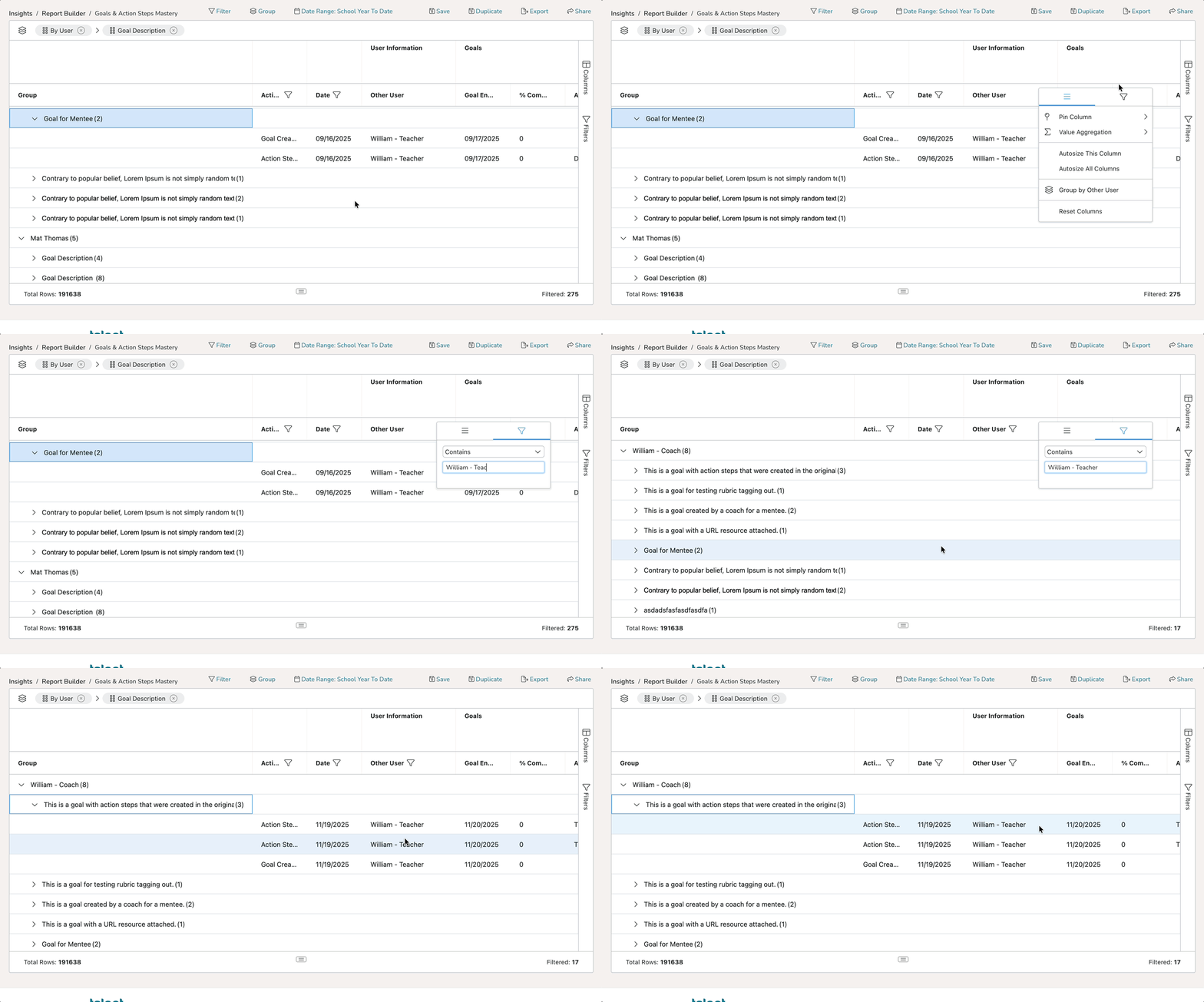
- If you wish to filter for goals assigned to a specific person, find the 'Other User' column header and click on its 'three-line icon' that appears.
- Then click the 'filter icon' and type in the name of the user you would like to filter for. The report will automatically filter once you have entered the name.
Adding Columns
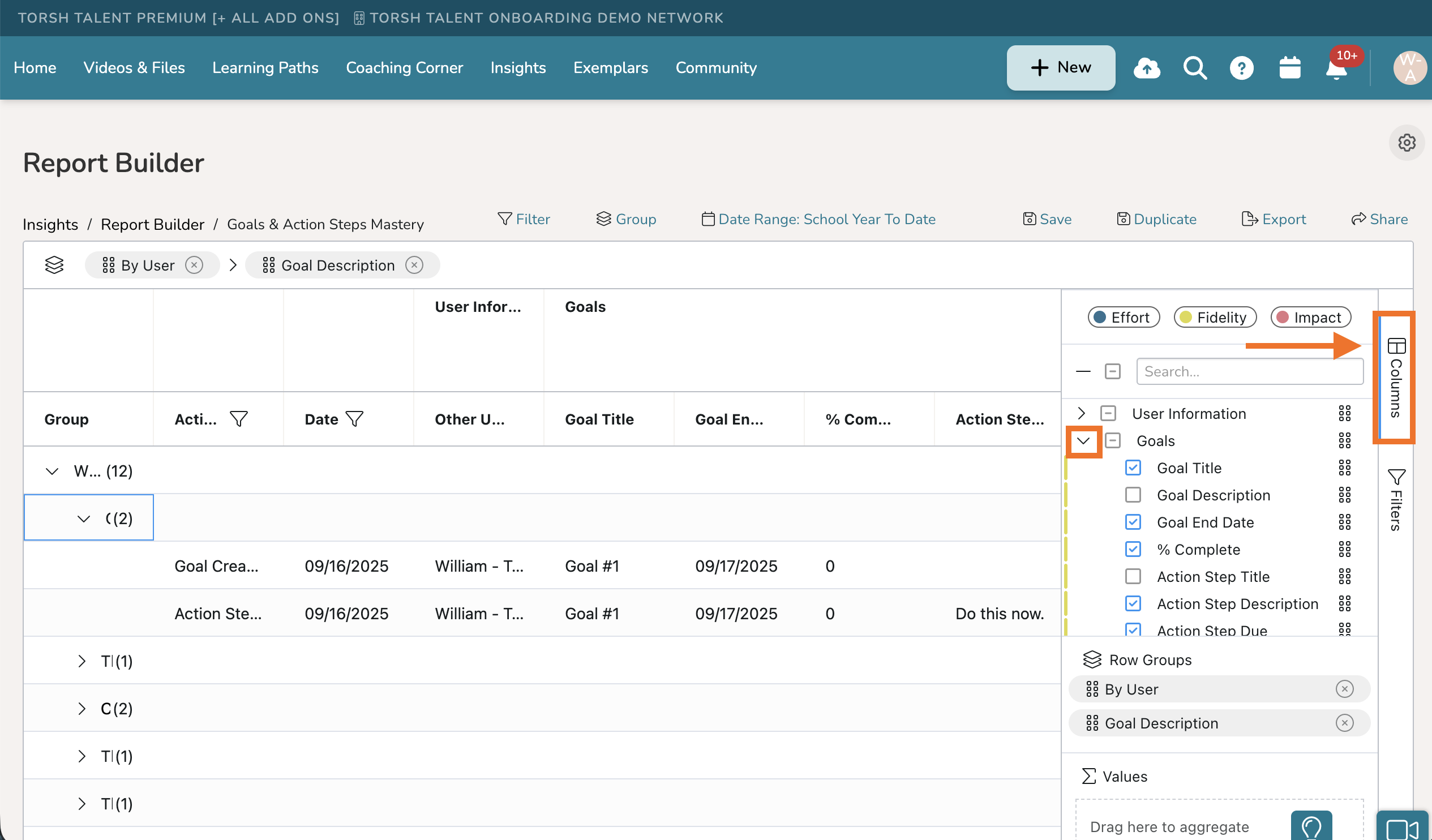
You can display even further column data for each goal in your report by going to the Columns menu on the far right-hand side of the report. From there, expand the 'Goals' datatype. In the list of columns for Goals, scroll down and check off to display any columns you would like to see in your report.
Saving Your Report
You can then save this report for later use by clicking 'Save' in the top, right-hand corner. This report, along with all of its filtering and adjustments, will appear under your Saved Reports in Report Builder.

To export a CSV file of the report, click 'Export.'