
In Report Builder, you can generate a customizable report of Observation Frequency in your system. Using our Standard Reports template, you can quickly build a report of all observations completed, filtering for the specific template used and user who completed it. You can also use this report to display a detailed overview of all tags and formalities associated with the observations completed!
To do so, first go to your top navigation bar and click 'Insights.' This will take you to the Report Builder Hub page.

Next, navigate to the 'Standard Reports' tab. From there, scroll through the list of templates and open 'Observations Frequency'
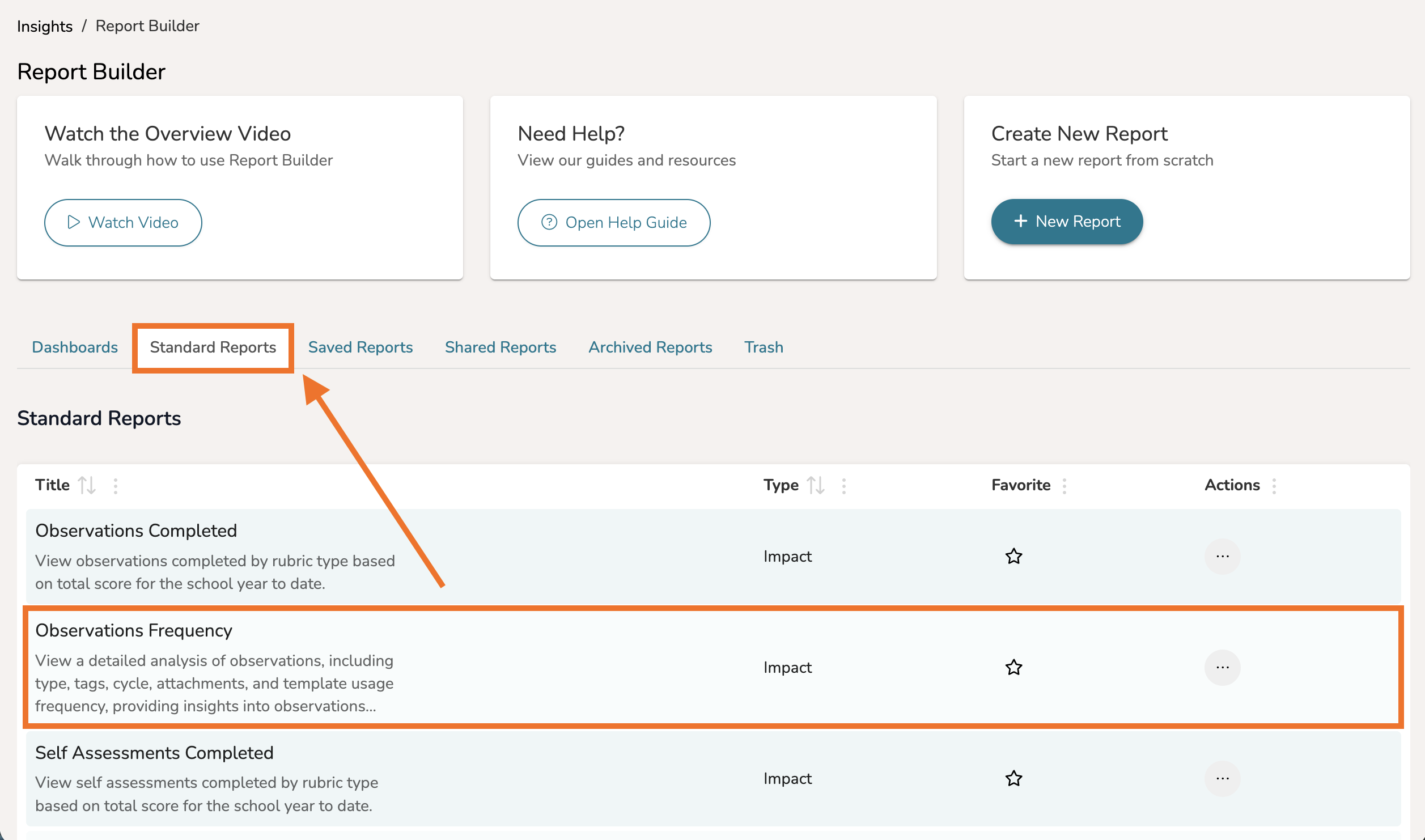
This will open a report that displays a detailed overview of all observations completed, including observation type, observation tags, cycles, attachments, and more!
NOTE: If you are a Talent HS user, and the data appears as 'Redacted,' the observation in question has not been shared with your account, and so the data has been hidden for security reasons.
Filtering By Template Name
-
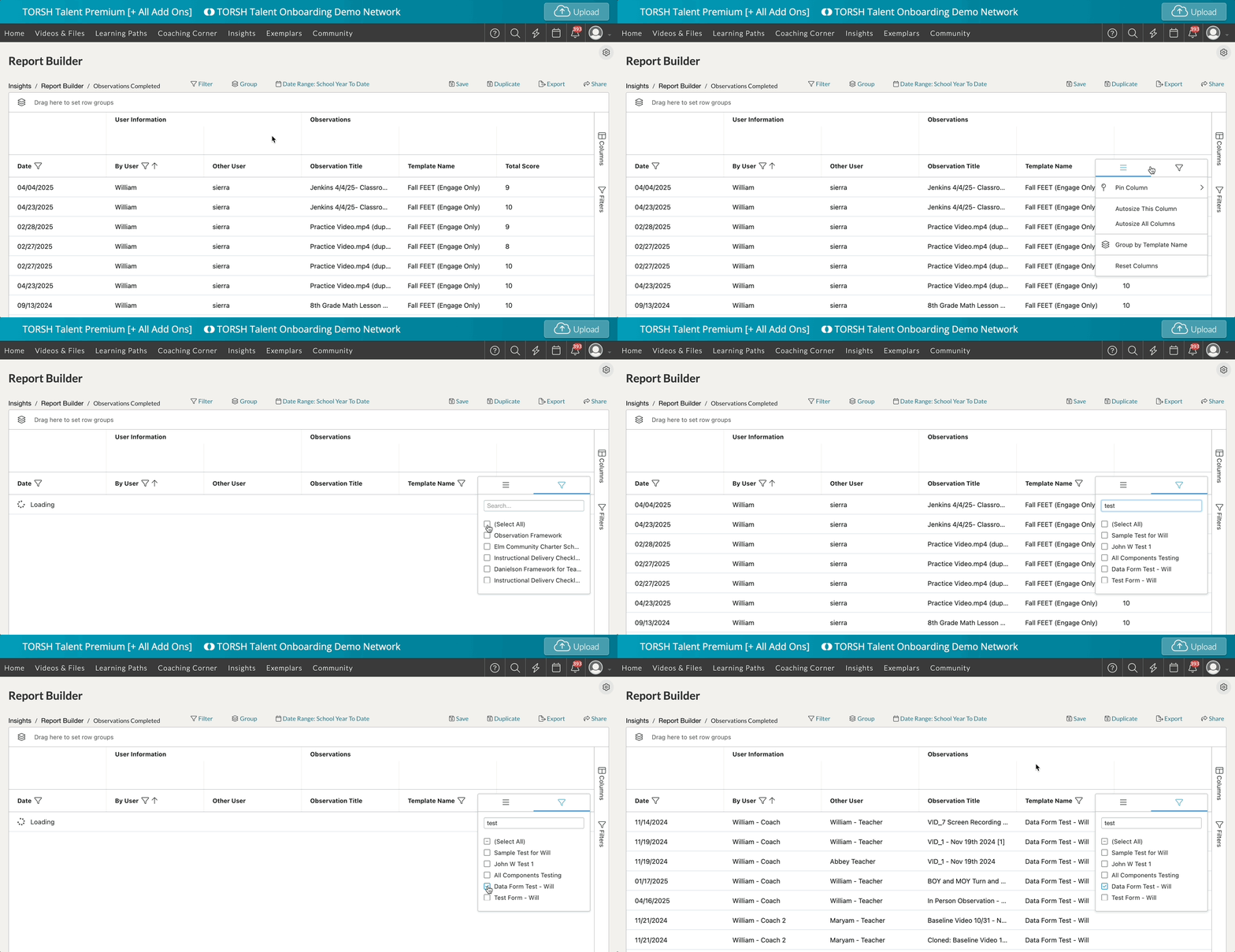
On your report, go to the column header for 'Template Name' and click on the 'three-line menu icon.'
-
Next, click the 'filter icon' and click 'Select All' to deselect/clear out all of the current filtering for this column.
-
Scroll through your list of active rubric templates and click on the 'checkbox icon' next to the template you would like to filter for. Your report will apply your changes automatically!
Filtering for Observation Tags
-
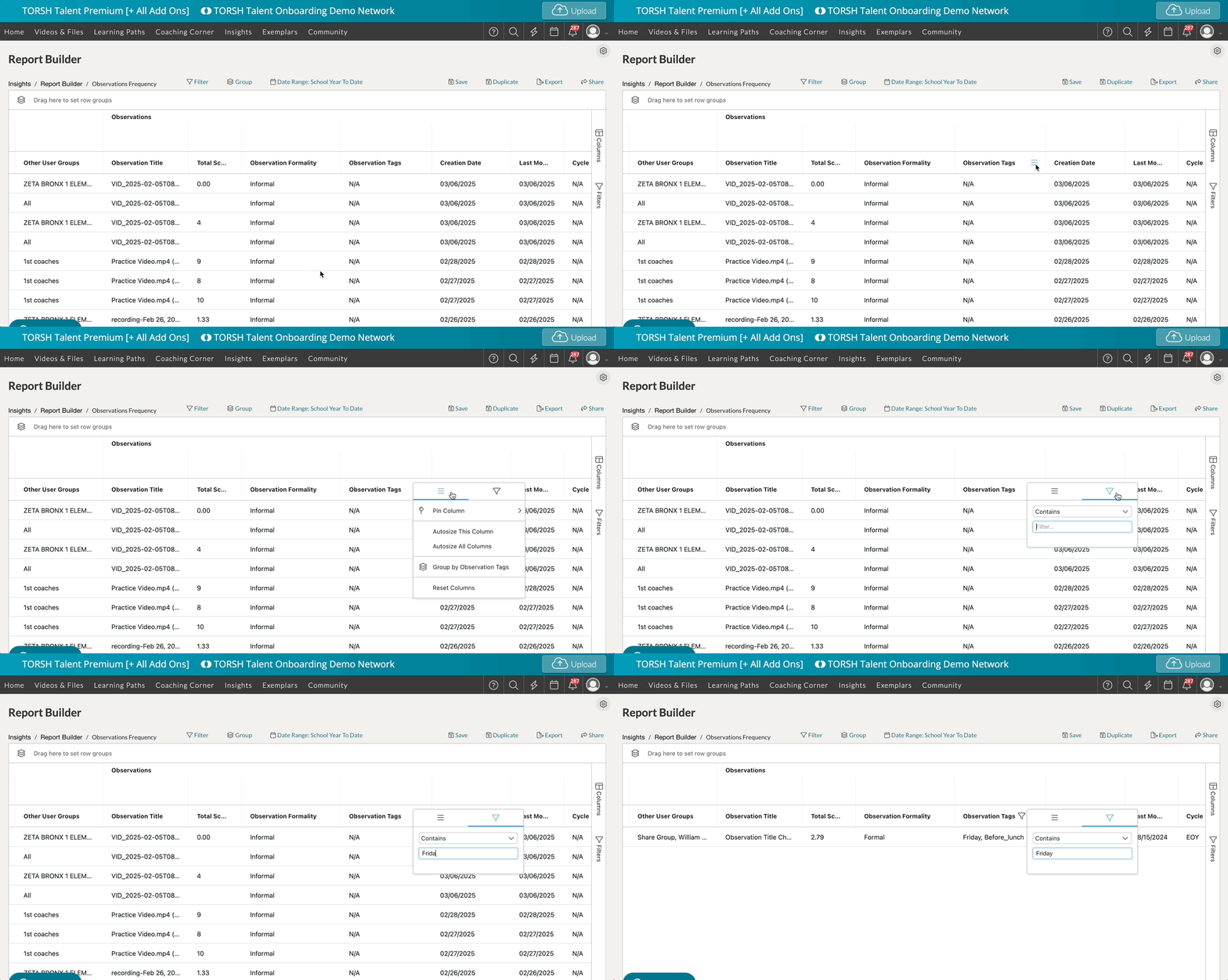
On your report, go to the column header for 'Observation Tags' and click on the 'three-line menu icon.'
-
Next, click the 'filter icon' and click on the text box that appears under 'Contains.'
-
Type in the name of the specific tag you would like to filter for. Your report will apply your changes automatically!
Adding Columns for Answer Choice Data
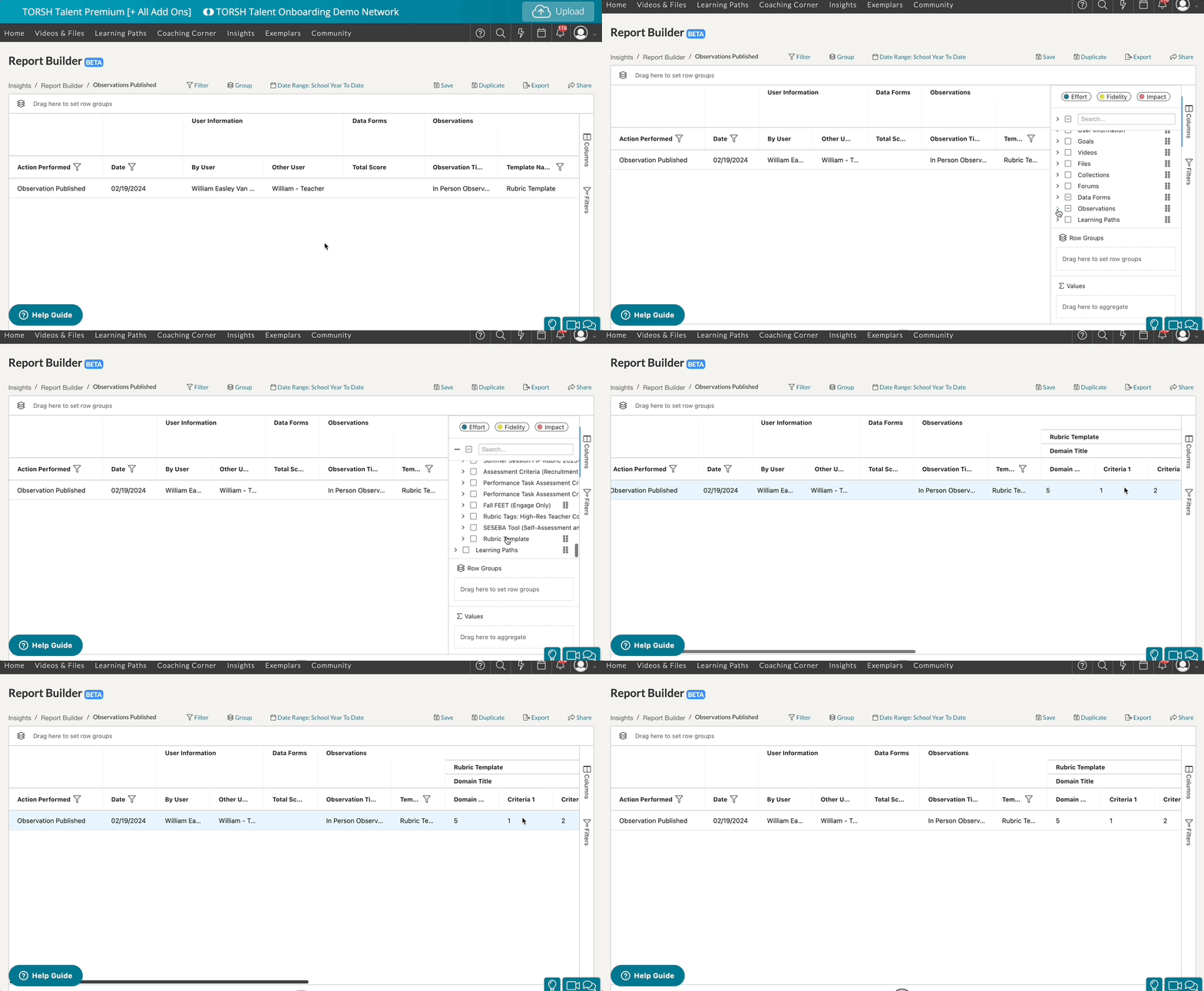
To display the answer choices selected for the specific rubric, open the 'Columns' menu on the far right side of your report. Go to the 'Observations' section. You will find your new data form rubric template listed under the Observations column section! Click the 'checkbox icon' beside it to display all of the answer choices for this rubric template in your report.
Saving Your Report
You can then save this report for later use by clicking 'Save' in the top, right-hand corner. This report, along with all of its filtering and adjustments, will appear under your Saved Reports in Report Builder.

To export a CSV file of the report, click 'Export.'