
In TORSH Talent, you can share all of the videos & files you upload with other users in your system!
NOTE: All video/file artifacts you upload are always private to you until they are shared with others in your system/network.
- Teachers can share with other teachers in their groups, or all teachers if they are not assigned to a specific group, coaches in their groups, coaches who are not assigned to specific groups and all admins.
- Coaches can share with teachers in their groups, or if they are not assigned to a specific group, all teachers.
- Admins can share will all teachers, coaches and admins.
Video & File Sharing Permissions
Sharing Permissions designate the level of permissions specific users/groups are allowed when viewing a specific artifact (video or file) on the TORSH Talent platform. Depending on the sharing permission given to you for a specific video or file, you may have a higher or lower amount of access to that artifact when it is shared with you.
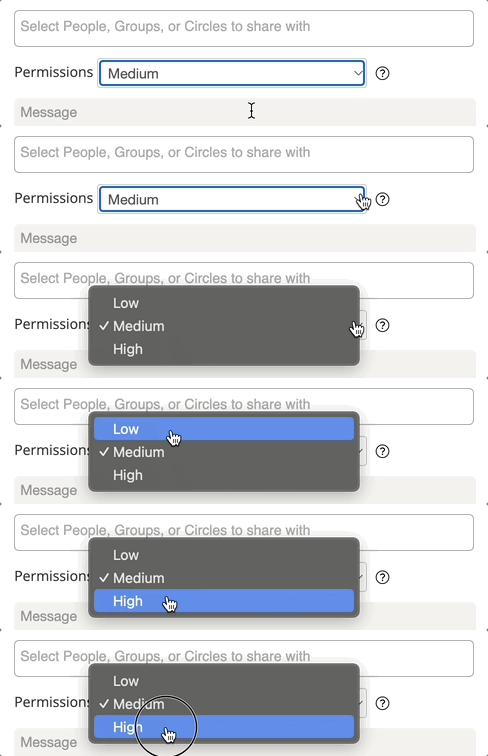
- Low - The user with whom you share can only provide feedback and add documents.
- Medium - The user with whom you share can provide feedback, add documents, and share the video with others; the other users can only provide feedback and add documents.
- High - In addition to providing feedback on your video, a user with High permissions can: create a duplicate of all or a portion of your video, which they will then own and can use however they wish; add documents to your video; export notes from your video; download your video; and add/edit tags on your video.
How To Share Videos & Files
To share one of your videos/files on TORSH Talent, navigate to your Videos & Files page by clicking 'Videos & Files' in your top navigation bar.
Next, find the video/file you would like to share and hover over its 'gear icon.' A dropdown list will appear. In the dropdown list, click 'Share.' This will generate a Share pop-up window.
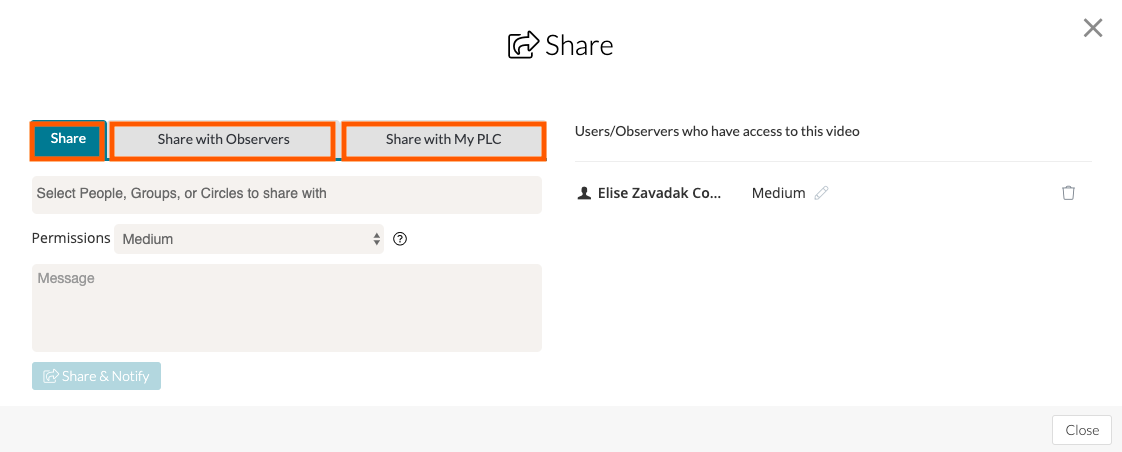
In the Share pop-up, you can designate where you would like to share with depending on your System's settings.
- Share - to share with users/groups within your system.
- Share with Observers tab to share with people outside of your organization who do not have a Talent account. In doing so, you will need to type their email address in. In most cases, if the user you are looking for does not appear in the regular 'Share' dropdown, it might be because they are either in a different Group or System. Doublecheck with the user you are sharing with to verify.
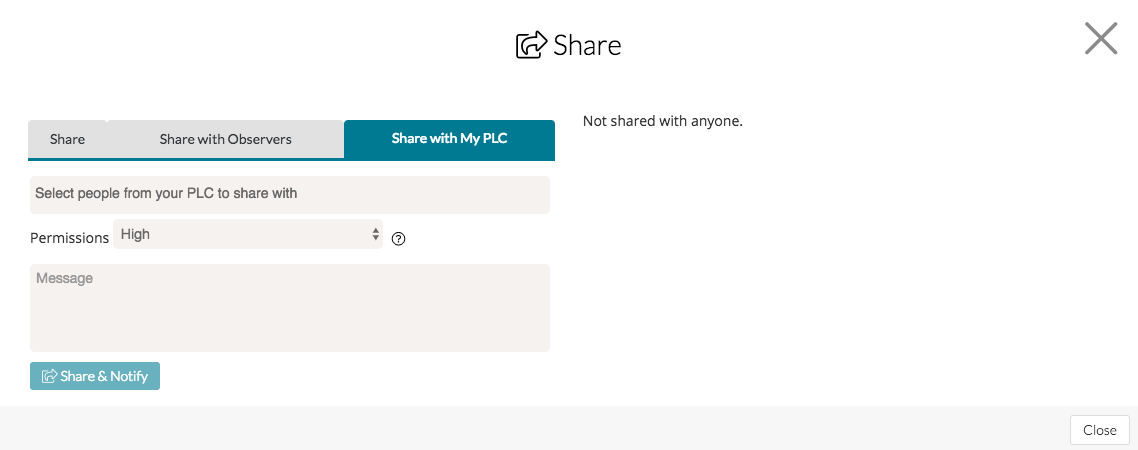
- Share with My PLC to share with a specific user within your Network. These users may be in an entirely different system that is connected via the Network your system is a part of.
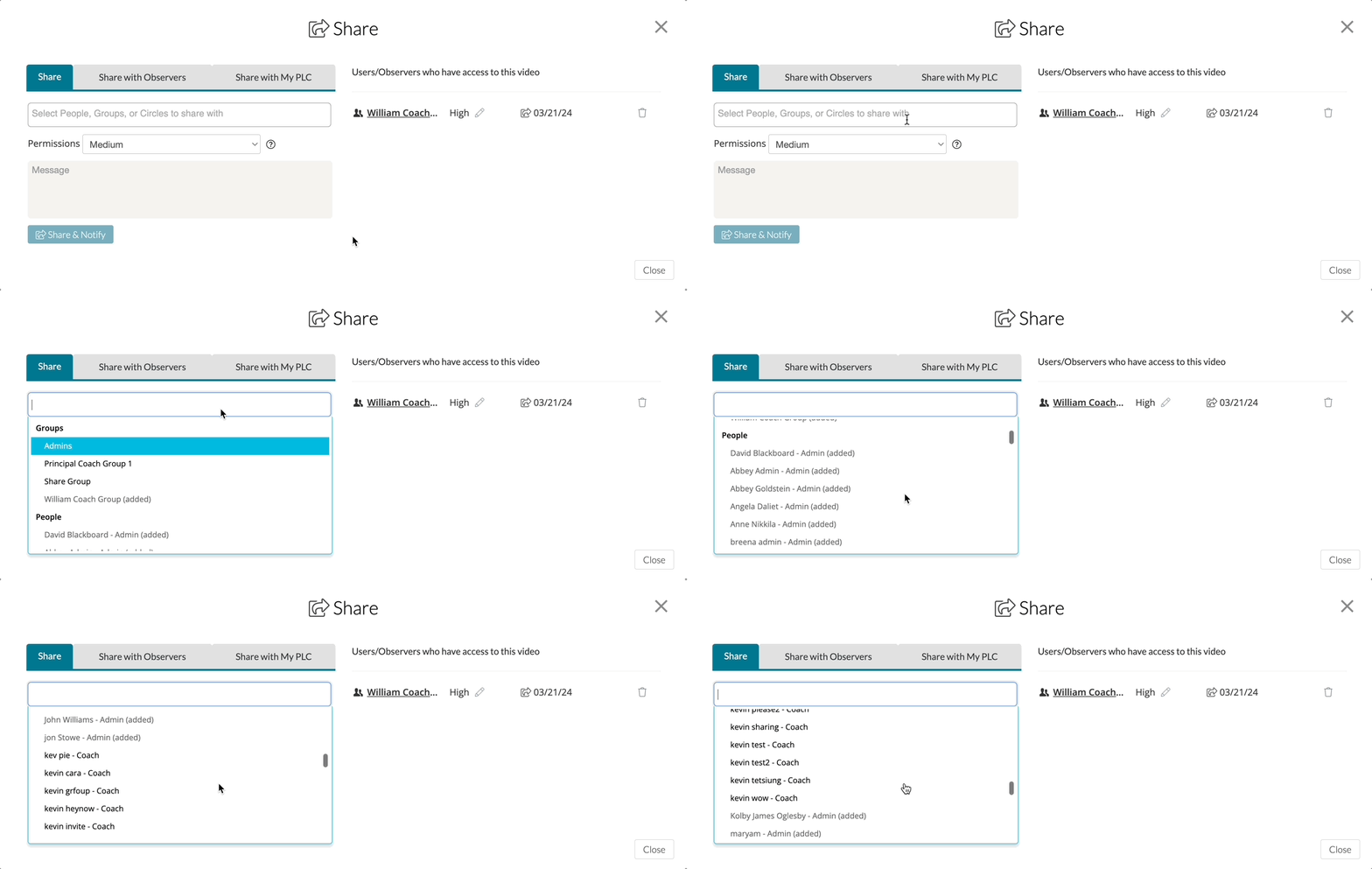
Once you have designated where you would like to share, click on the text box and type in the name of the person, group, or sharing circle you would like to share with. You can also select these options from the drop-down menu of the text box.
Next, select a Sharing Permission by clicking on the 'Permissions' dropdown list. Select either Low, Medium, or High.
If you would like, you can also provide a message to the user(s)/group(s) you are sharing with.
Lastly, click ‘Share and Notify’ to finish sharing your file. You will then see the name of the user(s)/group(s) that you shared with on the far right side of the Share pop-up.

Modifying Video & File Share Settings
If you would like to adjust a specific user/observer/group's share settings further, you can always re-open the Share pop-up for a specific artifact and click on the 'pencil icon' next to their Sharing Permissions level to adjust as needed.
NOTE: You will only have access to adjust these settings depending on the Sharing Permissions originally granted to you when the file was originally shared with you. You will be have access to all Sharing Permissions levels if you were shared at 'High' permissions or if you are the original uploader of the file.
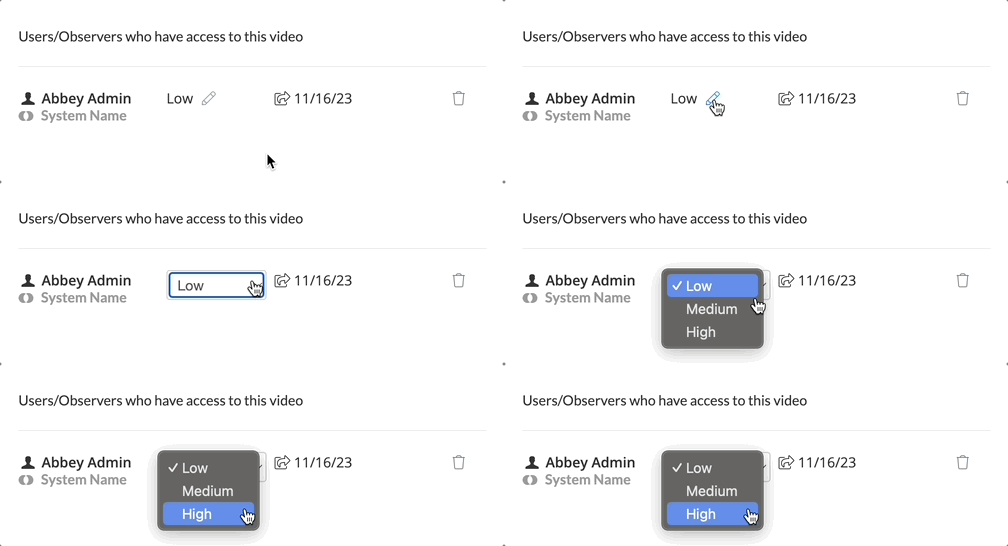
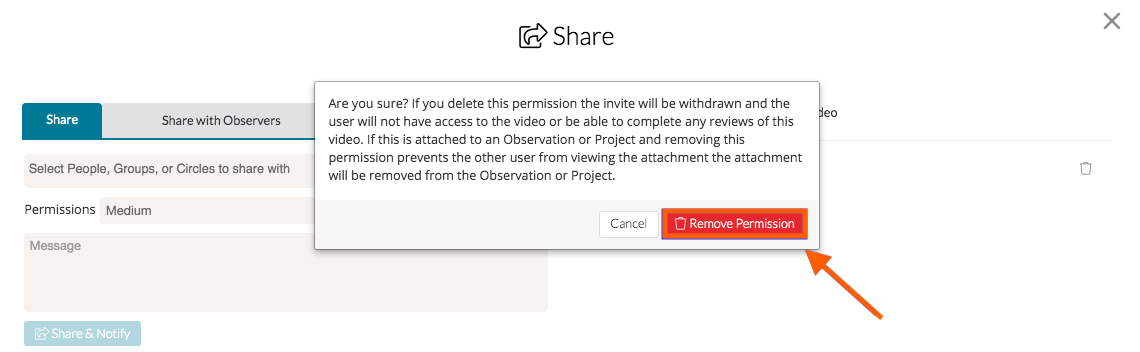
To un-share an artifact with a specific user/observer/group, click on the 'trash bin icon' next to their name.

You will then be asked if you are sure you want to remove this user's access to the artifact. If you are sure, click 'Remove Permission.'
How to share with Outside Observers
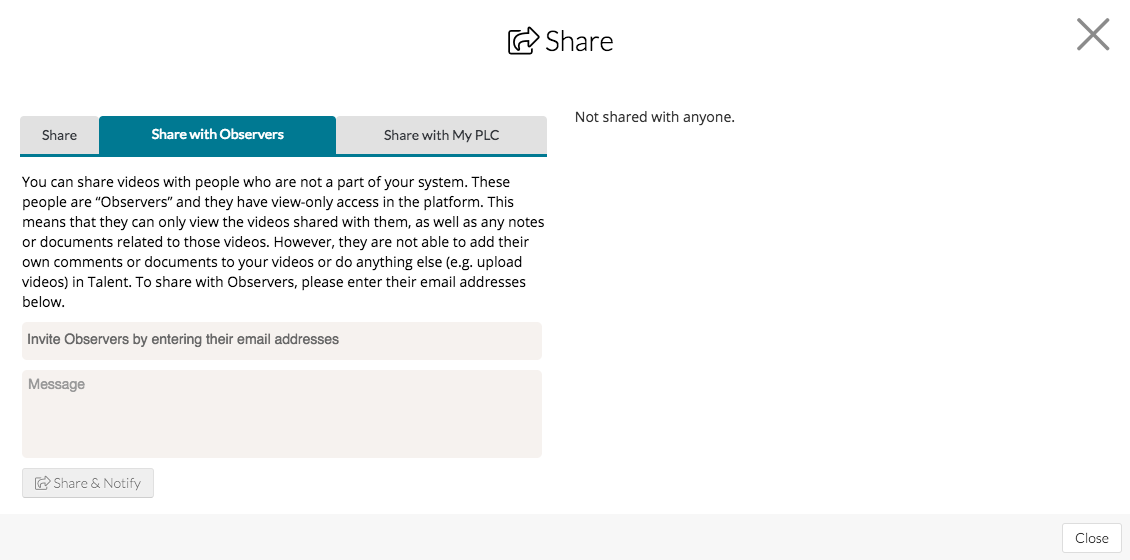
You can share artifacts with people who are not a part of your Talent system by using the ‘Share with Observers’ tab.
These people are ‘Observers’ and they have view-only access in the platform. This means that these Observers are only able to view the artifacts shared with them as well as any notes or documents related to those artifacts. However, they are not able to add their own comments or documents to your artifacts or do anything else (e.g. upload artifacts) in Talent.
-
Open the video/file artifact you would like to share.
-
Then click on the orange ‘Share’ button above the artifact OR click the 'gear icon' on the right-hand corner of the artifact you would like to share and click ‘Share’.
-
Click on the ‘Share with Observers’ tab.
-
Type in the email address of the person you wish to invite and hit enter. This will invite the person to your system as an Observer role who only has access to view your shared artifact and cannot interact with any other feature on the platform.
-
OPTIONAL: Add a message to the observer(s)
- Lastly, click ‘Share and Notify.’
How to Share with My PLC
You can share artifacts with people who are a part of another system in your Talent network.
-
First open the video/file artifact you would like to share.
-
Click on the orange ‘Share’ button above the artifact OR click the wheel on the right-hand corner of the artifact you would like to share and click ‘Share’.
-
Click on the ‘Share with My PLC’ tab. This will open a new dropdown wherein you can search for other users in the other system(s) of your Network PLC.
-
Type in the name of the person, group or sharing circle you would like to share with, or select it from the drop-down menu.
-
Select the level of permission with which you would like to share the video.
-
OPTIONAL: Add a message to your PLC.
- Click ‘Share and Notify.’
How to Share with Sharing Circles
Sharing circles allow you to create groups of colleagues on Talent with whom you frequently share artifacts.
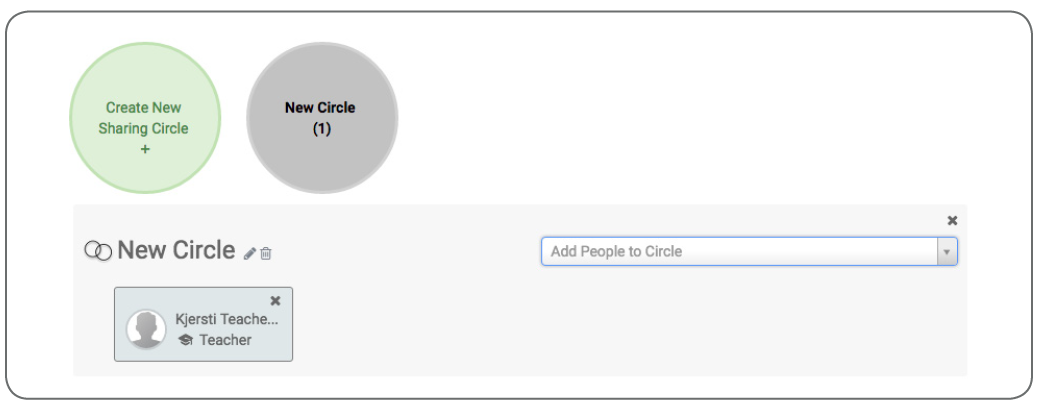
When you share artifacts, you can opt to share your artifacts with the users in the sharing circle, rather than individually typing each user’s name. Sharing circles can be created from the Community page or the share window.
-
Click on the ‘Community’ heading from the Navigation Bar in Talent.
-
At the top of the Community page, click ‘Sharing Circles.’
-
Click ‘Create New Sharing Circle.'
-
Click on the 'pencil icon' beside the ‘New Circle’ to edit the name of the sharing circle.
-
Use the dropdown menu to select colleagues to add to the sharing circle.
- Once you are done adding colleagues, you will be able to share artifacts with this sharing circle from the share window. You can return to the Community page to edit this sharing circle at any time.
To Create A Sharing Circle from the Share Window
- Access the Share Window by clicking the orange ‘Share’ button or by clicking on the wheel in the right-hand corner and selecting ‘Share’.
- Select the names of the people you would like to add to a sharing circle.
- Click ‘Add Selected Users to a Sharing Circle.’
- Click on the dropdown menu beside ‘Select A Circle to Add Users To.’
- Choose ‘Create A New Sharing Circle.’
- Enter the name for the new sharing circle and click the blue 'checkmark' when you are done
- Click ‘Share & Notify.’ The next time you share a video in Talent, you will be able to select this sharing circle.
Did you know you can set up Automatic Sharing in your Account Settings to automatically share videos & files as soon as you upload them? Learn more here.