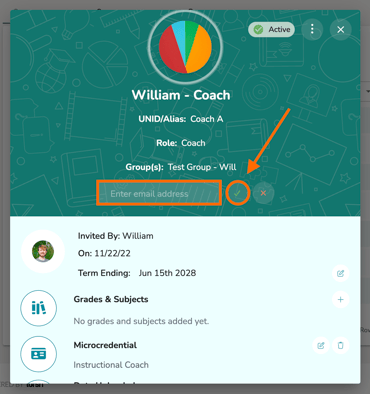
NOTE: As a Coach or Mentee role, you cannot update the email address associated with your TORSH Talent account. If you need to update the email address to your account, please reach out to your System Admin for assistance.
As a System Admin, you can update the email address associated with a TORSH Talent user's account in your system directly through your Users Management page! Doing so will modify the email address required to login to that TORSH Talent account moving forward.
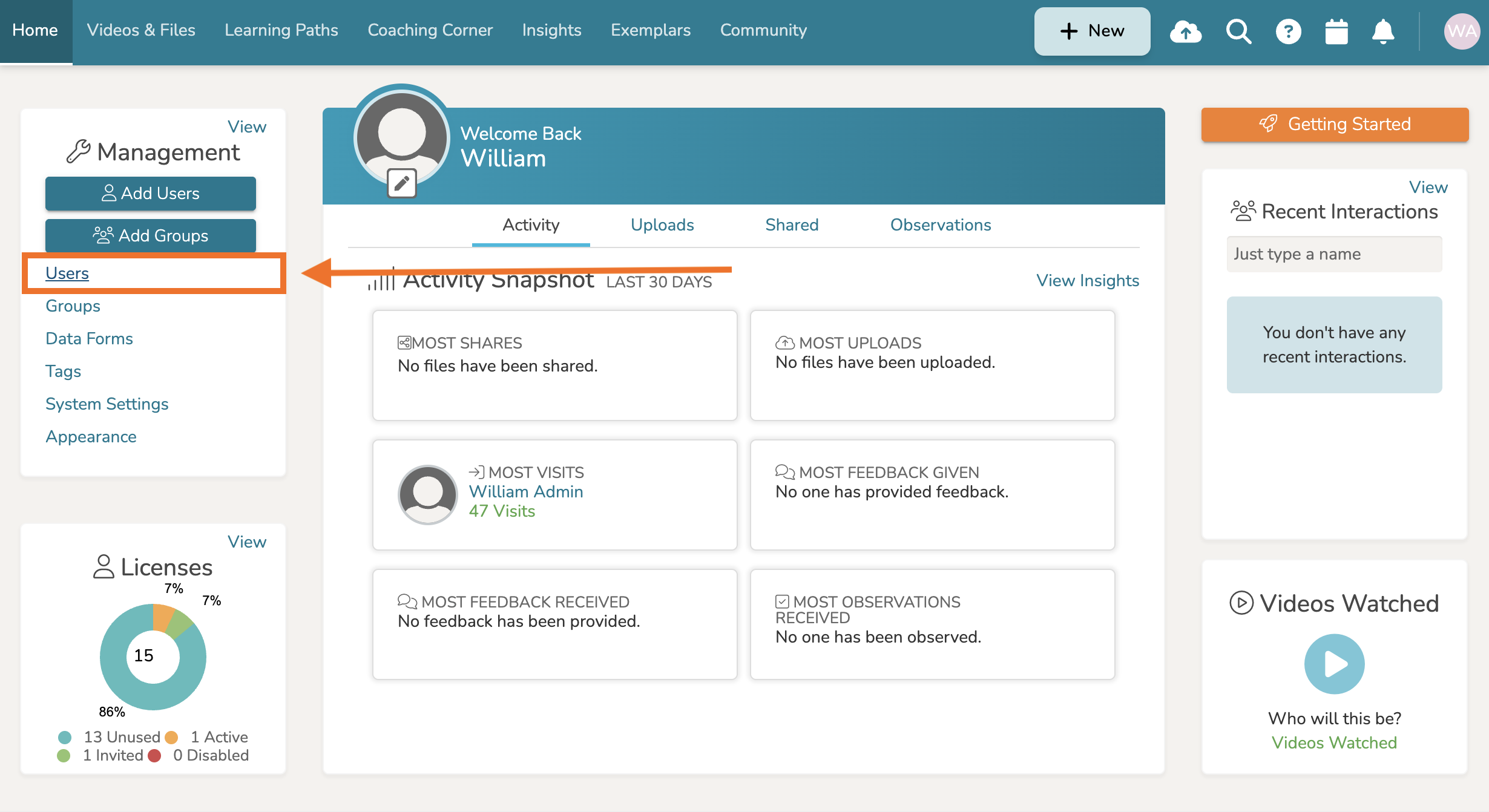
To modify another user's email address, first navigate to your Homepage and find the 'Management Panel' on the left-hand side. Then click 'Users.'
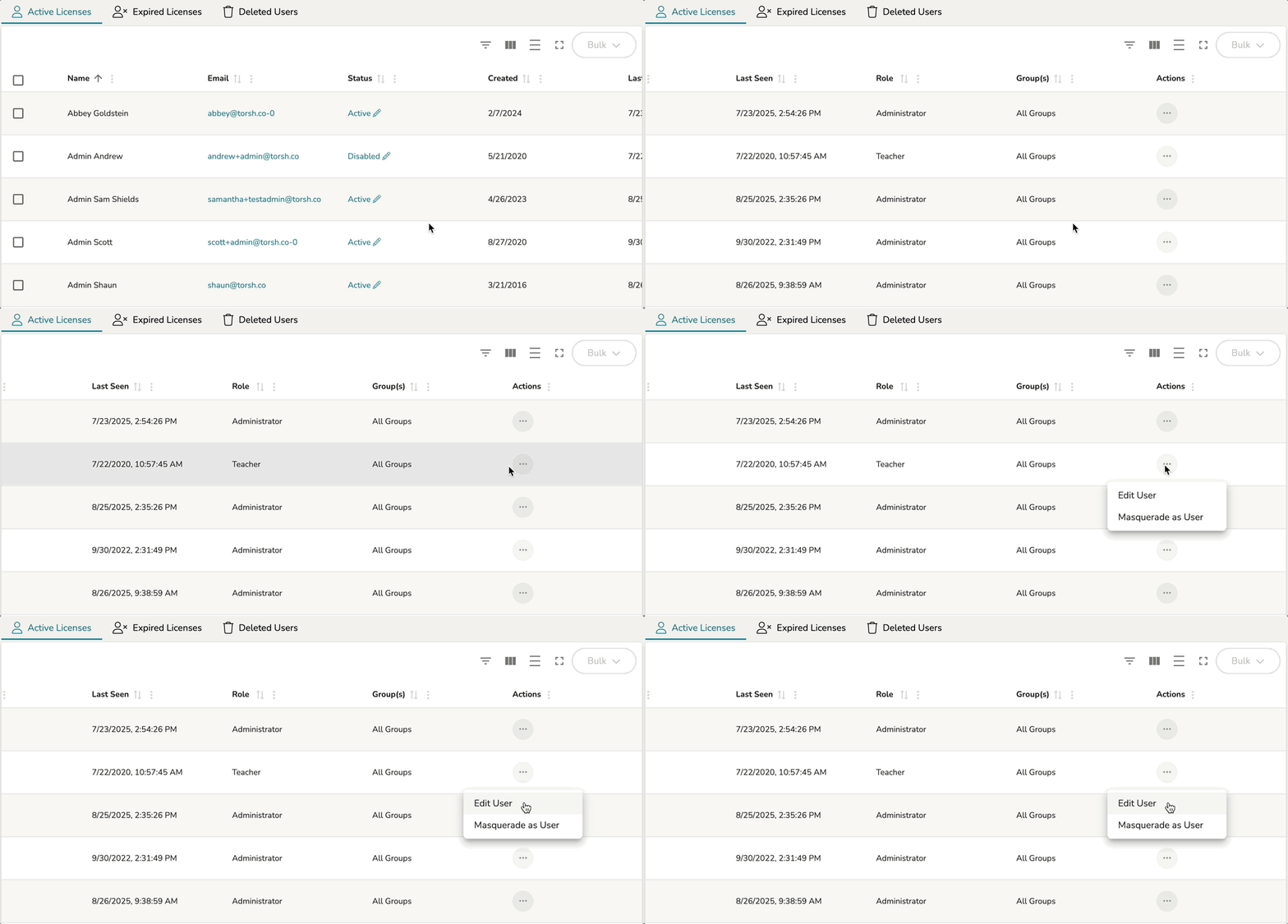
This will take you to your Users Management page. From there, locate the user you would like to update the email address of. Hover over the '...' icon to the far, right-hand side of their account list under the Actions column. Then select 'Edit User.'
The Edit User Details pop-up window will appear. Find the current email address listing and click on the 'pencil icon' beside it. Enter the new email address and click on the 'checkmark icon' when you are done!