
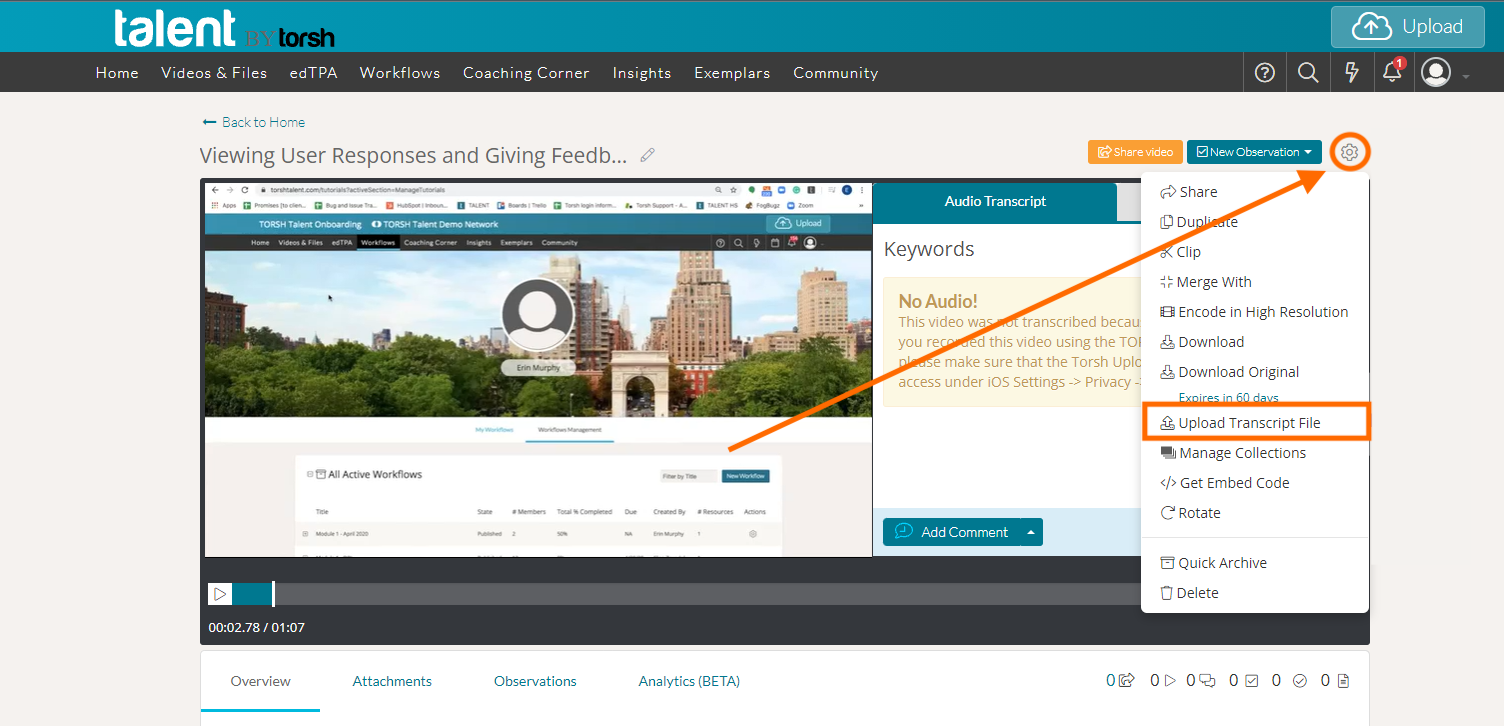
In TORSH Talent, you can upload a caption/transcript file (in either .SRT or .VTT format only) to your video uploads. To do so, navigate to a video you own in your Videos & Files page. Then click on the video's 'gear icon' and choose 'Upload Transcript File' from the dropdown list.
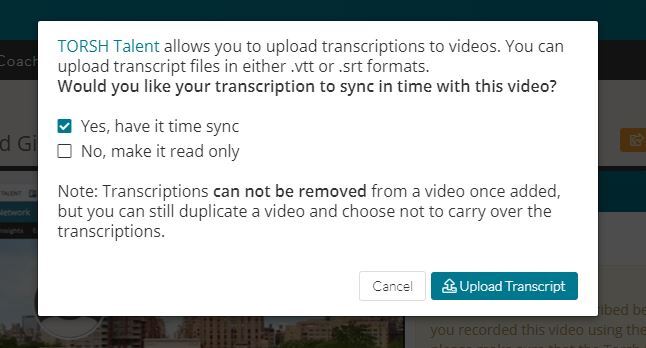
A pop-up window will appear and ask you to choose whether you would like the video to sync each word in time to the transcription file uploaded or to just make the transcription read-only. Make your selection.
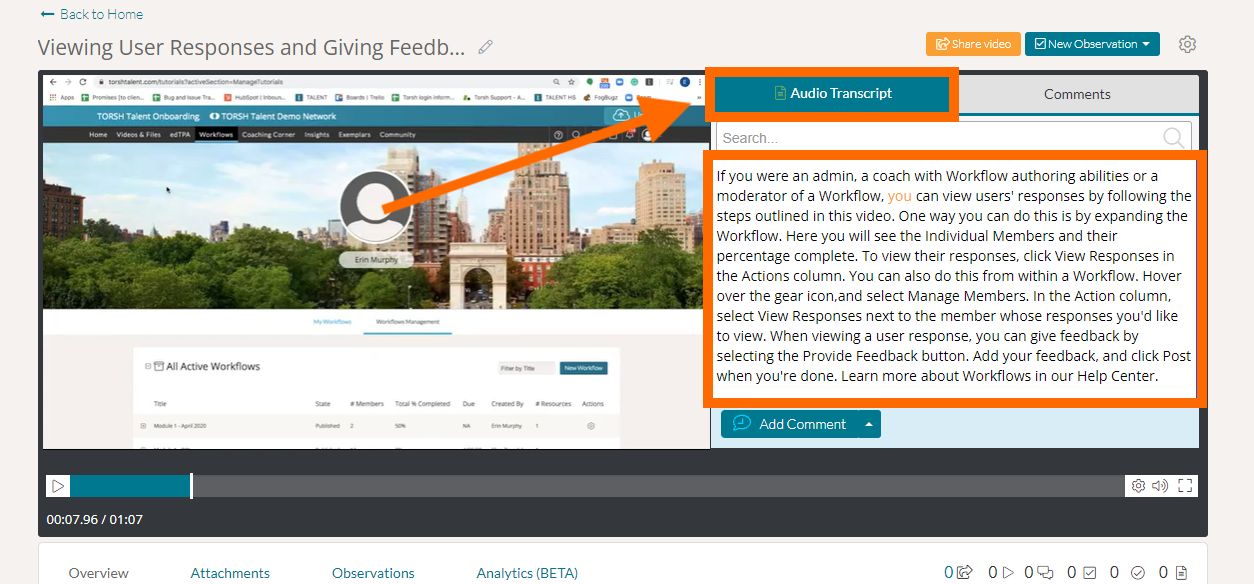
Select 'Upload Transcript' to be taken to the upload modal where the .SRT or .VTT can be chosen to upload. Once the transcript file is uploaded, the user will see the Audio Transcript next to the video.
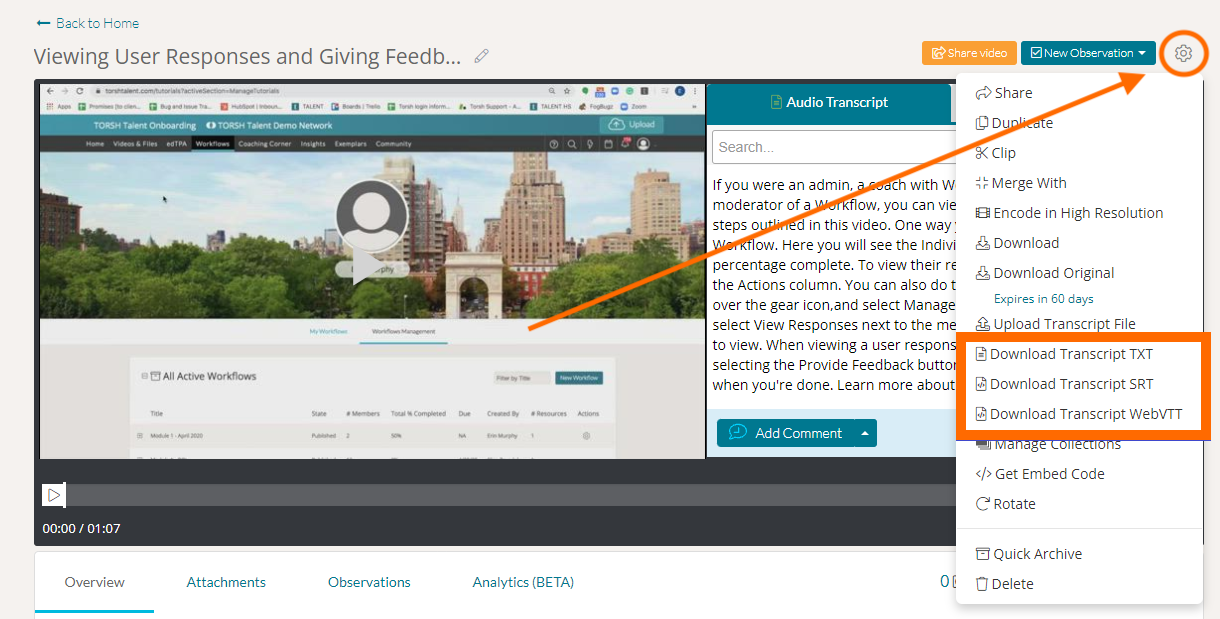
When the Audio Transcript is uploaded and attached, users will be able to download the transcript by selecting the video's 'gear icon.' They will then have the option to download the transcription as a .TXT, .SRT or .VTT file.
If you would like to learn more about uploading videos, please click here. If you would like to learn more about video transcription services, please click here.