
If you have an account in multiple systems on TORSH Talent, make sure you specify which system you are logged into on the TORSH Talent mobile app before recording; otherwise, you may accidentally record a video to the wrong account in the wrong system.
Switching Systems in the TORSH Talent Mobile App
To switch systems in the mobile app, first open the TORSH Talent mobile app and login. Then, tap on the 'menu icon' in the top, left-hand corner and choose 'Switch System' in the menu.
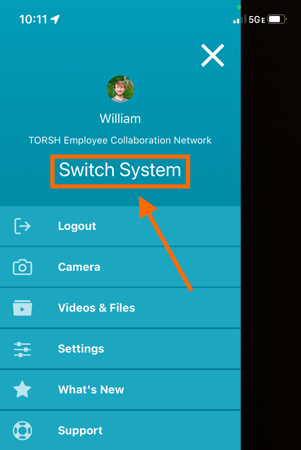
This will take you to a page listing all of the systems you have an account in on TORSH Talent. Tap on the system name you would like to switch to, and you will automatically be logged into that specific system and be brought back to your Camera page.
Re-Uploading Your Video to the Correct System in the TORSH Talent Mobile App
If you recorded a video to the wrong account in the wrong system, don't worry! You can download a copy of the video file, switch systems, and then re-upload your video file to the proper account and system.
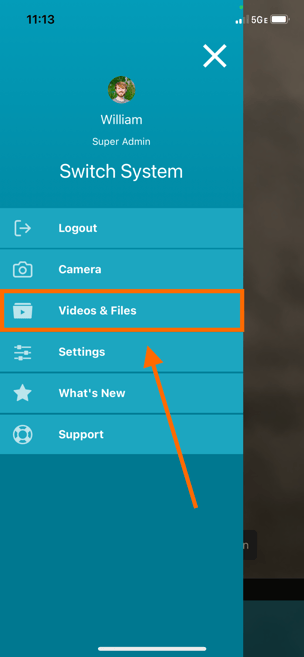
To do so, first make sure that you are logged into the system with your original video upload. Tap on your 'menu icon' and you will see your current system name below your profile icon picture. In your menu, select 'Videos & Files.'
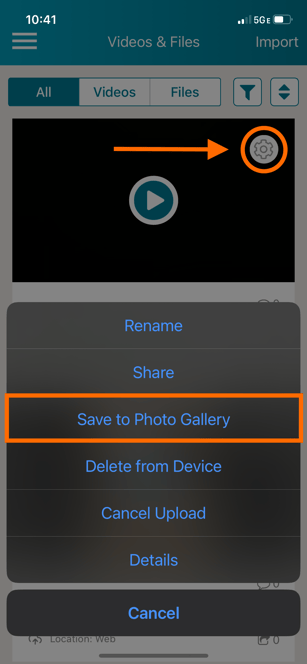
On your Videos & Files page, find the video you accidentally uploaded to the wrong system. Tap on its 'gear icon' and select 'Save to Photo Gallery' in the menu that appears. This will save a copy of the video file to your mobile device's Photos/Gallery app.
NOTE: If you do not have this option available to you, please read more here .
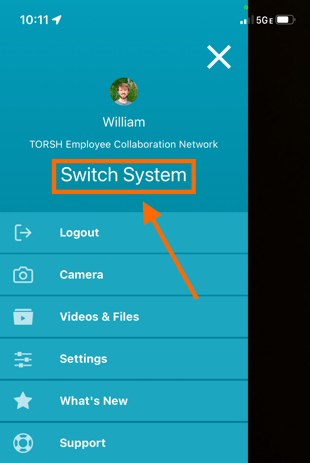
Once the file has saved to your device, tap on the 'menu icon' once more and select 'Switch System.' On the next page, select the system name you would like to switch to.
Once you have done so, you can tap on the 'menu icon' once more and return to your 'Videos & Files' page. Once your mobile app syncs, you should now see videos & files you have uploaded to this specific account in the specific system you chose.
Tap the 'Import' button in the top, right-hand corner of your Videos & Files page. This will open your device's camera roll. Tap on your video file to import and upload it to the TORSH Talent mobile app.
NOTE: If you do not have the 'Import' button available to you, please read more here .
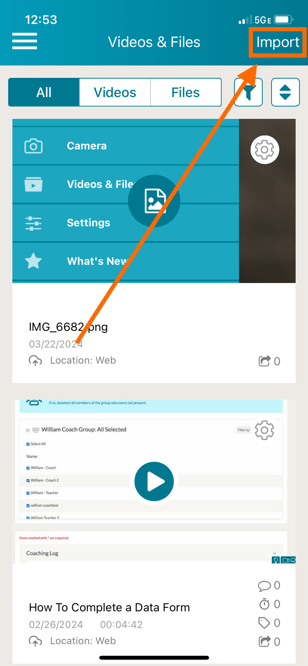
Keep the mobile app open until the upload completes. Until your video has completed the upload process, the TORSH Talent mobile app must sustain a strong WiFi connection. Make sure that the progress percentage reaches 100% and that the video's status changes to 'Location: Mobile & Web' or 'Location: Web.'