
With the 'Branching' Data Form Template type, you can enable branching logic answer choice pathways based on the answers selected. These pathways can allow for more complex answer structures in your data forms, leading your participant to answer specific follow-up questions in response to the answers they choose.
For example, you might want a specific follow-up question to appear if a participant answers checks off specific criteria. Or maybe you'd like to provide follow-up questions if a participant selects 'Other' as an answer choice. Branching logic allows this process to flow seamlessly when filling out your form!
NOTE: You can only create one component with Branching Logic enabled per Section of a Data Form/Rubric Template.
-
To allow for branching logic in your data form template, first open your template and change your Data Form Type in the top, left-hand corner of the form to 'Branching.'
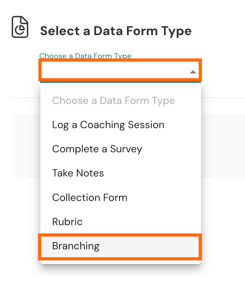
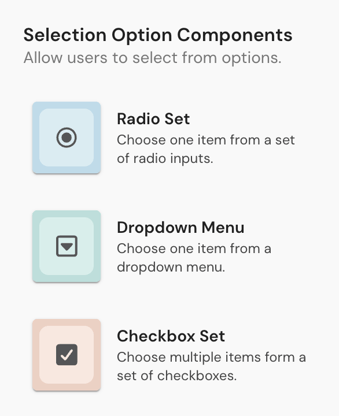
- Next, add a Selection Option component. Selection Option Components that can use Branching Logic include the following components:
- Radio Set
- Dropdown Menu
-
Checkbox Set
-
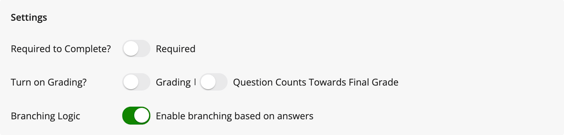
Then select 'Enable branching based on answers' within that component's settings. Only one component can be enabled for branching logic within a Section at a time.
-
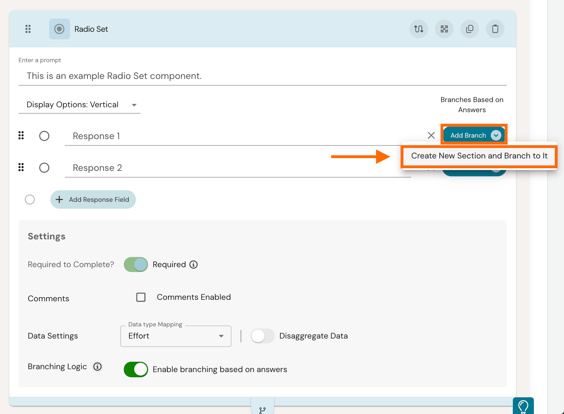
Doing so will reveal an 'Add Branch' button beside each answer choice within your component, wherein you can create a branch from that specific answer choice. To add a branch, click 'Add Branch' and then click either 'Create New Section and Branch to it' or 'Branch to Section' to choose from one of your existing branches, if you have already created one.
-
When you select 'Create New Branch and Branch To It,' a new Branching Section will be created below your branching component. Here you can add a component to branch to by clicking 'Add Component,' and you will be given the option to choose a follow-up component type to open for that pathway.
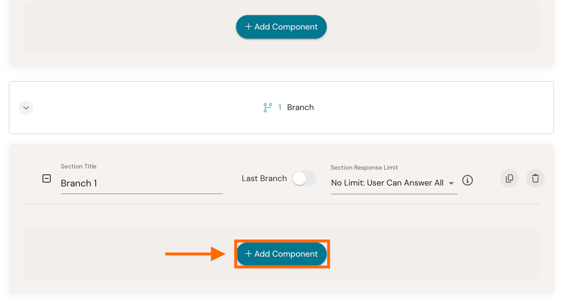
If you have a series of consecutively branched components linked to one another (ie one branching answer choice branches to a section with a component wherein its answer choice branches to another section, etc), then you need to mark the final branch in the sequence as the 'Last Branch' using the toggle in the settings of the final branching Section.

When your participant goes to complete the data form, they will at first only see the initial sections of the form. Any section past the first branching section will be hidden on another page and will remain inaccessible until the participant answers the form and clicks 'Continue.'
Answering the branching component will enable the 'Continue' button at the bottom, right-hand side of the form.
- If the participant answered an un-branched answer choice, then they will be brought to the rest of the form.
- If the participant answered a branched answer choice, then clicking 'Continue' will bring them to the branching component, and so forth until the entire form is completed.