Sharing Circles allow you to create groups of colleagues on Talent with whom you frequently share artifacts. When you share artifacts, you can opt to share your artifacts with the users in the sharing circle specifically, rather than individually typing each user’s name.
Sharing Circles can be created either from the Community page or any Share pop-up window.
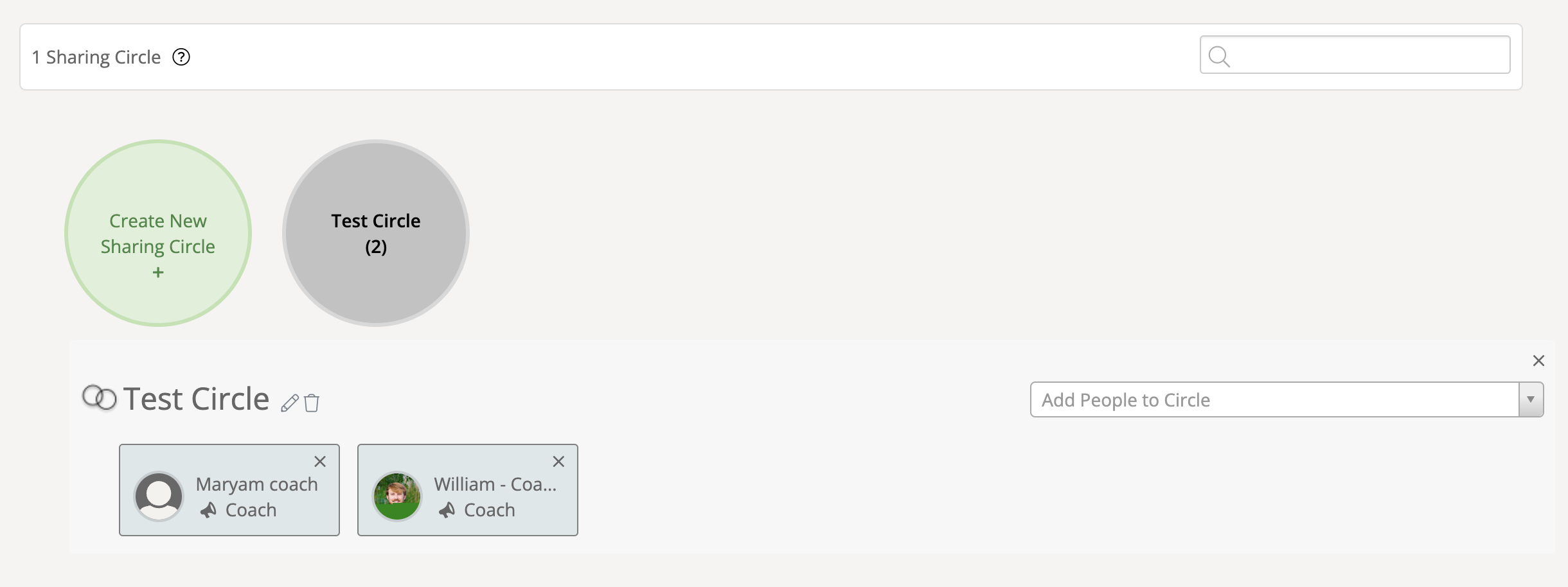
Sharing Circles in Community
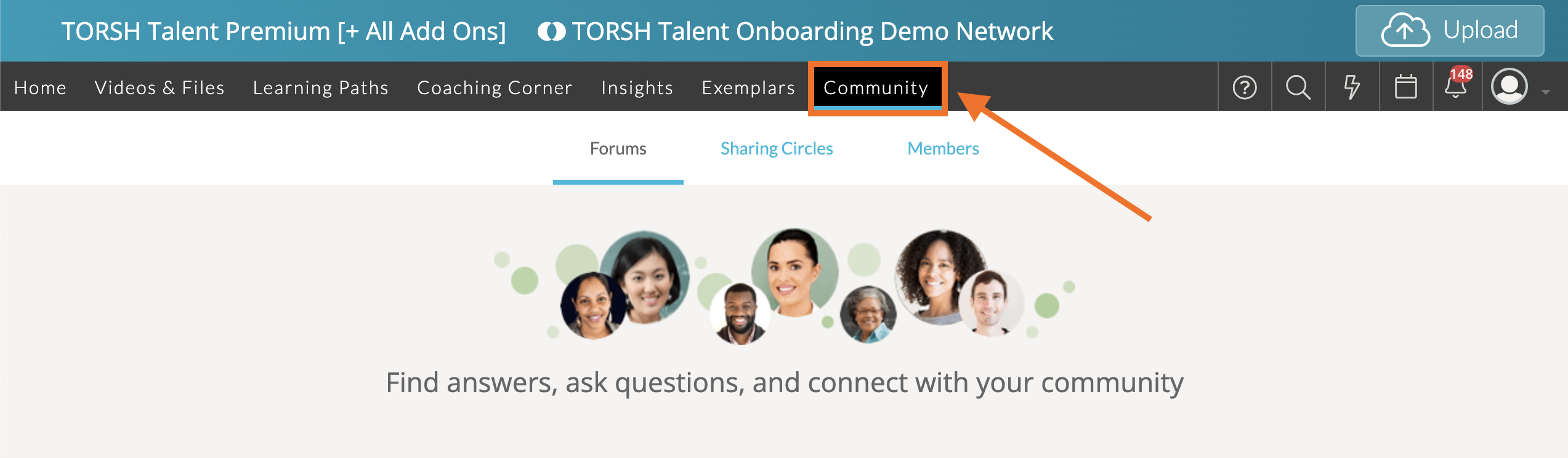
To create a Sharing Circle within Community, first navigate to the ‘Community’ page via your top navigation bar.
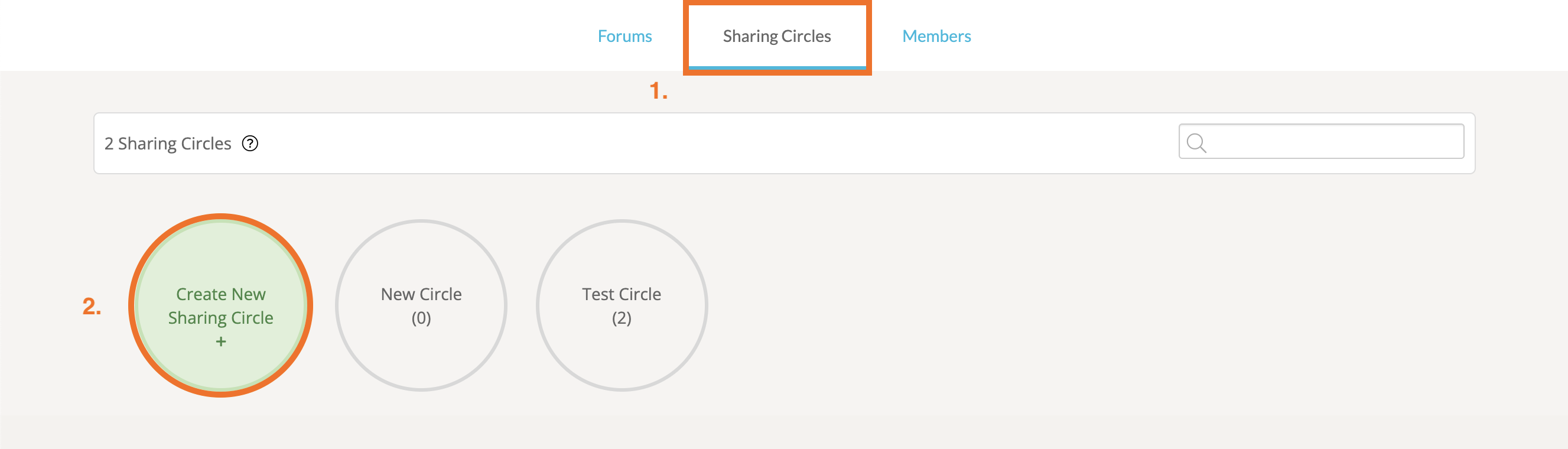
At the top of the Community page, click ‘Sharing Circles.' Then click ‘Create New Sharing Circle.’
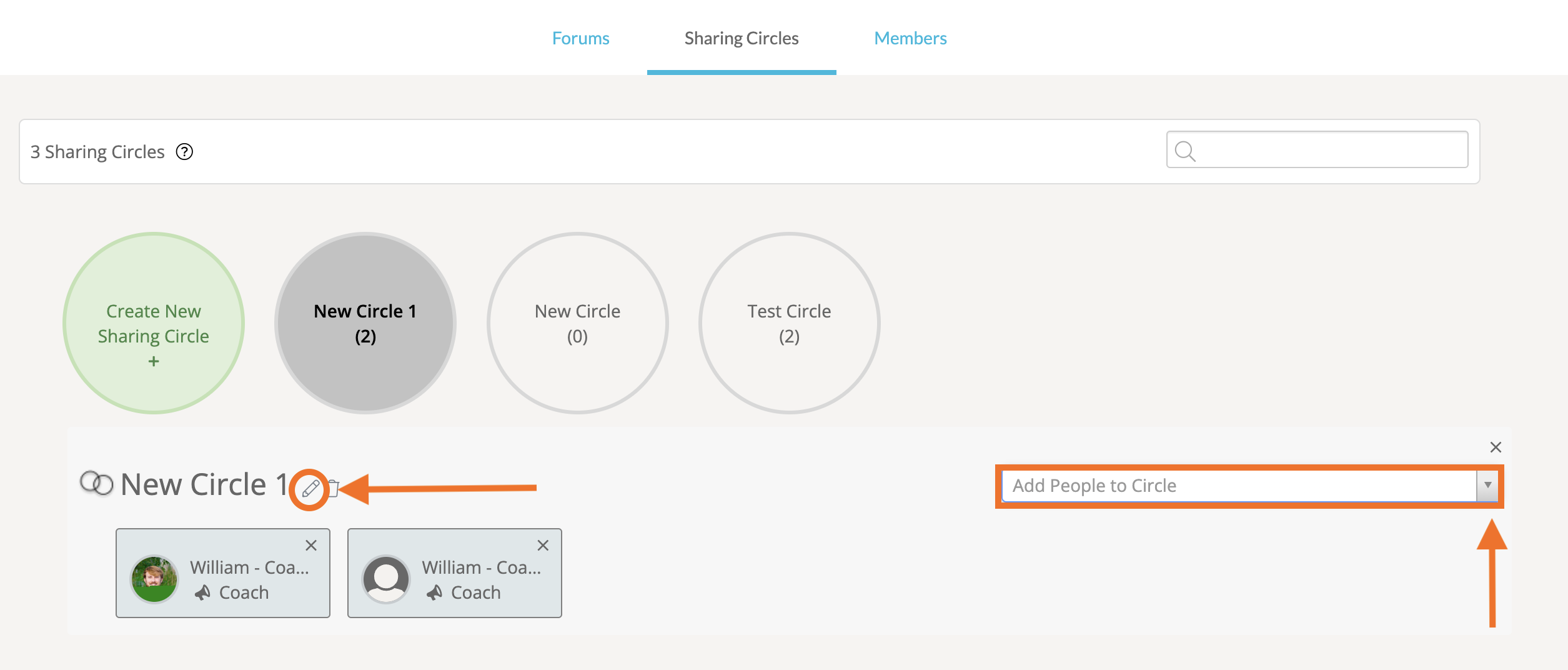
Next, click on the 'pencil icon' beside the ‘New Circle’ to edit the name of the sharing circle. Use the dropdown menu to select your colleagues to add to the sharing circle. Your changes will automatically save!
Once you are done adding colleagues, you will be able to share artifacts with this sharing circle from any Share pop-up window. You can also return to the Community page to edit your sharing circles at any time.
Sharing Circles in the Share Pop-Up Window
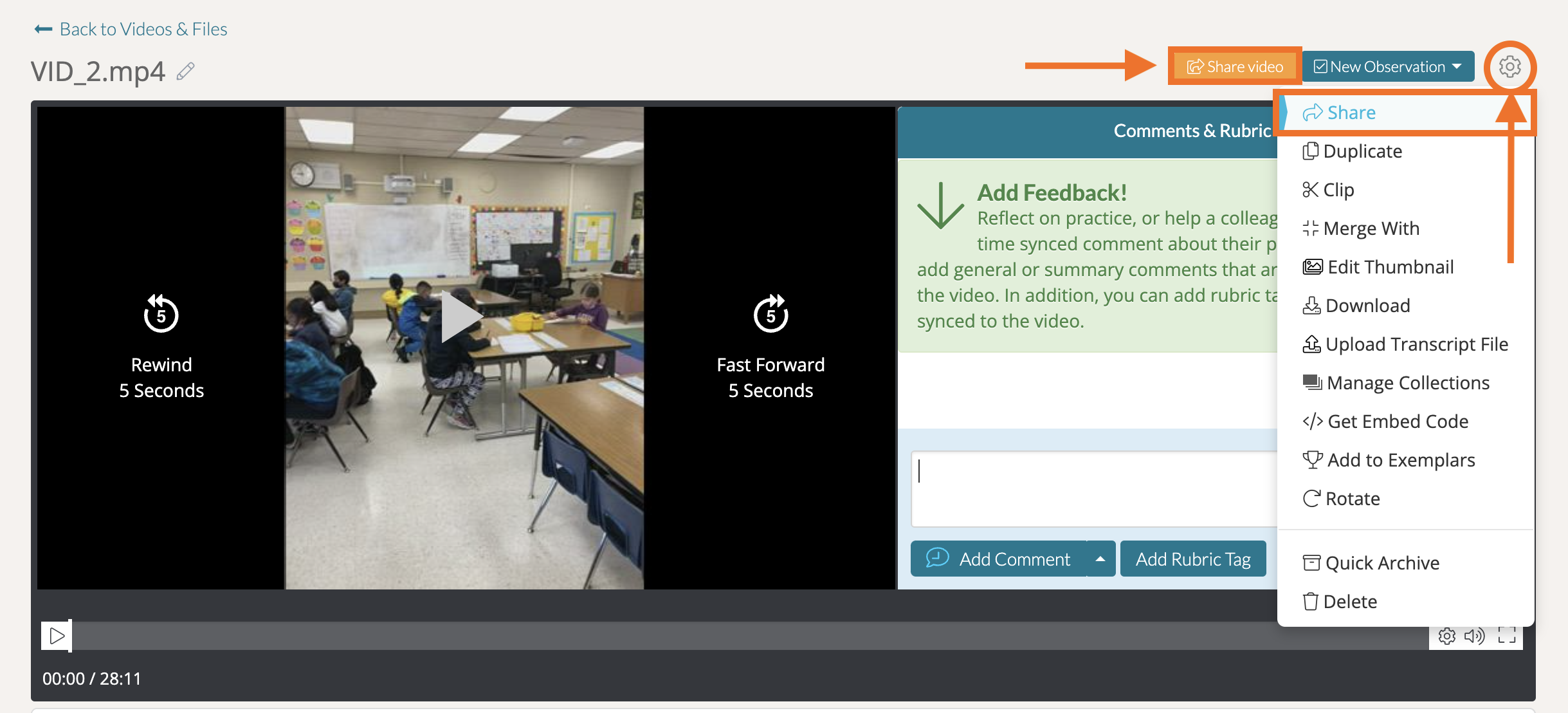
You can also create a Sharing Circle while sharing a video or file. To do so, first access a Share pop-up window by clicking the orange ‘Share’ button on any artifact's webpage or by clicking on a specific video/file's 'gear icon' in the right-hand corner and selecting ‘Share’.
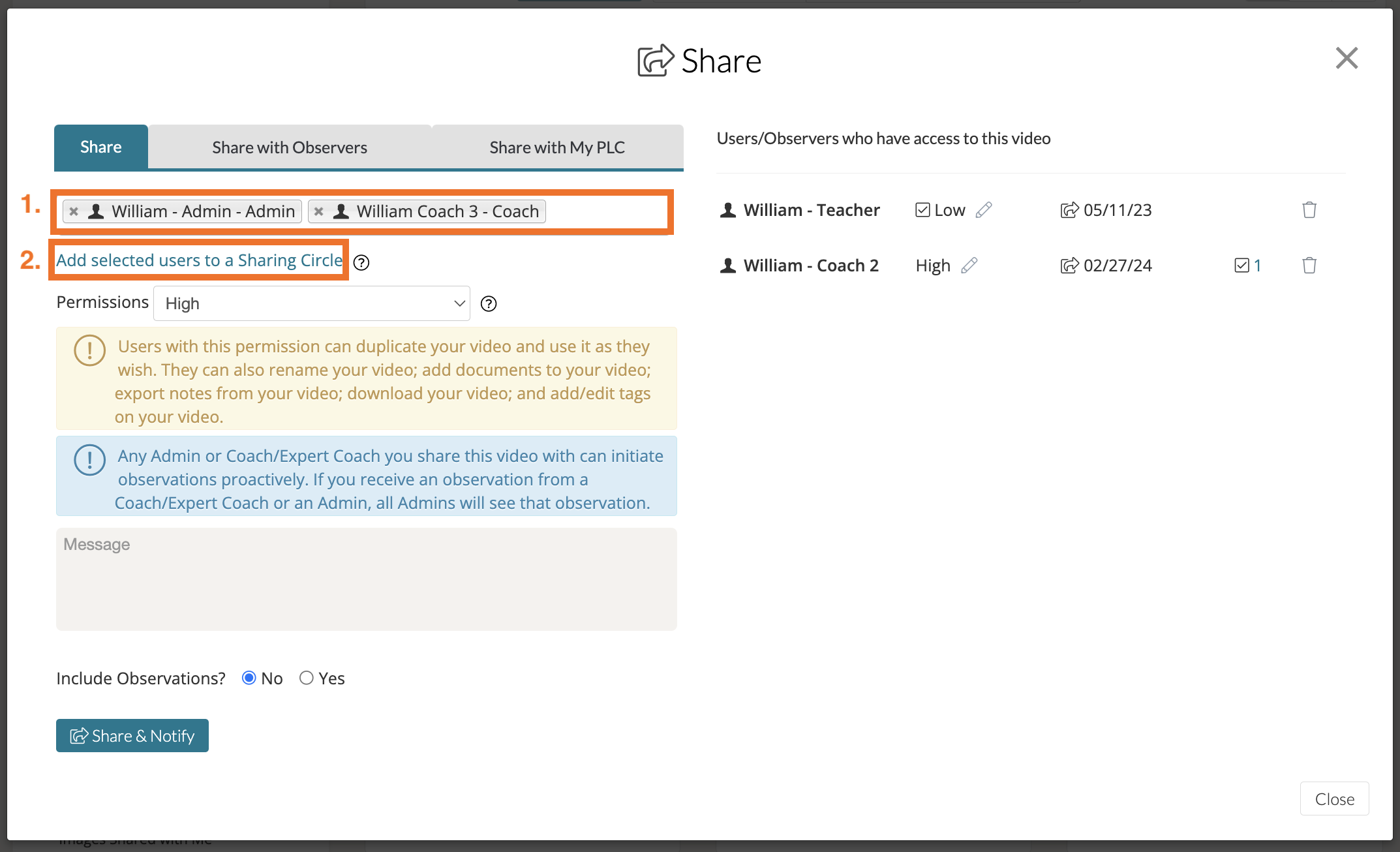
In the Share pop-up, select the names of the people you would like to add to a sharing circle. Do note that it needs to be more than one person in order to bring up the option for sharing circles.
Next, click ‘Add Selected Users to a Sharing Circle.'
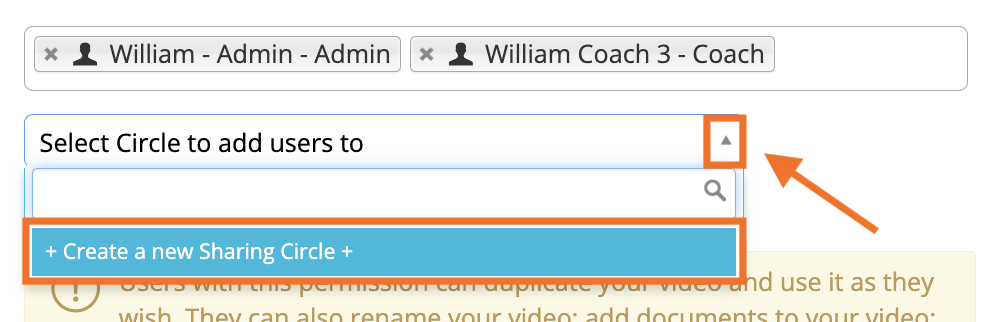
Click on the dropdown menu beside ‘Select A Circle to Add Users To' and choose ‘Create A New Sharing Circle.’
Enter the name for the new sharing circle and click the blue 'checkmark icon' when you are done.

Click ‘Share & Notify.' The next time you share a video in Talent, you will be able to select this sharing circle. You can also edit this sharing circle any time from your Community page in Talent.