
If you are unable to record in the TORSH Talent mobile app and notice a 'Bluetooth Permissions' error message, then you will need to manually enable Bluetooth Permissions for your TORSH Talent mobile app using the Settings app on your device.
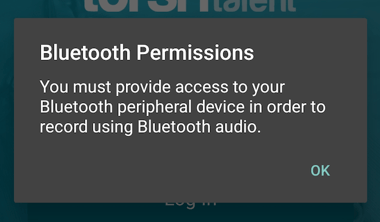
This issue typically occurs if you accidentally ignored the initial Bluetooth permission pop-up that displayed in the app upon first setup. Without it enabled for your app, you are unable to record because it is foundational for recording capability.
Please follow these steps below to enable Bluetooth Permissions for the mobile app:
- First, open your Settings app on your phone.
- In your Settings app, scroll down and tap the 'Apps' option.
- On the Apps page, scroll down and tap on the 'TORSH Talent' mobile app listing.
- On the TORSH Talent page, tap the 'Permissions' option.
- On the App permissions page, tap 'Nearby devices.'
- On the Nearby devices permissions page, tap 'Allow.'
- Close out of the Settings app and reopen the TORSH Talent mobile app, and you should be good to record moving forward!